Copy to Sites
Administrators can access the documents cart to avoid copying documents such as training documents individually across different investigative sites.
To copy documents to sites, follow the steps below:
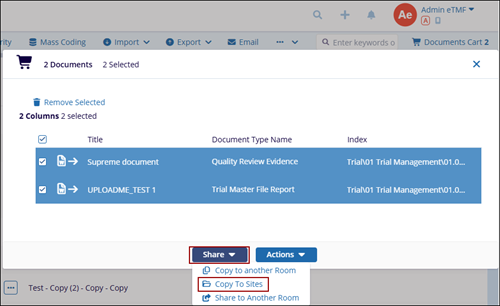
- Add the required documents to the Documents Cart and click the arrow next to it to open the Documents Cart window.
- Select the documents to copy other Investigative Sites.
- Click on the Share dropdown and select Copy to Sites option.
- On the Copy Documents to Sites window, select sites pertaining to specific criterion
by clicking on the radio buttons.
- Select All Sites option, and click on the Next button to select the folder to which the documents will be copied.
- Select Specific Sites option, and click on the Next button to select the folder to which the documents will be copied.
- Select By Country option and select a country from the dropdown options.
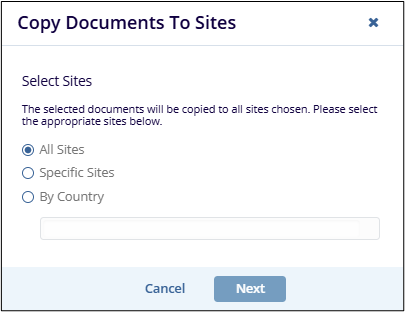
- Click on the Next button once the criterion is selected.
- Select a folder and click on the Copy button. The documents are copied to the
Site folder.

-
The Copy Documents to Sites notification message is displayed on the top right side of the screen.
- Click Get Results button.
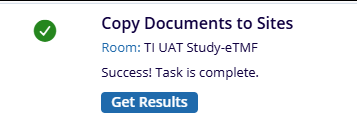
- The Job Result pop-up window is displayed with Close button.