Contacts Management
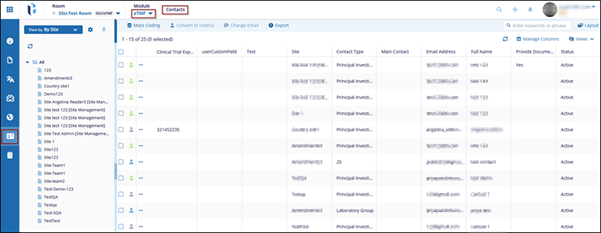
The contacts assigned to a site are shown in the Contacts modal within the eTMF module. Users with the necessary access permissions can edit contacts, apply mass coding, convert contacts into users, and export contact details and metadata.
To access the contacts modal within the eTMF module, follow the steps below.
- Click on the modules dropdown and select the eTMF module.
- From the left-hand navigation menu, select the Contacts modal.
The Contacts screen displays the contacts configured within the site and its associated
data into the following columns.
- Room Name
- Site
- Contact Type
- Main Contact
- Email Address
- Full Name
- Provide Document
- Status
To access and configure the contact views, follow the steps below.
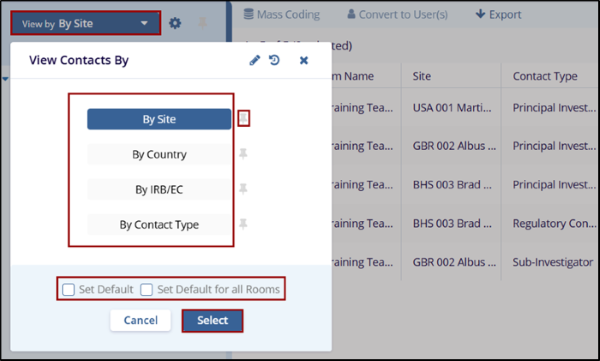
- On the Contacts screen, click on the View by dropdown.
- On the View Contacts By window, select a view by clicking on the view
name.
- By Site: Displays the contacts grouped by the site.
- By Country: Displays contacts grouped by their country association.
- By IRB/EC: Displays contacts grouped by the IRB/EC.
- Click on the pin icon to pin a view and this view is selected once user access the Contacts modal.
- Check the Set Default checkbox to set the view as a default and Set Default for all Rooms to apply the view to all rooms.
- Click on the Select button once the desired view is selected.