
Events Manager
The Event Manager module within the eTMF platform allows users to plan, track, and manage key events throughout a clinical trial's lifecycle. It enables users to create, categorize, and monitor both planned and unplanned events, ensuring that all necessary actions and associated documents are captured and tracked for completeness.
Key Features:
- Streamline event management by integrating with investigative sites, automating placeholder generation for event-related documents, and providing visibility into event status across the trial.
- Provide a comprehensive tool for tracking and planning clinical trial events, both planned and unplanned.
- Ensure the completeness of trial documentation by linking events to specific sites, categories, and document types, and by automatically generating placeholders for required documents.
- Facilitates proactive management of clinical trial milestones, ensuring that all necessary documentation is available and up-to-date, thereby supporting regulatory compliance and audit readiness throughout the trial.
- Click the waffle menu (navigation grid) at the top left.
- Select the Event Manager module.
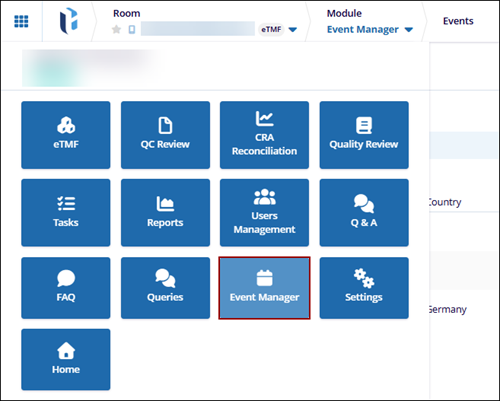
- The Event Manager module displays the following tabs within the left-hand navigation
pane.
- Events
- Documents
- Event Triggers
- Audit Trail
- The Event Manager module must be enabled at the room level by a Super Administrator to be accessible from the navigation grid.
- The Event Manager action has been added to the user’s profile via the User Management
module.
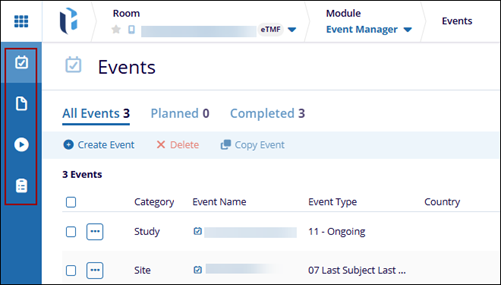
The Events section provides an organized view of all scheduled and completed events within the system. It includes filtering options for different event statuses such as All Events, Planned, and Completed.
Before creating a specific event in the system, ensure the event type has been created. If your room has pre-populated event types based on the system's default settings or milestones cloned from another room, the user can use those. However, there may be instances where creating a custom event type is necessary.
Users can access Events by selecting Events in the menu bar on the left-hand navigation pane.
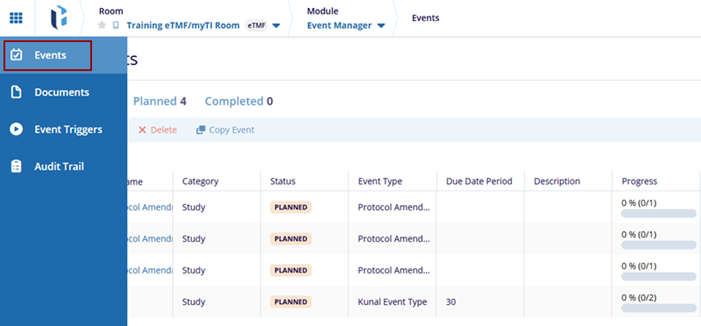
Access the Events, any previously created events should be displayed in the window.
Double-click on the Event to modify. The Event detail page will open. The event profile has three tabs:
- All Events: This tab includes the event name of the all status, any impacted sites or countries, event type, etc.
- Planned: This tab displays the planned events, with the event name, event type, planned date etc.
- Completed: This tab displays the completed events, with the event name, event type, completed date etc.

