Documents Events
The Documents tab in the Event Manager module provides a structured interface to manage, track, and organize documents associated with events. It enables users to manage placeholders and upload documents to existing placeholders along with the other functions.
To access the documents tab within the Event Manager module, follow the steps
below:
- Navigate to the Event Manager module.
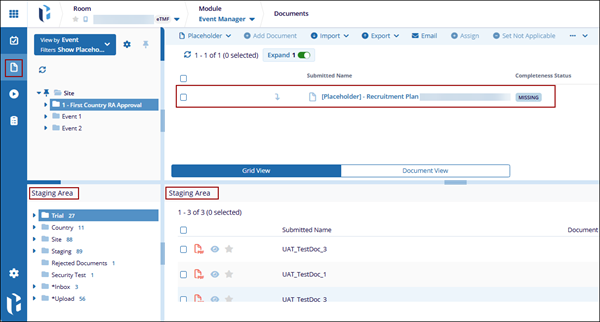
- Select the Documents tab from the left-hand navigation pane.
- The top section displays placeholders generated for events, grouped based on the selected view.
- The bottom section represents the Staging area, which displays folders and documents available within the room.
Document Grid View
To configure the documents grid view, follow the steps below:
- Access the Event Manager module and navigate to the Documents tab.
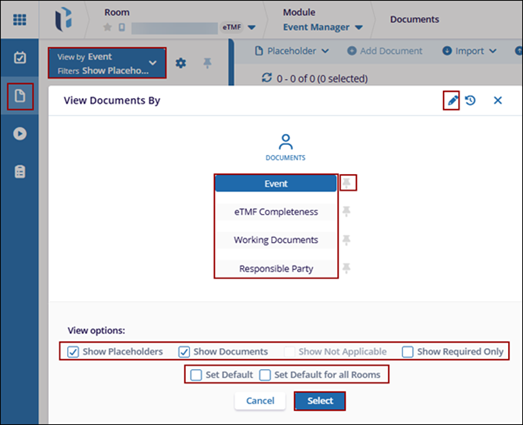
- Click the View By dropdown.
- Select any one of the views from the below list:
- Events
- eTMF Completeness
- Working Documents
- Responsible Party
- Select the following View Option filters by selecting their checkboxes.
- To configure the selected view as default, choose one of the following options:
- To configure the View Queries By name, click the pencil icon and modify the name.
- Click the ‘pin’ icon to pin the view.
- Click ‘Select’ once the view and filters are selected.