
Export
Explore Job Aids for more help:
Job Aids
The Export function allows users to export either selected or all documents that are currently present in the grid. Like the Import function, this export can export documents, metadata, or both. Users with sufficient access will be able to export security and audit trial information
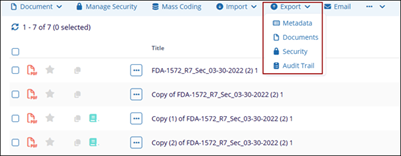
Export Documents and Metadata
Trial Interactive provides two export functions. This specific function applies to the documents currently displayed in the grid. To export documents from multiple locations simultaneously, add them to the Documents Cart and perform the export from there.
Similar to the Import function, this export supports exporting documents, metadata, or both. Users with the appropriate permissions can also export security and audit trail information.
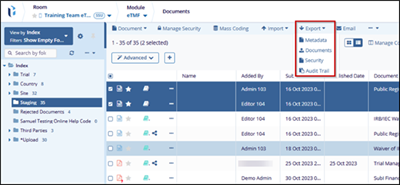
A metadata-only export provides a faster and more efficient method for retrieving information about a subset of documents within a study room compared to running a corresponding report.
To Export metadata, follow these steps:
- Locate the documents whose metadata should be exported.
- Check the box next to each document to be exported.
- Click the Export button and choose Metadata
- The Export Metadata window will open.
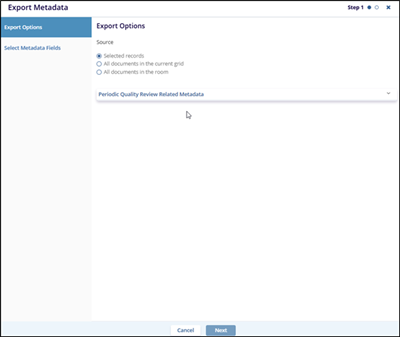
- The Export Metadata window will open.
- Choose from the Source options:
- Selected records
- All documents in the current grid
- All documents in the room
- Choose whether or not the export should include Quality Review (audit) related
Metadata.
- If you choose to export Quality Review metadata, indicate whether all information should be provided or only the information from the most recent audit.
- Press Next.
- Choose which metadata fields should be included in the export.
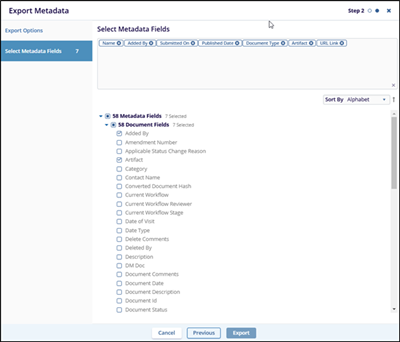
- Press Export.
To Export Documents, follow these steps:
- Locate the documents to be exported.
- Check the box next to each document to be exported.
- Click the Export button and choose ‘Documents
- The Export Documents window will open.
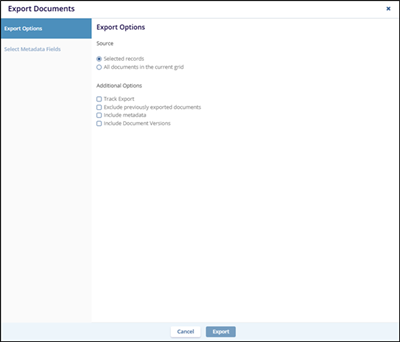
- The Export Documents window will open.
- Choose from the Source options:
- Selected records
- All documents in the current grid
- Choose from the available options (these options will vary depending upon user
access rights).
- Track Export
- Exclude previously exported documents
- Include Metadata
- Include Document Versions – This option will export all versions of a document to which the user has access. Reader-level users can only export the current effective version.
- If you have chosen to include metadata, choose whether or not the export should
include Quality Review (audit) related Metadata.
- If you choose to export Quality Review metadata, indicate whether all information should be provided or only the information from the most recent audit.
- Press Export or Next depending on whether or not you opted to include
metadata.
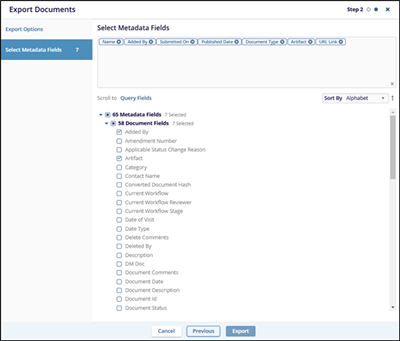
- If the user opted to include metadata, choose which metadata fields should be included in the export
- Press Export, to export the data.
To Export security information, follow these steps:
- Locate the documents whose information should be exported.
- Check the box next to each document to be exported.
- Click the Export button and choose Security.
- The Export Security window will open.
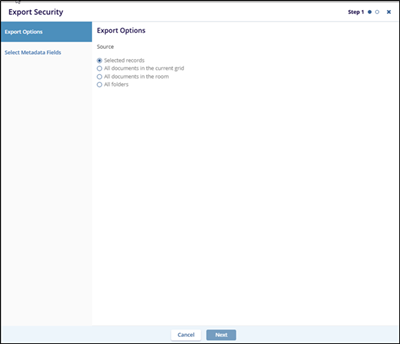
- Choose from the Source options:
- Selected records
- All documents in the current grid
- All documents in the room
- Press Next and choose which metadata fields should be included in the export.
- Press Export to export the data.

