
Actions
To perform individual user-related actions, follow the steps below.
Suspend (Disable User)
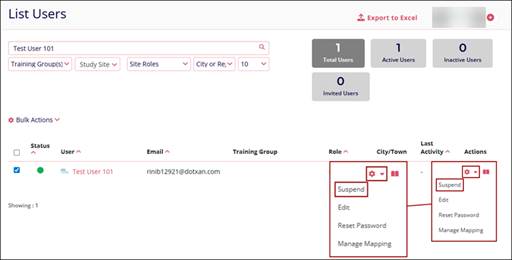
- Click on the Actions dropdown of an Active User.
- Select the Suspend option.
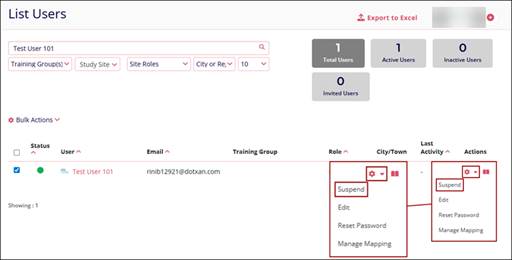
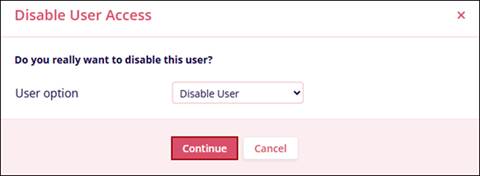
- On the Change User Access screen, click on the User option dropdown and select the Disable User option.
- Click on the Continue button.
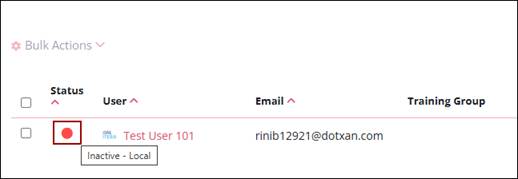
- The Status column will be highlighted with a red dot indicating the user is
inactive.
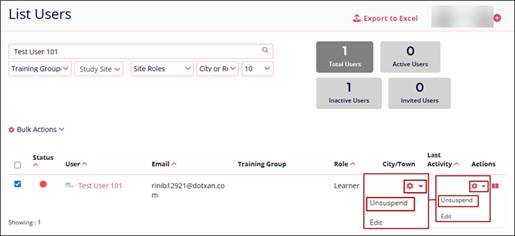
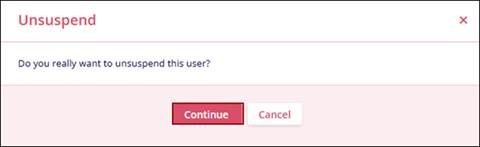
- To activate the user, click on the Actions dropdown and select the Unsuspend
option.
- Click on the Continue button on the confirmation pop-up.
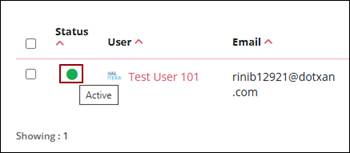
- The user will be highlighted with a green dot indicating their active status.
Suspend (Users Training)
- Click on the Actions dropdown of an Active User.
- Select the Suspend option.
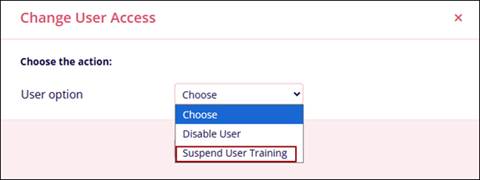
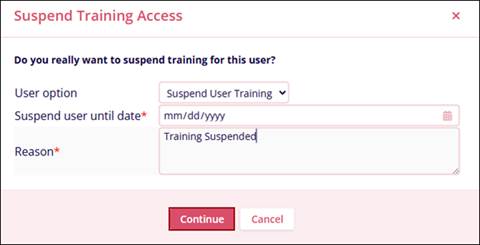
- On the Change User Access screen, click on the User option dropdown and select the Suspend
User Training option.
- On the Suspend Training Access screen, enter a date till which the user's training will remain suspended, and the reason justifying the suspension.
- Click on the Continue button.
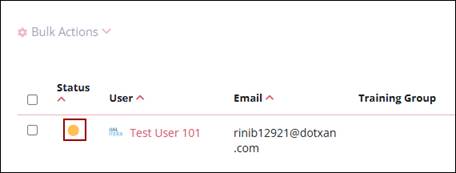
- The status column will display a yellow dot indicating the user's training is suspended
till the date specified.
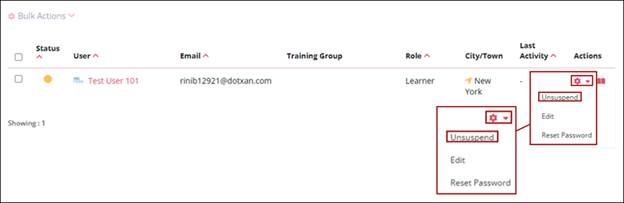
- To unsuspend users' training, click on the Actions dropdown and select the ‘Unsuspend’
option.
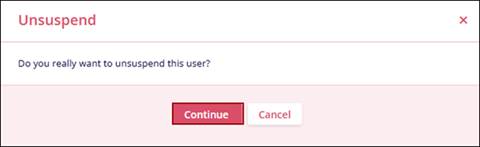
- Click on the Continue button on the confirmation pop-up.
Edit
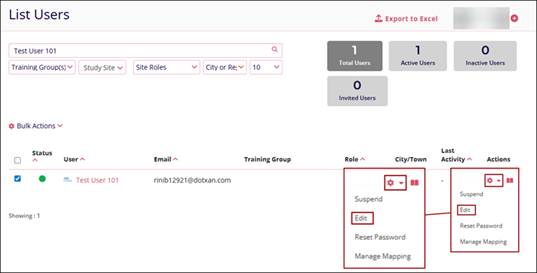
- Click on the Actions dropdown of a user
- Select the Edit option.
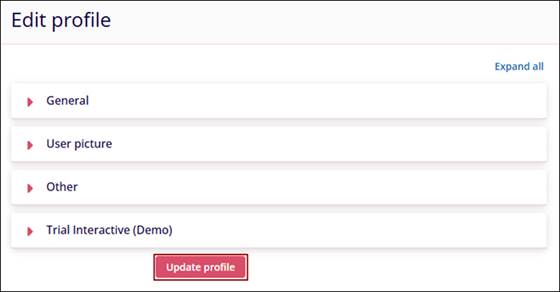
- Make the required changes on the Edit profile screen and click on the Update
profile button.
Reset Password
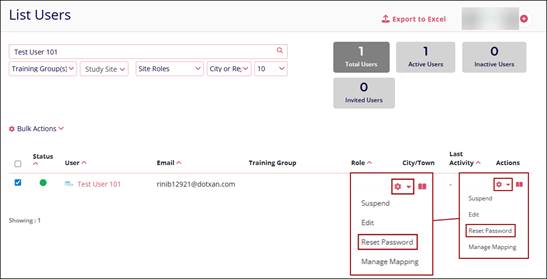
- Click on Reset Password from the Actions Dropdown
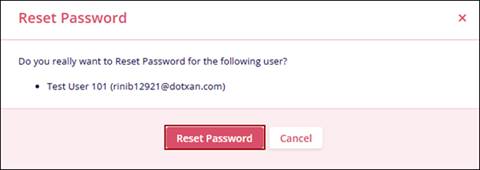
- Click on the Reset Password button on the Reset Password screen.
Manage Mapping
- Select Manage Mapping from the Actions Dropdown.
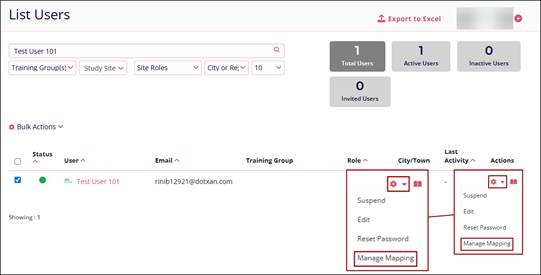
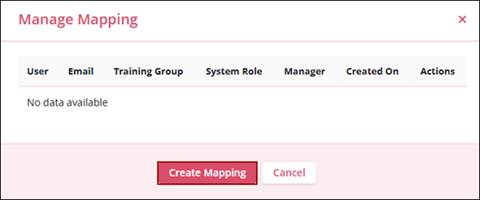
- On the Manage Mapping screen, click on Create Mapping.
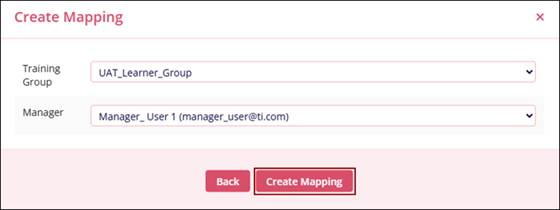
- Select a Training Group and then a manager from the dropdown options.
- Click on the Create Mapping button.
Note:
When a training group is selected, only users with the Manager role associated with that group are displayed.
Re-invite Users
- Click on the Actions dropdown of an Invited User.
- Select the Re-Invite option.
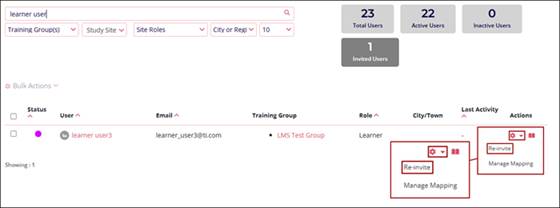
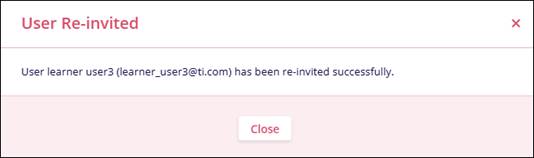
- The User Re-invited screen displays the message of successfully sending the activation
link to the user.

TransPerfect’s Trial Interactive is an industry leader in practical, global eClinical innovation
PRODUCTS
 Linkedin
 X
X
Didn’t find what you need?
Our dedicated Project Management and Client Services team will be available to meet your needs
24 hours a day, 7 days a week.
Toll Free:
(888) 391-5111
help@trialinteractive.com
© 2025 Trial Interactive. All Rights Reserved

