
More Actions
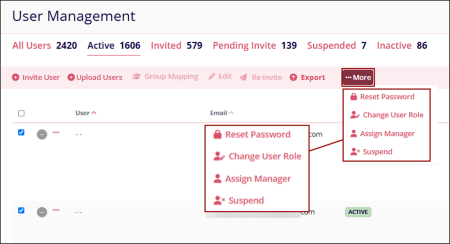
The more actions feature enables Admin users to apply a selected action to multiple users simultaneously.
To perform the bulk actions, follow the steps below:
- Select multiple users on the User Management page and click on the ‘…More’ dropdown.
- Depending upon the user's status, the dropdown displays the options accordingly.
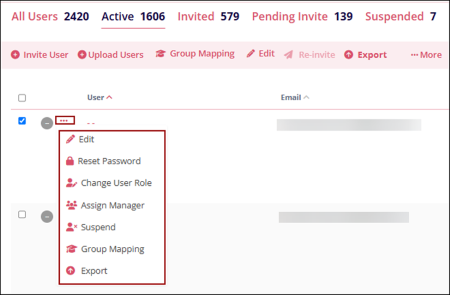
- To perform these actions for individual users, click on the horizontal ellipsis
dropdown and select the required option.
Reset Password
The Reset Password option sends an email notification to users with a link to reset their password. This option is available only for users with an Active or Suspended status.
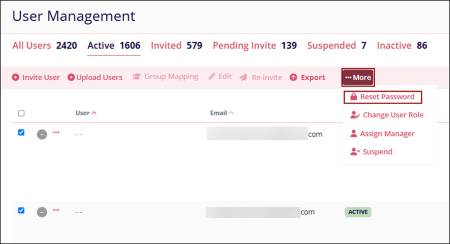
- Select one or multiple users from the User Management page.
- Select ‘Reset Password’ from the ‘…More’ dropdown.
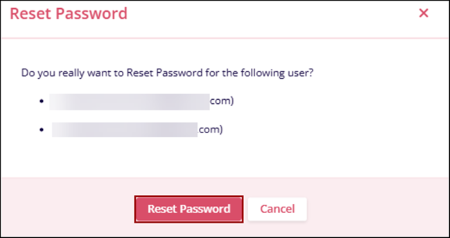
- Click on the Reset Password button on the Reset Password pop-up.
Assign Manager
The Assign Manager option allows Admin users to map learner users to their respective manager users. This option is available for all users in the system.
- Select one or multiple users from the User Management page.
- Select the ‘Assign Manager’ option from the ‘…More’ dropdown.
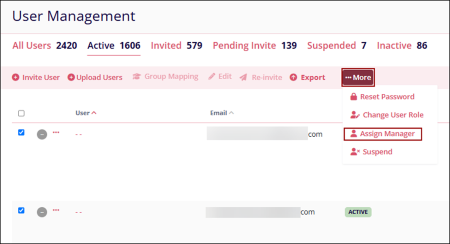
- On the Assign Manager window, select one or multiple users and click on the
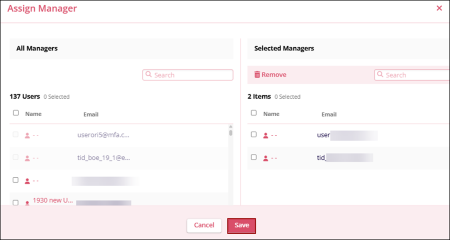
‘+ Add (number) Users >’ button.
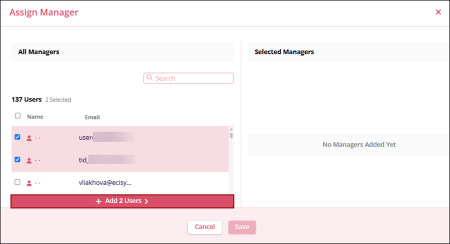
- Click Save.
Suspend
The Suspend option allows Admin users to temporarily pause a user’s training for a defined period or to locally disable the user’s account.
- Select one or multiple users from the User Management page.
- Select the ‘Suspend’ option from the ‘…More’ dropdown.
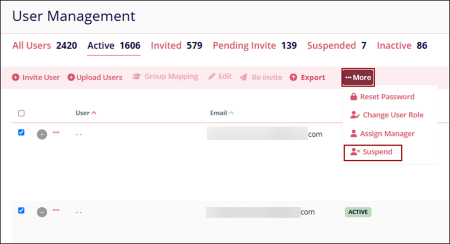
- On the Change User Access window, click on the dropdown and select any one
of the following options.
- Disable User.
- Suspend User Training
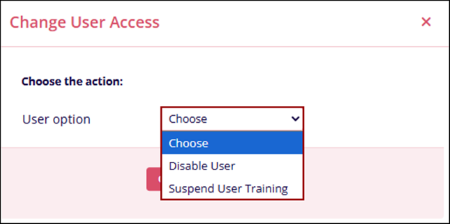
- If Disable User is selected, click on the ‘Continue’ button.
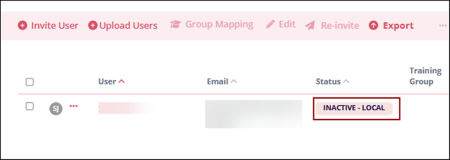
- Once disabled, the user displays the status of ‘Inactive-Local’
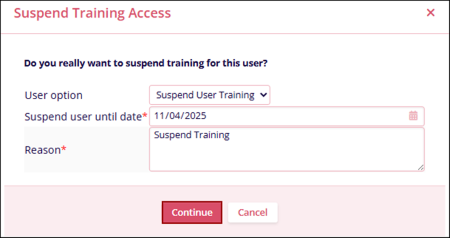
- If Suspend User Training is selected, specify a suspension reason and an end date indicating how long the training will remain suspended.
- Click on the ‘Continue’ button.
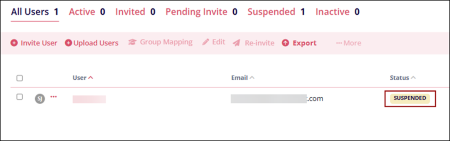
- Users with suspended training are displayed with the ‘Suspended’
status.
Unsuspend Users Training
To unsuspend users' training, follow the steps below:
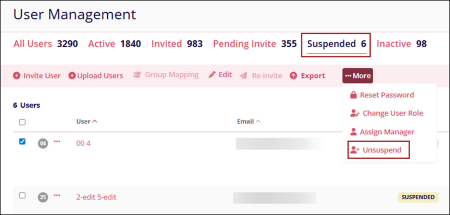
- Select a user from the ‘Suspended’ tab and click on the ‘…More’ dropdown.
- Select the ‘+Unsuspend’ option.
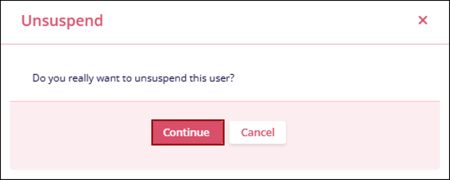
- Click ‘Continue’ on the confirmation pop-up.
Activate User
To activate a user, follow the steps below.
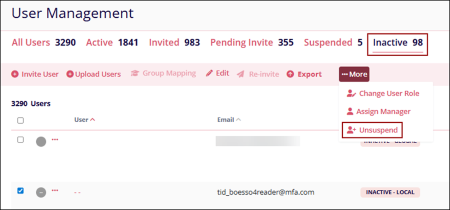
- Select a user with ‘Inactive-Local’ status from the ‘Inactive’ tab.
- Click on the ‘…More’ dropdown and select the ‘+Unsuspend’ option.
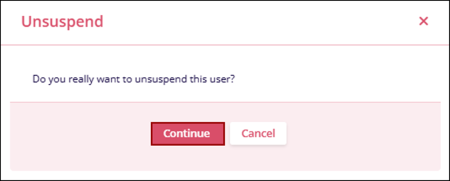
- Click ‘Continue’ on the confirmation pop-up.
Release Invite
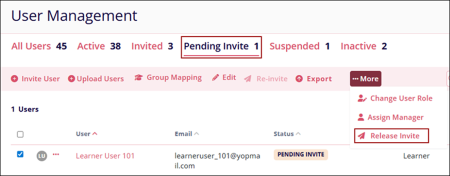
To release an invite and trigger registration email notifications to the users, follow the steps below:
- Select a user(s) with ‘Pending Invite’ status.
- Click on the ‘…More’ dropdown and select the ‘Release Invite’
option.
- The ‘Release Invite’ pop-up displays the success message.
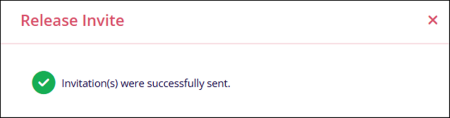
- Once the invite is released, the user receives the registration email.
Change User Role
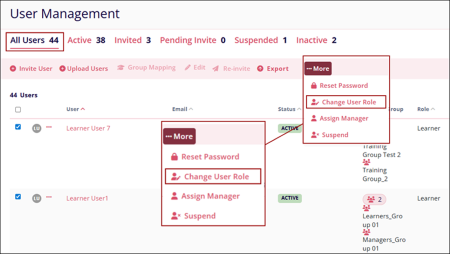
To change the user role, follow the steps below.
- Select user(s) and click on the ‘…More’ dropdown.
- Select the ‘Change User Role’ option.
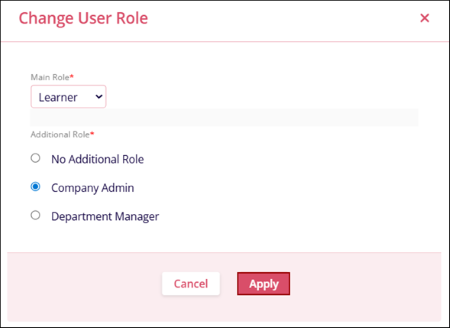
- Mandatorily select a user role from the ‘Main Role’ dropdown.
- Select any one of the following options as an additional role
- No Additional Role
- Company Admin
- Department Manager
- Click on the ‘Apply’ button.
© 2025 Trial Interactive. All Rights Reserved

