Tasks
Within the Tasks tab, users can perform actions such as creating, editing, deleting, and exporting tasks. Additionally, the tab can be customized by selecting different views and configuring which columns are displayed in the grid.
View Documents By
To choose and apply a view, follow the steps below:
- Navigate to the Documents tab within the Tasks module.
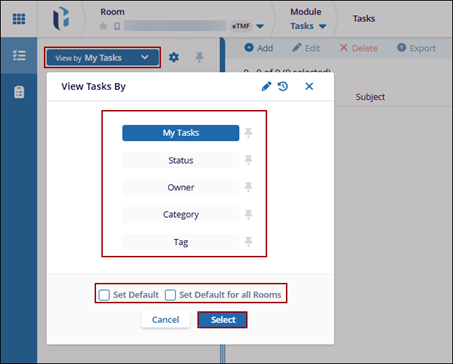
- From the top of the Index panel, click the View Documents By dropdown menu.
- Select the eTMF Completeness view.
- Select a view based on the requirements.
- My Tasks
- Status
- Owner
- Category
- Tag
- Select the Set Default checkbox to designate the chosen view as the default.
- Select the Set Default for all Rooms checkbox to apply the selected view as the default across all rooms.
- Click Select.
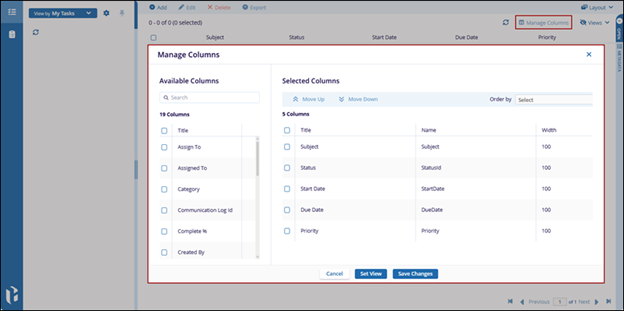
Manage Columns
The Task section can be customized with the Manage columns allows users to customize the columns that appear in a data table and the Layout provides users with different data viewing options. The choice of layout can help enhance user experience by making the data available to navigate.
Refer to the Manage Columns section from the eTMF module for more information.