Create an Event
To create an event, follow the steps below:
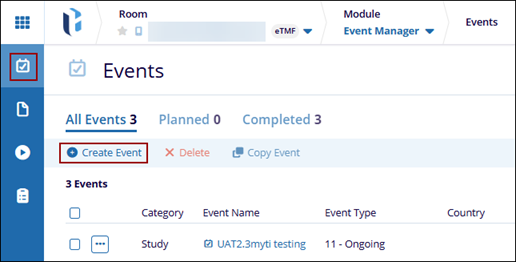
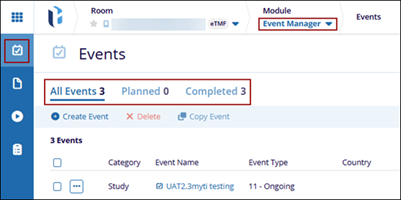
- Navigate to the Event Manager module and click the Events tab from the left-hand navigation pane.
- Click the Create Event button from the top menu bar.
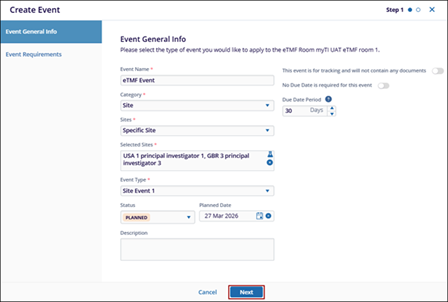
- On the Create Event form, add the following details within Step 1: Event General
Info.
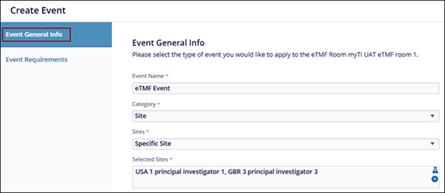
- Event Name*: Enter the name of the event.
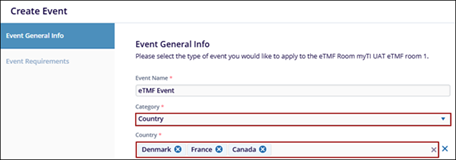
- Category*: Choose the event category (Study, Site, or Country) from the dropdown list.
- Sites*: Available when Site is selected as the category. Select from
Specific Site, All Sites, or Specific Country.
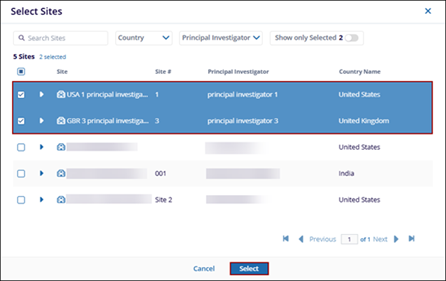
- Selected Sites*: Available when Specific Site is selected. Click the
beaker icon to choose the required sites.
- Country*: Available when Country is selected as category. Select one or
multiple countries from the dropdown list.
- Event Type*: Select the appropriate event type from the dropdown.
Depending upon the category selected the event type list populates
accordingly.
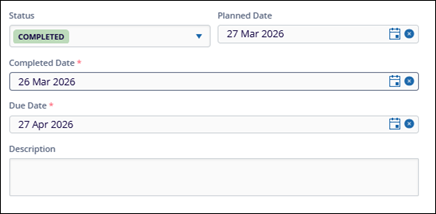
- Status*: Choose the event status as Planned or Completed.Planned Date: Use the calendar icon to select the planned date.
- Planned Date: Use the calendar icon to select the planned date.
- Completed Date*: Available when the status is Completed. Select the completion date using the calendar.
- Due Date*: Available when the status is Completed. Select the due date using the calendar.
- Description: Provide a brief description of the event.
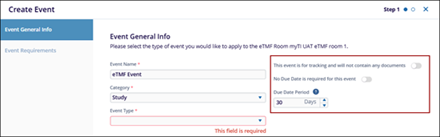
- This event is for tracking and will not contain any documents: Enable this toggle to allow adding document types to the event.
- No Due Date is required for this event: Enable this option to make the due date field optional and display the due date period field.
- Due Date Period: Available when the above option is enabled; specify the
due date period.
- Once the required details are added, click the Next button.
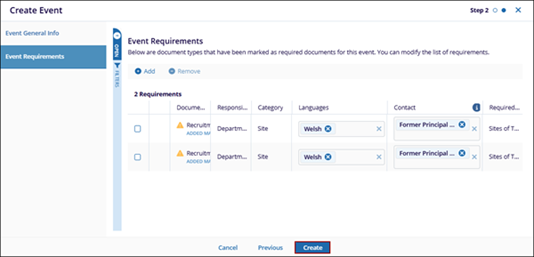
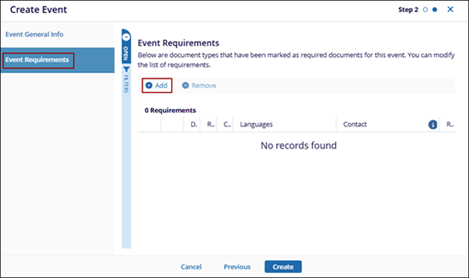
- The Event Requirements tab displays the documents marked as required for the event.
- To add additional documents, click the +Add button.
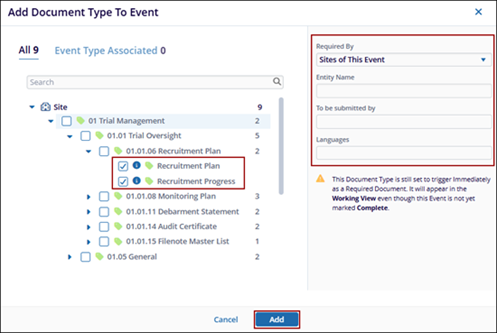
- On the Add Document Type to Event window, select the required document types.
- Additionally, add the following details:
- Required By
- Entity Name
- To be Submitted by
- Language:
- Click the Add button.
- Once the document types are added or removed, click the Create
button.