
Add Sites to Study
To add a new site to the study, follow the steps below:
- Click on a study name on the Manage Studies & Sites screen.
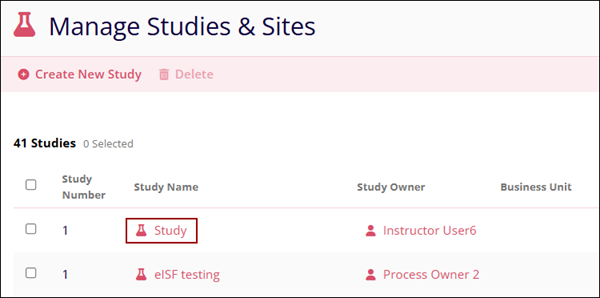
- Select the Sites tab and click on the +Add Site button.
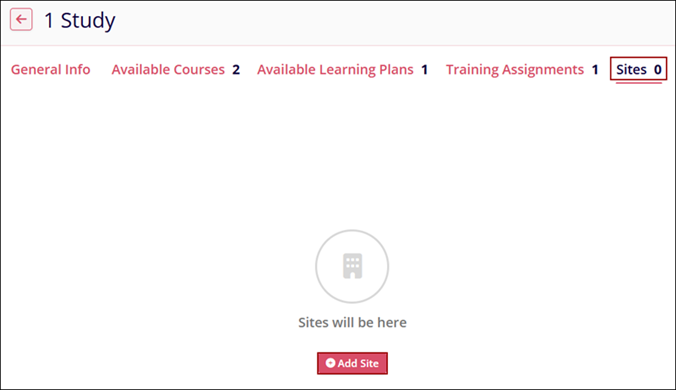
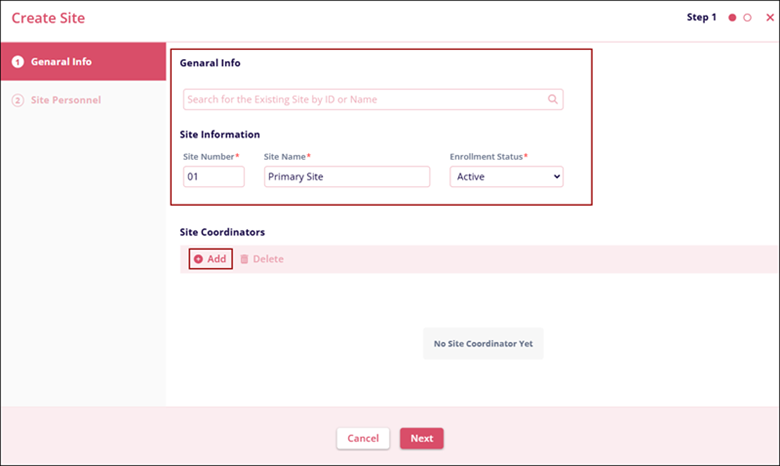
- On the Create Site form, fill in the General Info.
- Site Number*
- Site Name*
- Enrollment Status*
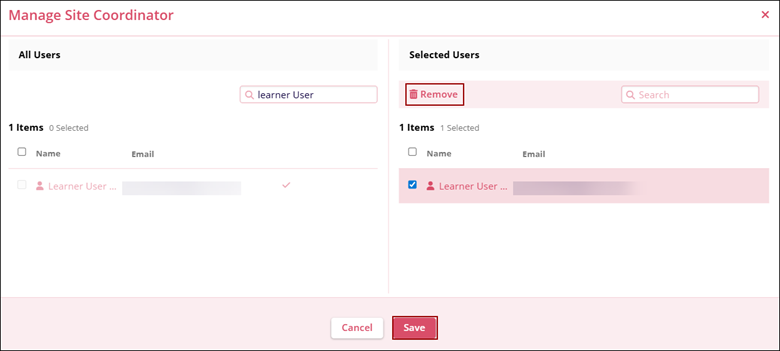
- To add site coordinators, click on the +Add button
- On the Manage Site Coordinator screen, select the required number of users from
the All Users section and click on the +Add (number of users) button.
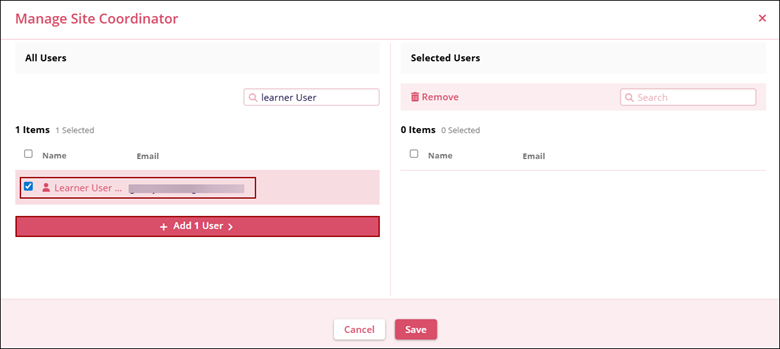
- To remove site coordinators, select the users from the Selected Users list, and click the Remove button.
- Once the required users are added or removed, click on the Save button.
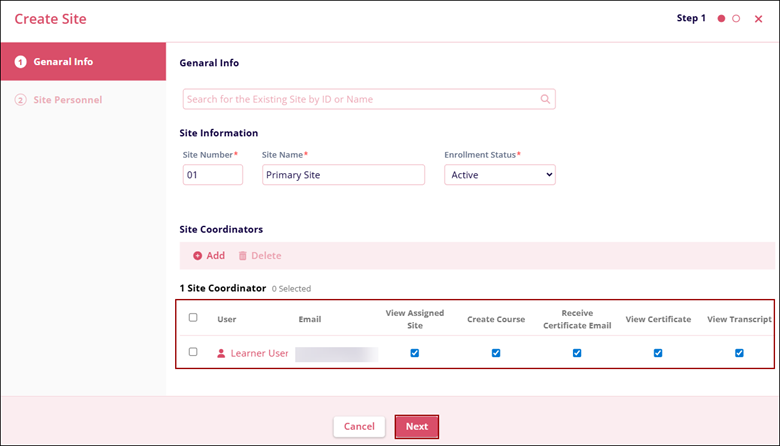
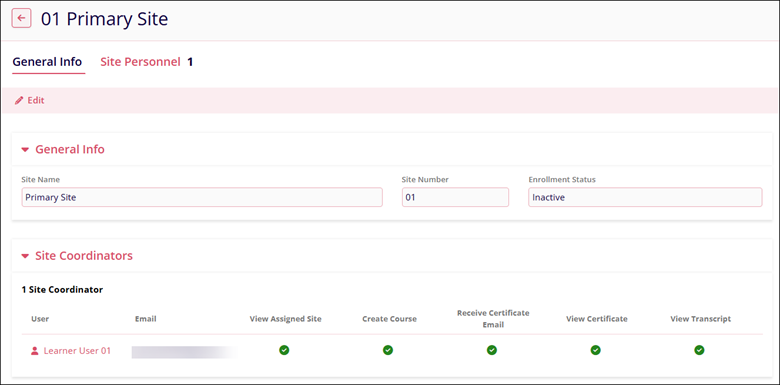
- The General Info screen, displays the Site Information and the
site coordinators added. Additionally, the site coordinators are
assigned the following permissions by default.
- View Assigned Site
- Create Course
- Receive Certificate Email
- View Certificate
- View Transcript
- Click on the Next button to configure Step 2.
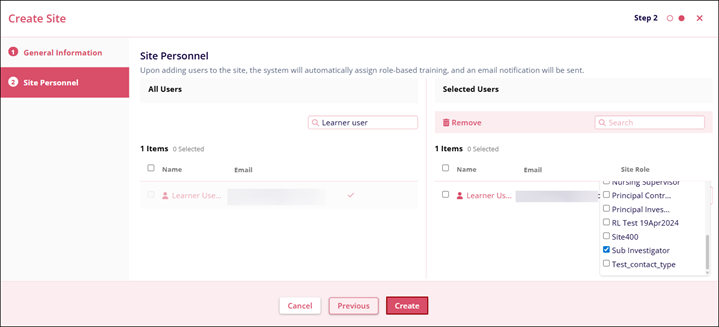
- On the Site Personnel screen, add or remove the required number of users using the Add or Remove functionality.
- Assign a site role to each user by accessing the dropdown. Refer to the Manage Site Roles section for detailed a procedure for creating a site role.
- Click on the Create button.
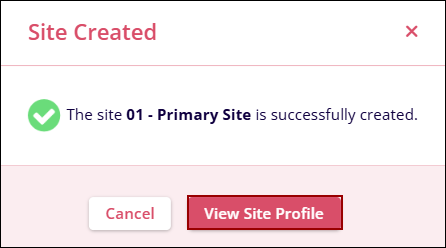
- The Site Created popup displays the confirmation message. Click on the View Site
Profile button.
- The Sites tab displays the General and Site Personnel information into the
respective tabs.
Important
- Site Personnel are automatically enrolled in a course and/or learning plan when a training assignment with the same site role, courses, and learning plans are already created.
- When a site is created with enrollment status as Inactive, no courses and/or learning plans are assigned to the site personnel.
- When the enrollment status is changed to active, the site personnel are assigned the training assignments created with similar site roles.
© 2025 Trial Interactive. All Rights Reserved

