
Publish Forms
The user can publish a form when all questions and sections are added to it. Once the form is published, the user can then send a survey to the submitter.
To publish a Form, follow these steps:
- Click the Publish button in the Form Draft page displayed at the bottom of the
screen. The Publish Form? A dialog box opens, which displays a message asking for
confirmation to publish the form along with the following form types:
- Simple Form
- Supplementary Form
- Monitoring Visit Form
- Recurring Form
- Anonymous form
- And Additional options with checkboxes
- Save form to the library
- Require attachments from recipients
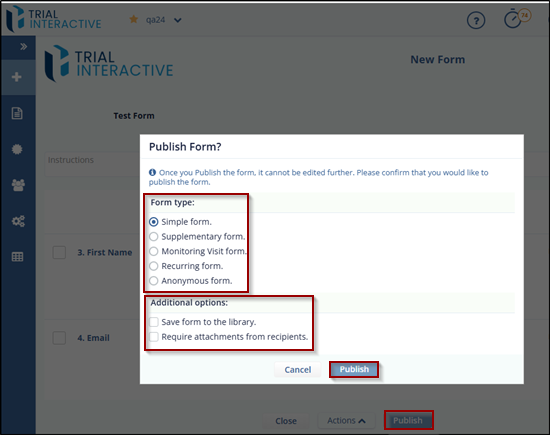
- Select the required checkbox and then click the Publish button to publish the
form.
-
The Form Statistics Page opens, which displays an overview of the form. You can also visit this page by clicking the Form Title from the Form Dashboard .
Note: The user cannot edit a form after it is published.
-
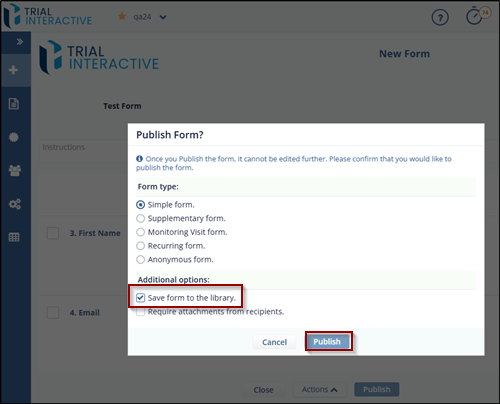
Save to Library
This allows you to save the published form to the library. You can view and open these forms to send for the response from a library. Refer to the screenshot below.
Require Attachments from Recipients
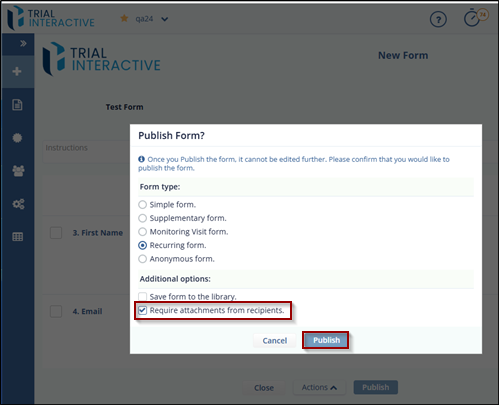
Selecting Require attachments from recipients on a Publish Form dialog box restricts the submitter from submitting the questionnaire without the attachment.
When this option is selected, the Do you want to require attachments form submitter? The checkbox is selected by default on an Email Page while sending a survey.
© 2025 Trial Interactive. All Rights Reserved

