
Cloning a Form
Cloning allows you to create a new form based on an existing one. The user can clone any form already saved to the library.
To clone a Form, follow these steps:
- Open a required project from the project dropdown, available at the top.
- Click New Form from the left-side Menu Bar. The Create New Form dialog box will appear.
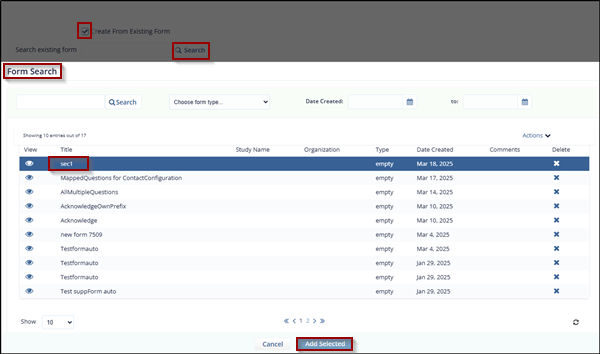
- Select the Create from Existing Form checkbox. A Search existing form textbox appears.
- Click the Magnifying Glass (Search) icon. The Form Search dialog box opens, displaying a list of existing forms.
- Enter the form title in the search box, or select a form from the list that you want to clone.
- Click the Add Selected button to copy all fields from the selected form to the new form. The Add Selected button is disabled by default and becomes active only when a form is selected.
- You are redirected to the Create New Form page. The selected form type appears in the Search textbox.
- Complete all required fields on the Create New Form page, then click Continue.
All fields from the cloned form will be added to the new form.
© 2025 Trial Interactive. All Rights Reserved

