
Add Question
Navigate to the Add Question button, located vertically on the right-hand side of the New Form screen. This action will display the Add Question panel.
The Add Question panel has three sections, as follows:
From the Library
This allows the user to select and add a question from the list of saved questions. It also allows the user to clone a question.
To add a question from the Library, follow these steps:
- Click the Add Question button located in the upper-right corner of the New Form screen.
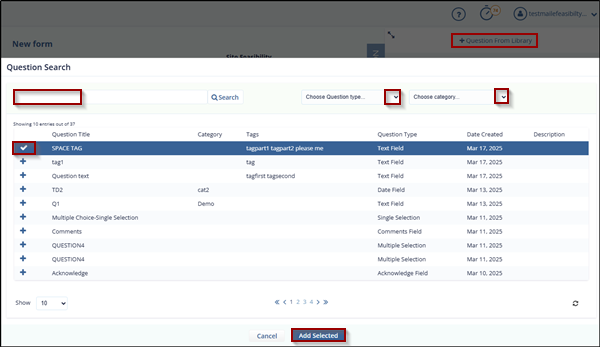
- In the Add Question tab, click the Question from Library button. A Question Search dialog box will appear, displaying a list of available questions.
- Select questions by clicking the + icon next to each desired question, then click Add Selected to add them to the form.
- You can also search for questions based on answer type and category.
Via Add Question Tab
This allows the user to add questions manually.
Question Type: Text Field: Once this field type is selected, the Content Restriction option becomes available, allowing users to define specific input rules or validation criteria for the field. This feature helps ensure that responses adhere to the expected format or range such as Alpha, Email, Phone, Phone with Extension, Number.
Content Restriction:
- Alpha: Allows the submitter to enter only letters, spaces, periods, commas, and symbols within the
specified character limit.
- Email: Allows the submitter to enter a valid email address only.
- Phone: Allows the submitter to enter a phone number in the format: XXX-XXX-XXX-XXXX.
- Phone with Extension: Allows the submitter to enter a phone number along with an extension.
- Number: Allows the submitter to enter numbers only within the specified range.
The Create Question dialog box provides an interactive interface that guides through various options and features user can associate with a question during its creation. It appears when you click the Add Question tab on the Draft Form page and includes the following components, each contributing to the configuration of a question type.
To Create question to add it in Form, follow these steps:
- Click the Add Question button located in the right-hand corner of the New Form screen.
- The Create Question section will appear in a new window.
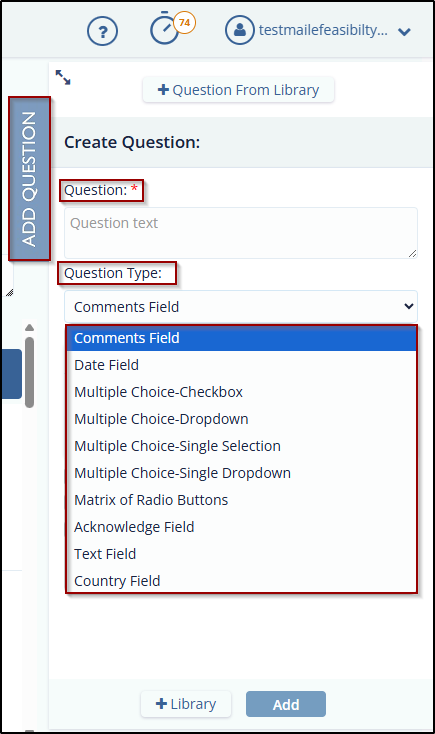
- Manually enter the question in the Question field marked with an asterisk (*), indicating it is required.
- Select a Question Type from the following options: Comments Field,
Date Field, Text Field, Country Field, Multiple Choice-Checkbox, Multiple
Choice-Dropdown, Multiple Choice-Single Selection, Multiple Choice-Single Dropdown. Note: When a form is created, the Manager can select default answers and publish it. If the submitter or end user finds the default answers incorrect, they can modify them. However, setting default options is not applicable for the following field types: Comments, Date, Acknowledge, Text, and Country.
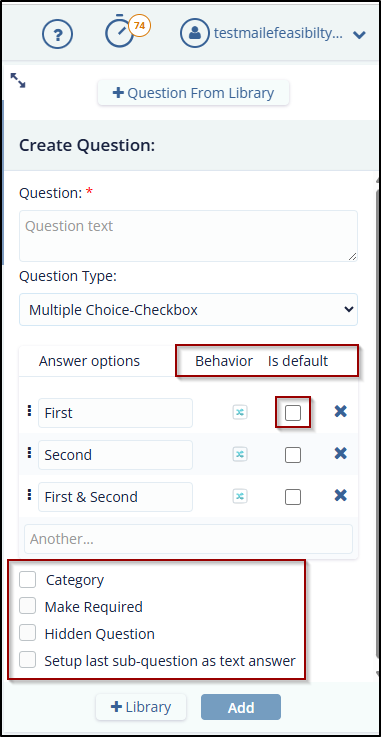
- The Answer Options section displays rows for entering possible answers, along with Behavior and Is Default columns.
- Select a Checkbox under the Is Default column for one of the options. Observe that selecting one disables the others, allowing only one default option.
- Set Additional Question Properties:
- Category: Assign a category for organizing the question.
- Make Required: Check this box if answering the question should be mandatory.
- Hidden Question: Select this option to hide the question from the end user.
- Setup last sub-question as text answer: Enable this option when you want the
final sub-question in a multi-part question to accept a free-text response. This
is useful when the last sub-question requires a detailed or descriptive input
rather than a predefined option, such as comments or clarifications.
- Click the Add button at the bottom of the window. The question will be added to the form.
- Click the Publish button located at the center bottom of the screen to finalize and publish the form.
To Library
Steps to add the question to the Library, from Create Question.
- Click the Add Question button located in the right-hand corner of the New Form screen.
- The Create Question section will appear in a new window.
- Manually enter the question in the Question field marked with an asterisk (*), indicating it is required.
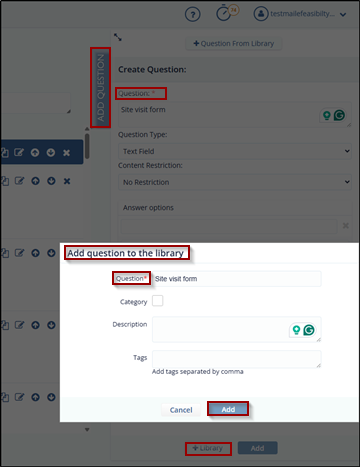
- To add the question to the library directly from the Create Question section, click the Library button located at the bottom center of the screen.
- The Add Question to Library window will appear. Fill in the required fields
and click the Add button.
© 2025 Trial Interactive. All Rights Reserved

