
Actions on Forms
There are certain actions that a user can perform on the forms before publishing them. Refer to the screenshot below.
The Form Draft page provides the following options before publishing it.
- Previewing Forms
- Test Email
- Contact Configuration
Form Preview
Preview provides an overview of the created form before publishing.
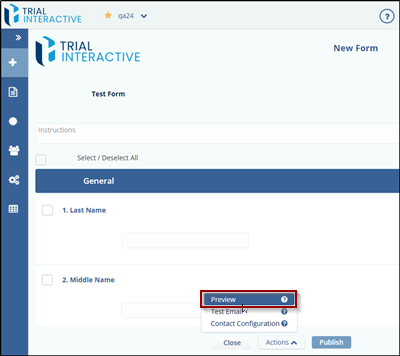
To preview a Form, follow these steps:
- Click Actions on a Form Draft page displayed at the bottom of the screen.
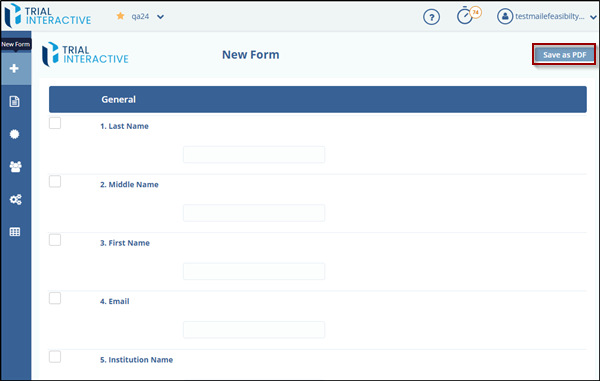
- Select Preview from the pop-up window. This will display a Form preview with all the fields in it.
- The user can also save the form by clicking the Save as PDF button from the Form Preview page
Note: The user cannot make any changes in the form while previewing.
Test Email
Test Email allows you to send a test email when a survey is created. You can send a test mail to single or multiple receivers. The template for this email is defined in Templates.
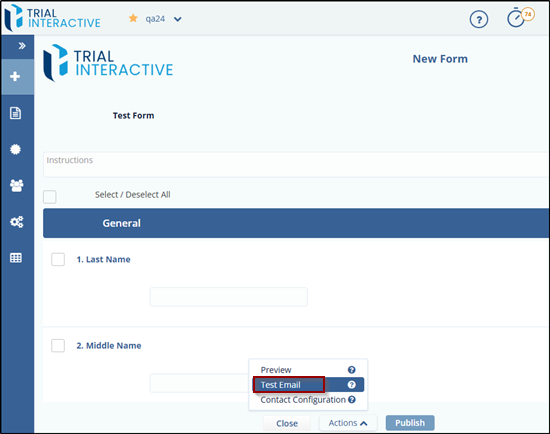
To send a Test Email, follow these steps:
- Click Actions on the Form Draft page.
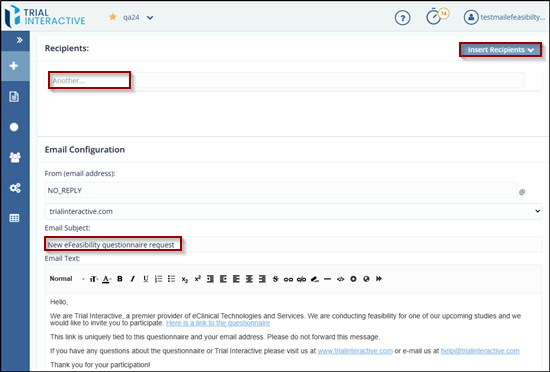
- Select Test Email from the pop-up window. This opens the Email window.
- Add Recipients and then click Send to send a Survey.
- You can also select Recipients by importing them or from Existing Contacts from the Insert
Recipients dropdown. To know more about this. Note: All test-related items will
expire within 24 hours after receiving an email.
Contact Configuration
Contact configuration allows you to map Question Types related to the Contact information with the corresponding Custom Contact Fields. When a form is sent to the submitter, these mapped contact fields are pre-populated in the form, making all mapped fields non-editable.
When a response is sent by the submitter, the Contact information is saved, and the survey is visible to the manager in the Contacts tab from the Menu Bar.
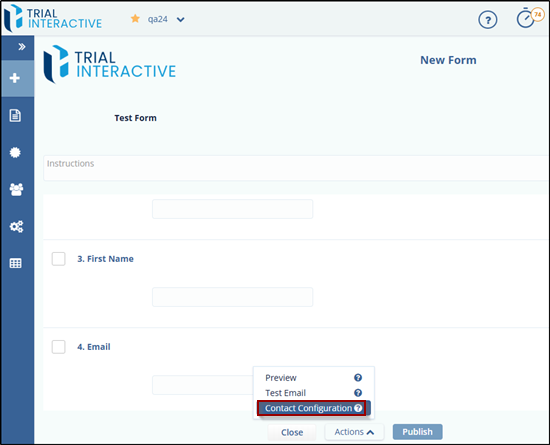
To map the Contact information, follow these steps:
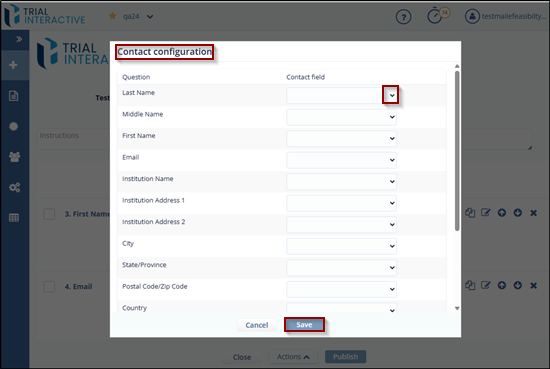
- Click Contact Configuration option from Actions dropdown displayed at the bottom of the window on the Form Draft page. Contact Configuration dialog box appears which displays Questions and Contact field dropdowns.
- Set up the mapping between Question and Contact fields.
- Click the Save button to map the fields.
Note: The fields mapped here are displayed in the General > Contact
Mapping Schema of the form.
© 2025 Trial Interactive. All Rights Reserved

