
Add Existing Contacts
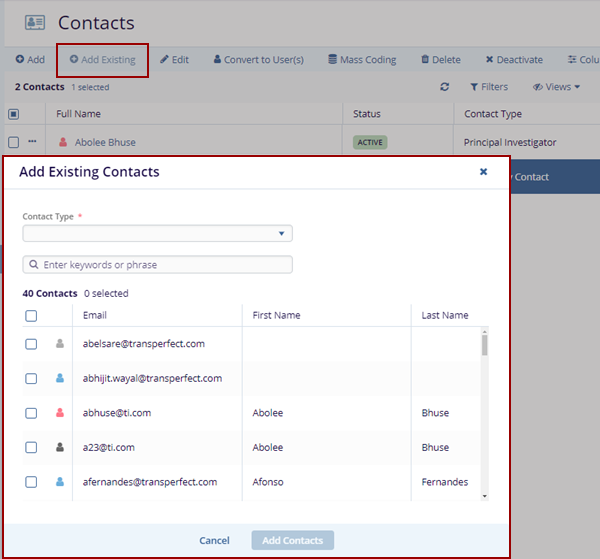
Follow the steps below to Add Existing Contacts:
- Click the Add Existing button. The Add
Existing Contacts pop-up window is displayed with the list
of the contacts.
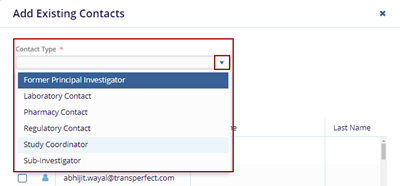
- Expand the drop-down arrow of the Contact Type and select the
type.
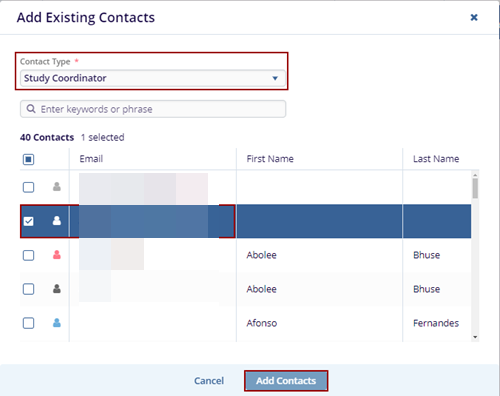
- Select the User’s Email ID from the list within the Add
Existing Contacts pop-up window and click the Add
Contacts button.
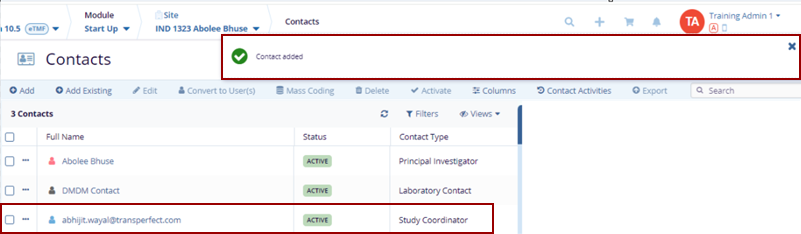
- The Contact Added notification message is
displayed on the top right side of the screen and the added contact
will appear on the Contacts page.
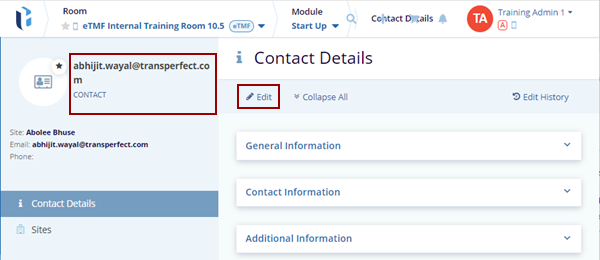
- Click on the name of the newly created contact the Contact Details page is displayed with the existing information.
- Click Edit to edit the information as per the
requirement and click Save to save the changes and
Cancel to discard the changes.
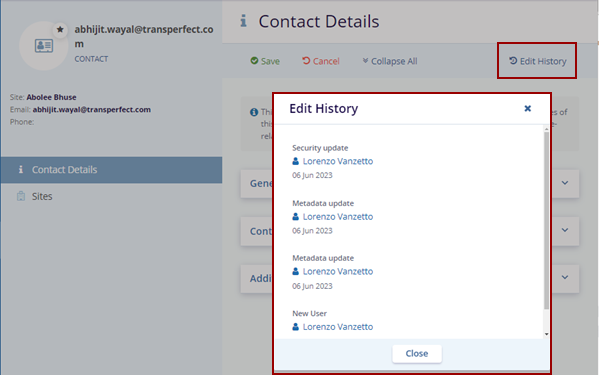
- Click the Edit History icon
displayed at the top menu bar on the right side. The ‘Edit
History’ pop-up window is displayed.
Note: The information here cannot be edited.
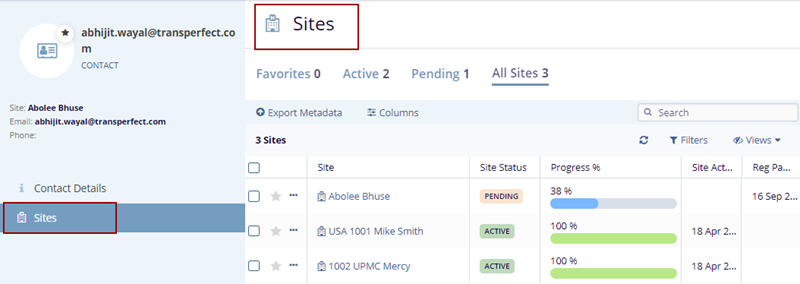
- Click on the Sites on the left side in the
index panel. The Sites page is displayed with the
Site associated with that particular user.
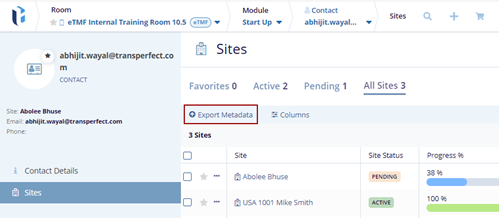
- Click on the Export Metadata button, and
Export Sites window will pop up with 2 options:
Export option and Select Metadata Fields.
- Select the Export option will give 3 sources:
- Selected records: Choose this option to export metadata only for specific selected sites.
- All Sites in the current grid: Choose this option to export metadata for all sites currently displayed in the grid.
- All Sites in the room: Choose this option to export metadata for all sites displayed
in the room.
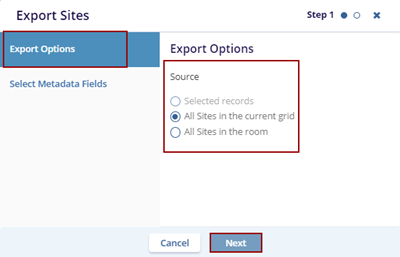
- Click Next to proceed to Select Metadata Fields, where the user can choose the metadata fields to include in the export.
- The user can use the Sort By dropdown to sort the available metadata fields alphabetically or logically.
- Click Export to download the document metadata file in the preferred format.
Click Previous to go back or Cancel to discard changes.
.png)
- The Exporting Sites notification message is
displayed on the top right side of the screen with the Get
Results button.
.png)
- Click the Get Results button and the Exported metadata file gets downloaded.

TransPerfect’s Trial Interactive is an industry leader in practical, global eClinical innovation
PRODUCTS
 Linkedin
 X
X
Didn’t find what you need?
Our dedicated Project Management and Client Services team will be available to meet your needs
24 hours a day, 7 days a week.
Toll Free:
(888) 391-5111
help@trialinteractive.com
© 2025 Trial Interactive. All Rights Reserved

