
Add Contacts
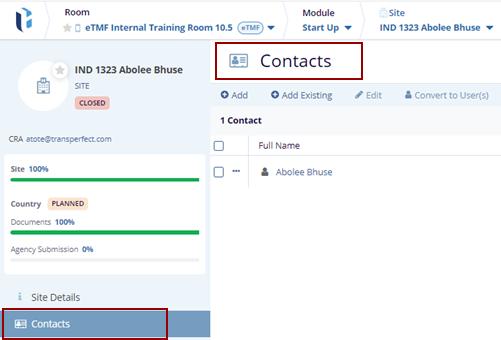
- Click Contacts on the left side of the screen
in the index panel. The contacts page is displayed.
- Click the Add button on the top menu bar. The
Create New pop-up window is displayed with
Cancel, Save And Create Another,
and Add buttons on the bottom Create New pop-up
window.
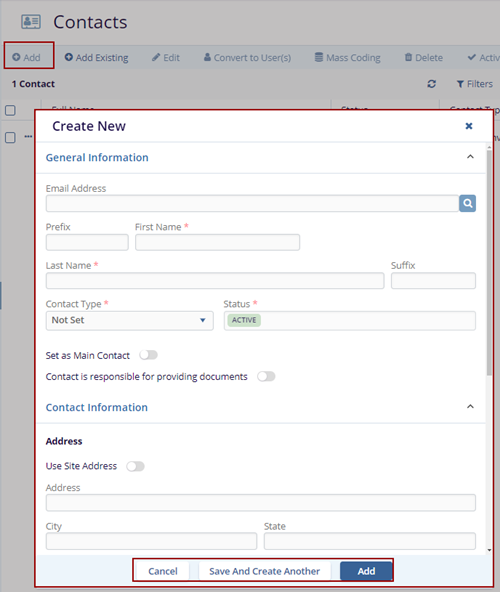
- Fill in all the required fields in the General Information, Contact Information, and Additional Information sections.
- Click Add to save the contact, or click Save and Create Another to save the current contact and add a new one, and Cancel to discard the changes.
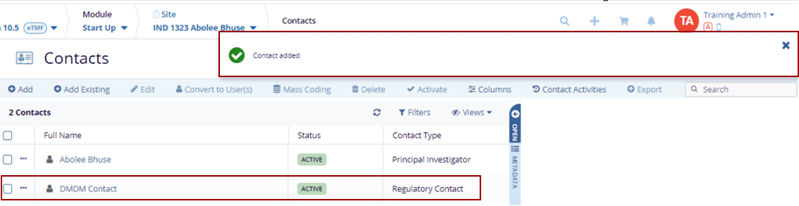
- The Contact Added notification message is
displayed on the top right side of the screen and the added contact
will appear on the Contacts page.
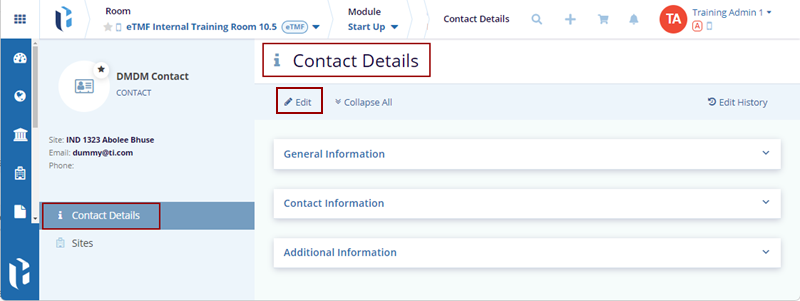
- Click on the name of the newly created contact the Contact Details page is displayed with the existing information.
- Click Edit to edit the information as per the
requirement and click Save to save the changes and
Cancel to discard the changes.
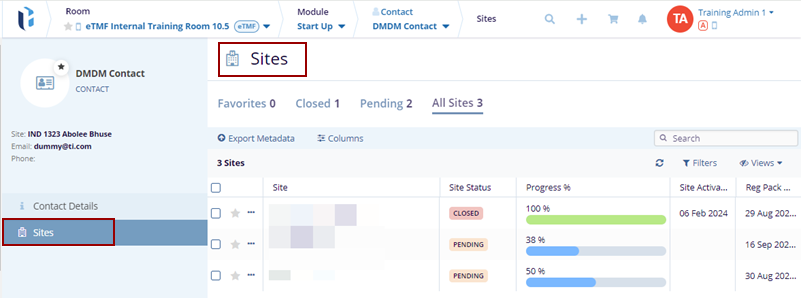
- Click on the Sites on the left side in the index panel. The Sites page
is displayed with the Site associated with that particular user.

TransPerfect’s Trial Interactive is an industry leader in practical, global eClinical innovation
PRODUCTS
 Linkedin
 X
X
Didn’t find what you need?
Our dedicated Project Management and Client Services team will be available to meet your needs
24 hours a day, 7 days a week.
Toll Free:
(888) 391-5111
help@trialinteractive.com
© 2025 Trial Interactive. All Rights Reserved

