
Map Group Owner
Explore Video for more help:
Video
To map a group owner, follow the steps below:
- Select a course by clicking on the checkbox
- Click on the Map Group Owner option in the top menu bar.
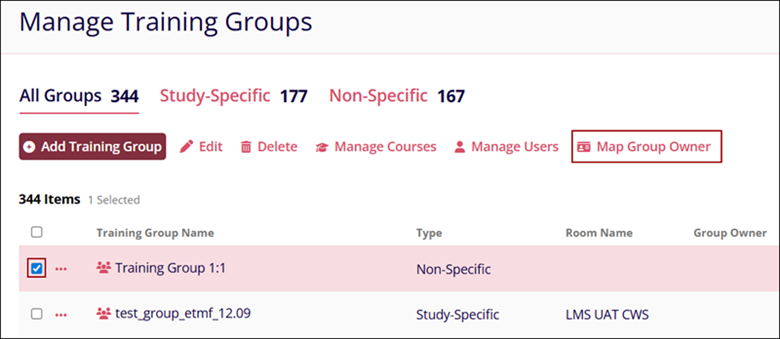
- On the Map Group Owner screen, click on the Add Group Owner button.
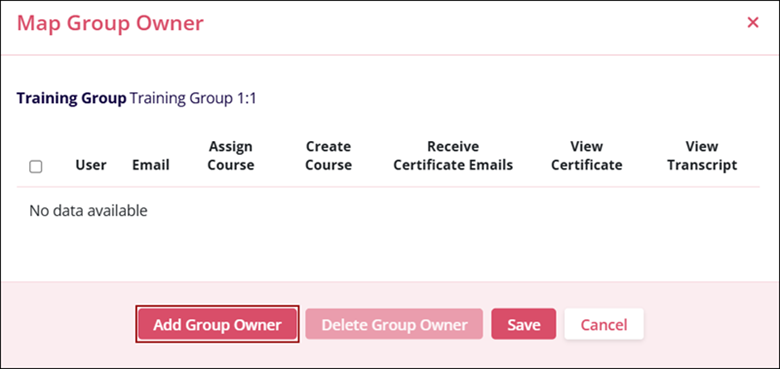
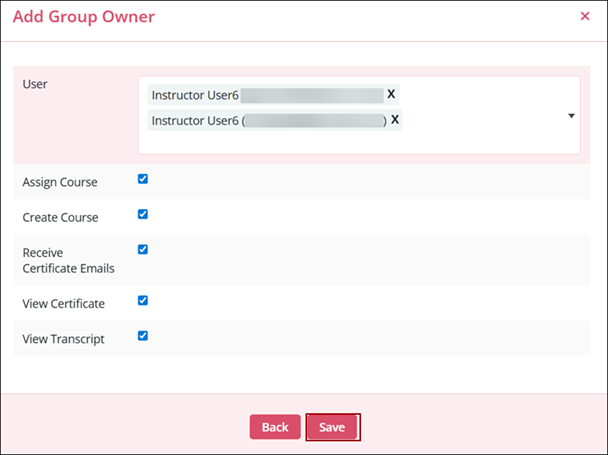
- On the Add Group Owner screen, perform the following and click
on the Save button.
- Select the required number of users from the Users dropdown.
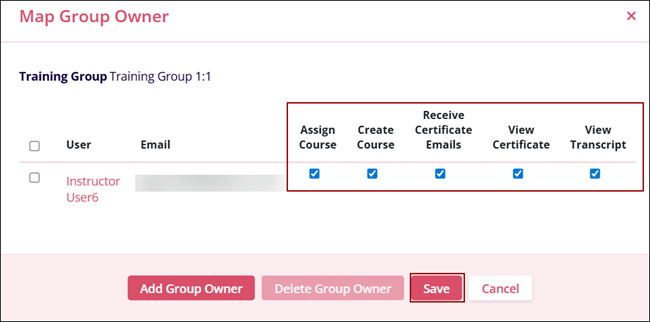
- Keep the Assign Course checkbox checked to enable the group owner to assign courses and vice versa.
- Keep the Create Course checkbox checked to enable the group owner to create a course and vice versa.
- Keep the Receive Certificate Emails checkbox checked to enable the group owner to receive certificate emails and vice versa.
- Keep the View Certificate checkbox checked for the group owner to view the certificate and vice versa.
- Keep the Transcript checkbox checked to enable the group owner to retrieve the
transcripts and vice versa.
- The user(s) added as Group Owners are displayed on the Map Group Owner screen.
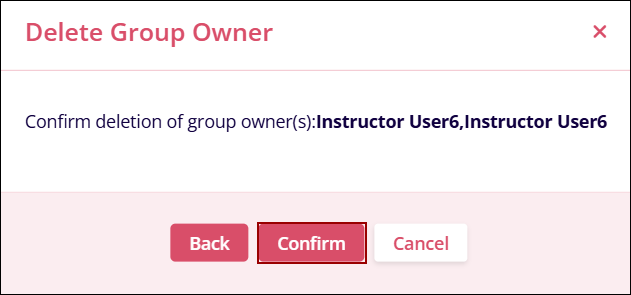
- To remove a user as group owner, select a user and click on the Delete Group Owner
button on the Map Group Owner screen
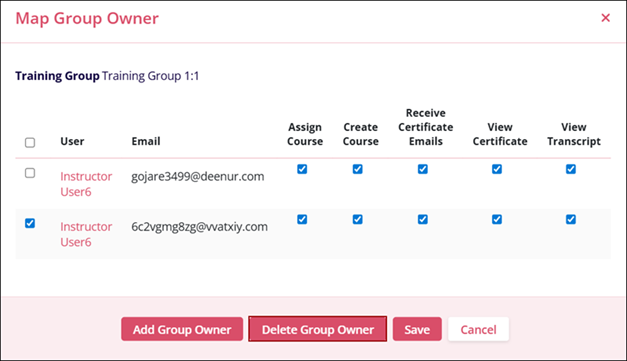
- Click on the Confirm button.
- Similarly, keep the settings checkbox checked or unchecked to enable or disable the
respective setting from the Map Group Owner screen itself, and click on the Save
button.
© 2025 Trial Interactive. All Rights Reserved

