
Blank Course
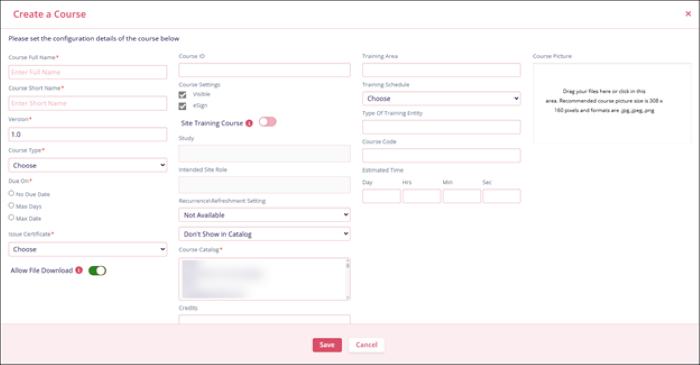
With a blank course, users can begin with an empty course and can upload training content and other eLearning activities. Users need to configure details in the following fields on the Create Course screen.
| Field Name | Description |
|---|---|
| Course Full Name* | Enter a suitable name for the course. |
| Course Short Name* | Enter a short name for the course. |
| Version* | Enter the course version. |
| Course type* | Select either Standard or Virtual Training. |
| Due on* |
Select either of the following to determine the course due date
|
| Issue Certificate* | Select either Yes or No. This setting determines whether the learner will receive a certificate or not. |
| Allow File Download | Enabling this setting allows enrolled users to download the course files. If enabled, this setting overrides the global file download restriction for this course. |
| Course ID | Enter an alphanumeric ID as a unique identifier of the course. |
| Course Settings |
Enable or disable the following settings
|
| Site Training Course |
Click on the toggle switch to determine whether the course is a site training course or not. If this toggle is enabled:
|
| Study (Only if Site Training Course is enabled) | Associate a study to the site training course from the available dropdown options. |
| Intended Site Role | Select a site role from the available dropdown options. Refer to the Manage Site Role section for additional information. |
| Recurrence\Refreshment Setting |
Select either of the following from the available dropdown options.
From the dropdown below, select any one of the following
|
| Course Catalog* | Associate the course with a course catalog by selecting a course catalog from the available list. |
| Credits | Enter the course credits number, i.e., the number of hours required for the successful completion of the course. |
|
Training area Estimated Time Training Schedule Type of Training Entity Course Code |
Enter the necessary details into these fields Note: The visibility of these fields can be controlled from
the Course Settings section within the Company Dashboard.
|
| Course Description | Provide a brief description of the course. |
| Course Picture | Upload a picture using drag and drop or manual upload functionality. |
| Additional Fields |
Fill in the specified additional fields with the necessary details. The number of fields may vary depending on the configuration. Refer to the Additional Course Fields section for additional information. |
© 2025 Trial Interactive. All Rights Reserved

