
Export All CDA
Export All CDA allows you to export the CDA of all recipients of the Form. To export all CDA, follow the steps below:
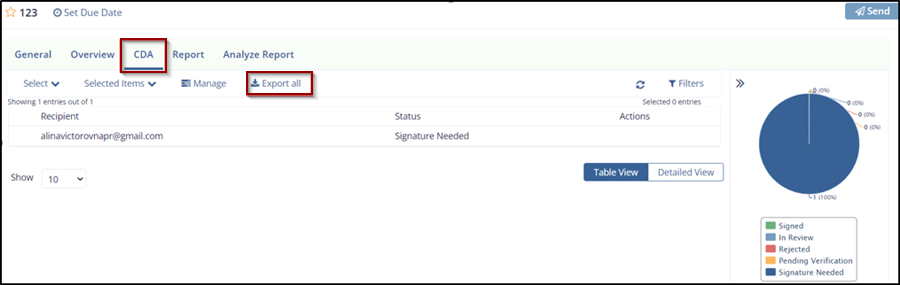
- From the Form Statistics of an open survey, click the CDA tab.
- Click Export All (blue down arrow) displayed in the bar below.
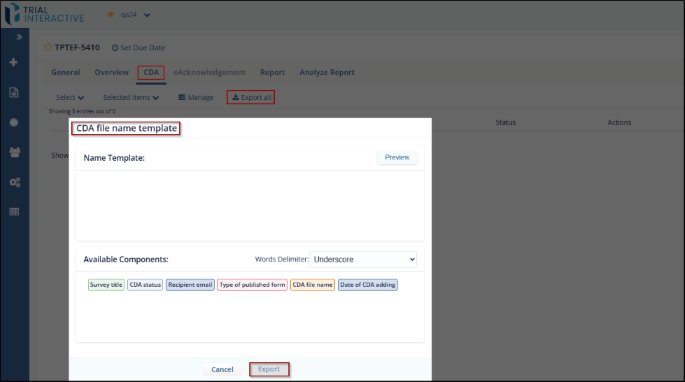
- The CDA file name template dialog box opens, which provides two
sections:
- Name Template: This section contains:
- A long textbox to add the components of the CDA file name template
- Preview icon to view the CDA file name template.
- Available Components: This section contains:
- The list components that are used for the CDA file name template.
- The Words Delimiter dropdown to separate and identify components of CDA name template.
- The Cancel and Export button. The export button is deactivated
by default and activated only when you add components from the
Available Components section to the Name Template section.
- Name Template: This section contains:
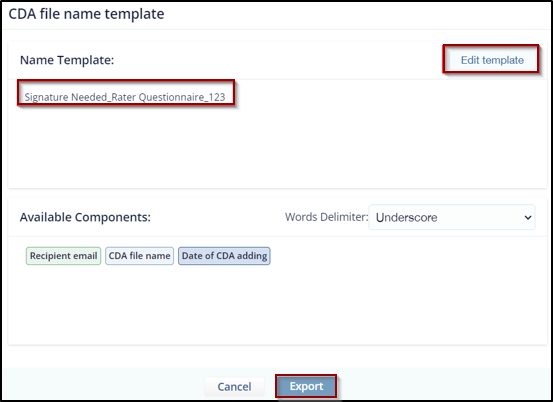
- Drag-and-drop the components from the Available Components section to the Name Template section, which you want to display for the CDA file name template. Refer to the screenshot below.
- Click the Preview icon from the Name template section to view the CDA file name template as per the added components. Below is an example of a CDA file name template preview.
- Notice that the Preview icon changes its name from Preview to Edit Template and
the CDA file name template is displayed as per the components added.
- Click the Word Delimiter dropdown from the Available Components to change the
delimiter between words as per your choice. The dropdown displays options as shown below:
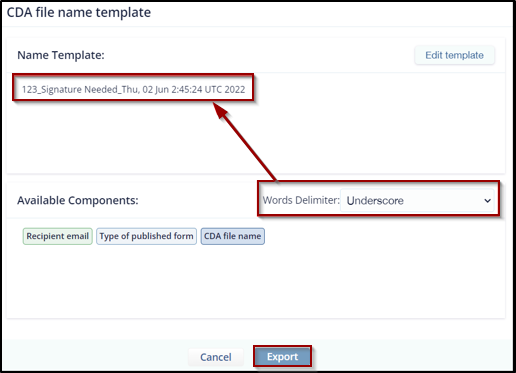
- Below is an example showing the difference between delimiters- Underscore, Whitespace, and Dash from the list.
- Once all settings are done, click Export to export the CDA of all recipients.
The exports start in the Background, which displays the details about the export.
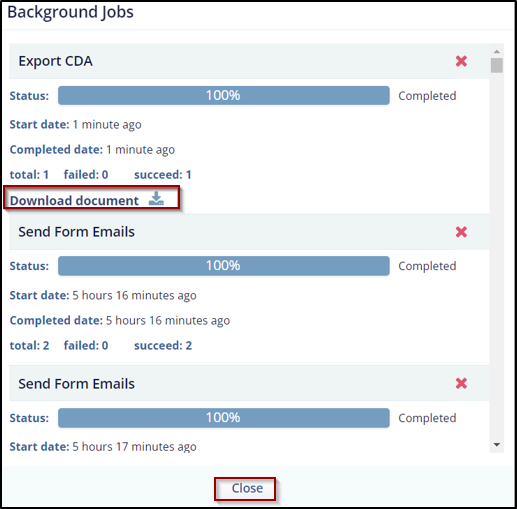
- Click the Download Document link from the Background Jobs dialog box to download the CDA export. Refer to the screenshot below.
Note:
You can also export the CDA of a particular recipient by clicking the down arrow in the Actions column next to the recipient.
© 2025 Trial Interactive. All Rights Reserved

