
Set Due Date
For a Survey, a manager can set up Reminder Emails to be sent out automatically to submitters who have not responded to a Survey.
To set Reminder:
- Click the Set Due Date from the Form Statistics Page. The Set Due Date popup window is displayed.
- The Set Due Date dialog contains the following panels:
- The Due Date textbox along with the Enable button next to it.
- Configure Reminders: Allows you to set the reminder due dates.
- Reminder Templates: This template is built-in and defined in Email Templates .
- The Cancel, Add Reminder and Finish buttons.
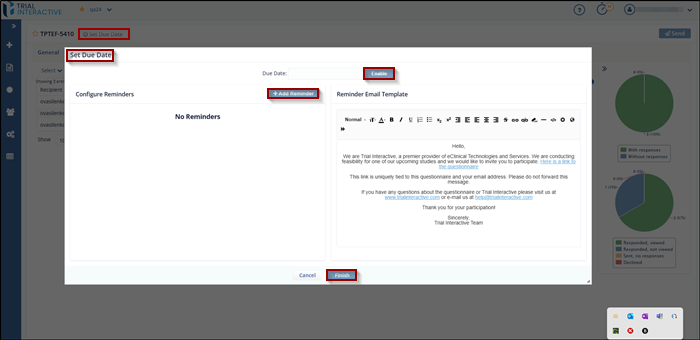
- Click Enable to set the Due Date. The button changes its text to Disable and a message is displayed as shown below.
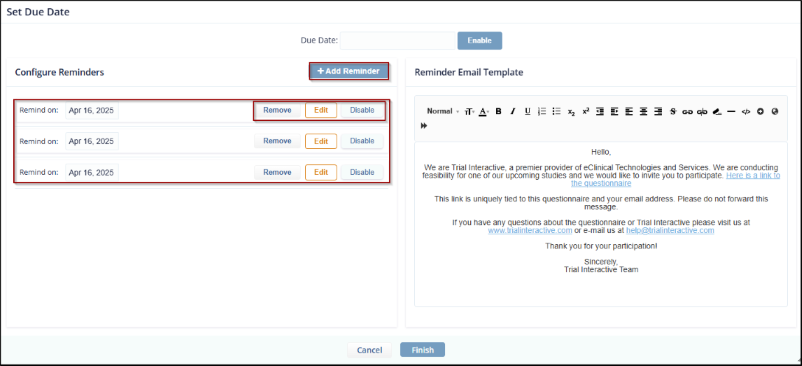
- Click Add Reminder button to set reminder on Due Date or prior to Due
Date. This enables the Reminder textbox in the Configure Reminder panel along with the
following buttons:
- Remove: The reminder is removed.
- Edit: Allows to edit the reminder dates
- Disable: The reminder is disable.
- Click the Edit button next to the Remind on textbox to set/change the
reminder for the Due Date.
- The Edit button disappears and the Remind On dropdown enables which has
following options:
- Remind On: To set reminder on selected date.
- Remind before: To set reminder prior to the Due Date.
-
Select the required option from the dropdown and set the reminder. Notice that for Reminder Before option, a scroll bar for the days enables.
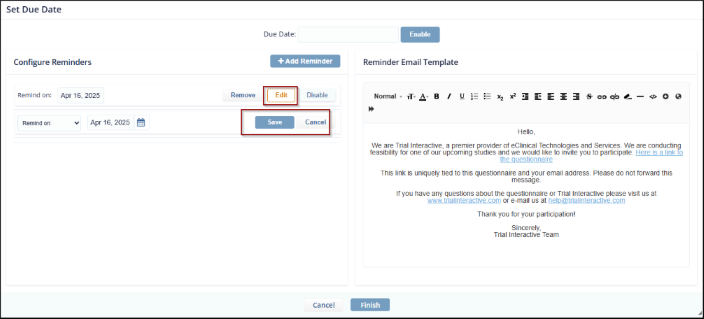
- Click Save to save the reminder and then Finish. The reminder count is displayed next to the Due Date on the Form Statistics Page.
© 2025 Trial Interactive. All Rights Reserved

