
Report
Users can view form responses and related activities from the Report tab located on the Form Statistics page of an open survey.
The Reports section includes:
- Main Report
- Supplementary Report
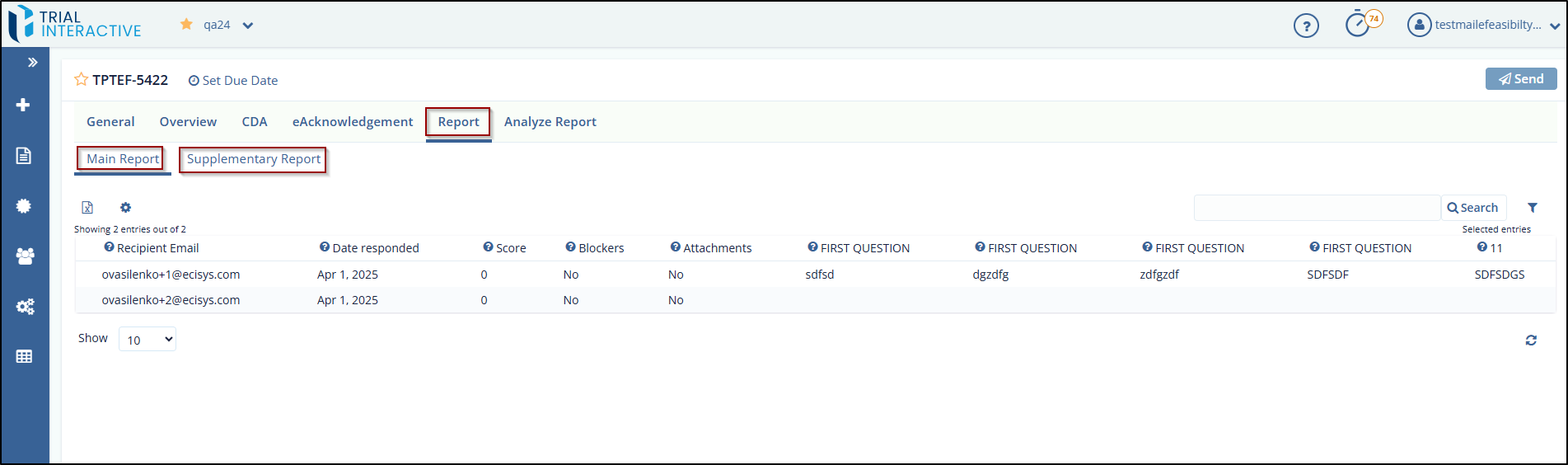
Main Report
The Main Report tab, accessible under the Report section of a Form, displays a summary of form submissions from survey recipients. It provides key insights into who has responded and includes important metadata associated with each response.
-
Export Report
allows users to export Main Form responses to CSV or Excel files.
- Report Configuration
Clicking the Gear icon on the toolbar of the Report Dashboard opens the Report
Configuration dialog box, which allows you to configure the report settings. 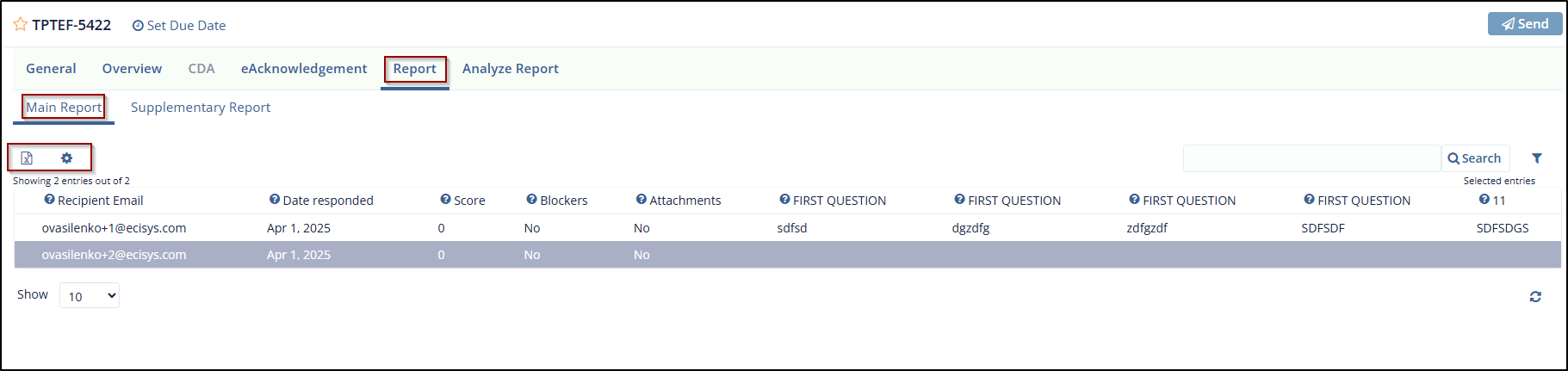
Supplementary Reports
The Supplementary Reports tab allows users to capture additional details and export questionnaire responses in CSV or Excel format. Users can select specific survey response data to evaluate key performance indicators (KPIs) based on their clinical requirements.
The system also includes built-in analytical capabilities to support statistical analysis of
quantifiable question types. Open-ended questions, such as those requiring comments or
free-text responses, are excluded from these statistical evaluations. 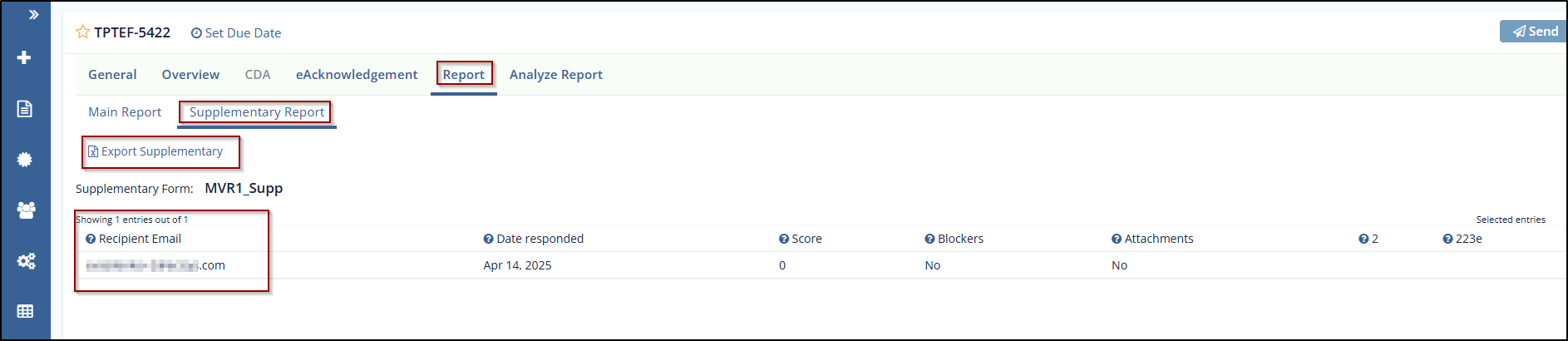
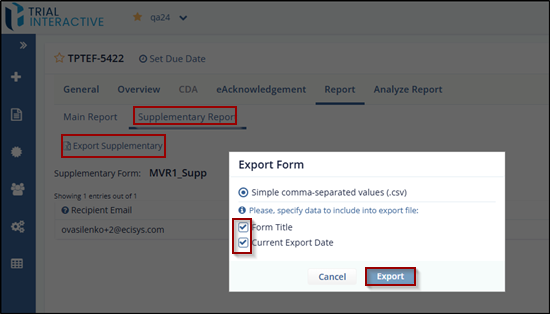
- Export Supplementary:
The export includes optional metadata such as the Form Title and Current Export Date, helping sponsors to maintain accurate records
Steps to Export the Supplementary Report, follow these steps:
- Navigate to the Report tab within the selected form or record.
- Click on the Supplementary Report sub-tab.
- Select Export Supplementary to begin the export process.
- In the Export Form popup:
- Choose the file format as Simple comma-separated values.
- Select the checkboxes to include Form Title and Current Export Date, if required.
- Click Export to download the file.
© 2025 Trial Interactive. All Rights Reserved

