Communication Outbox
Explore Job Aids for more help:
Job Aids
The Communication Outbox is a centralized section within the Communications module where
outgoing study-related documents and messages emailed from a Trial Interactive room are
stored. It allows users to efficiently view, manage, and track all outgoing
communications.
Note: To access the Communication Outbox from the
left-hand navigation pane, it must be enabled at the room level. Refer to Outbox Settings for additional
details.
View communication details
To view the communications details, follow the steps below:
- Navigate to the Communications module and select the Outbox tab.
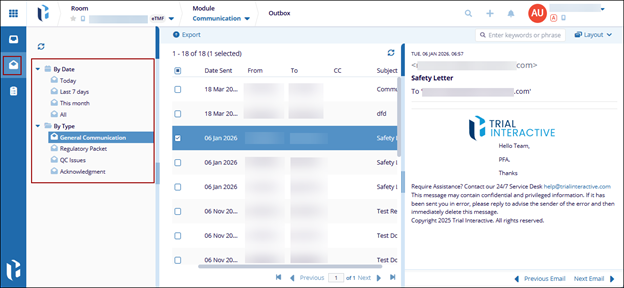
- Expand the folders from the left-hand navigation menu and select the options to filter
the grid.
- By Date: Allows users to view messages received during specific time periods such as Today, Last 7 Days, or This Month.
- By Type: Groups emails by their communication type.
- Select a communication record from the grid and open the metadata panel.
- The metadata panel displays the sender and recipients email address along with the
message.
Export Communication Outbox
To export the outbox communications, follow the steps below:
- Navigate to the Communications module and select the Outbox tab.
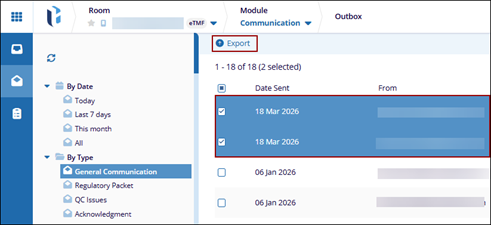
- Select the required entries from the grid and click the Export button.
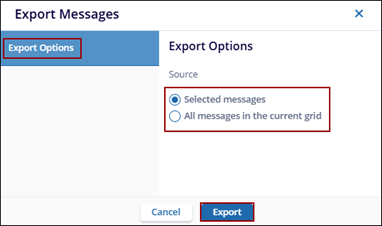
- On the Export Messages window, select an export option source.
- Selected messages: Enabled when messages are selected from the grid; allows exporting only the selected messages.
- All Messages in Current Grid: Exports all messages available in the grid.
- Click the Export button.
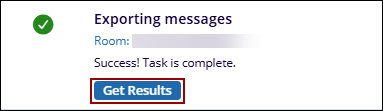
- On the Exporting messages success pop-up, click Get Results to download an excel
file.