
Managing Security
To manage security, follow the steps below:
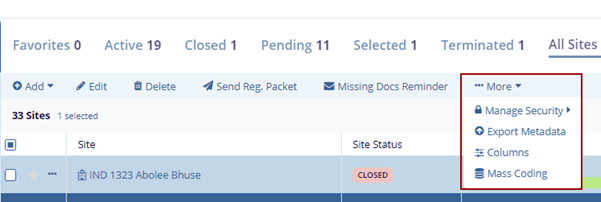
- Select a site by clicking on the checkbox and click the
More dropdown button and select Manage
Security option.
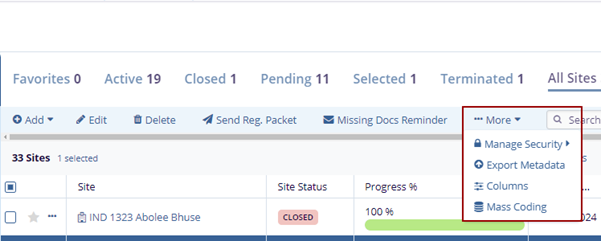
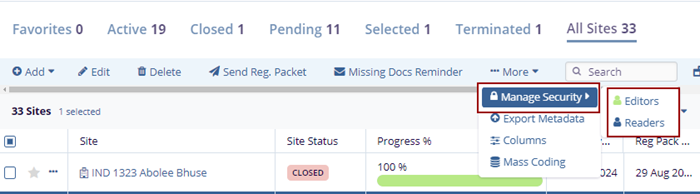
- The Manage Security option displays two options – Editors and Readers.
- Select Editors from the two options displayed.
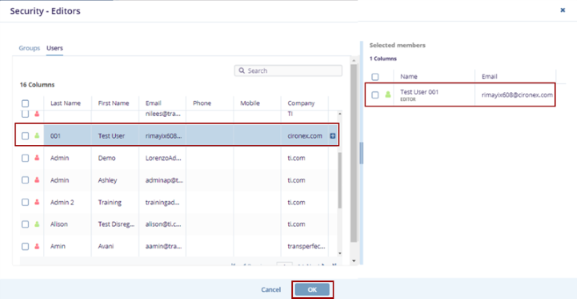
- The Security – Editors screen is displayed with the Groups and Users tab, hover the mouse over the names to highlight in blue and view the Plus icon next to each username.
- Click the Plus icon to view the name on the right side – Selected Members pane on the right side. The user can also drag and drop the name if required.
- Click the OK button displayed at the
bottom of the popup window
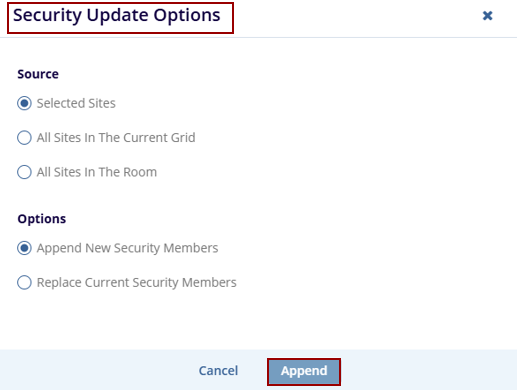
- A Security Update Options popup window is displayed with Cancel and Append buttons.
- Select the appropriate radio buttons for – Source and Options.
- Click the Append button displayed at
the bottom of the popup window.
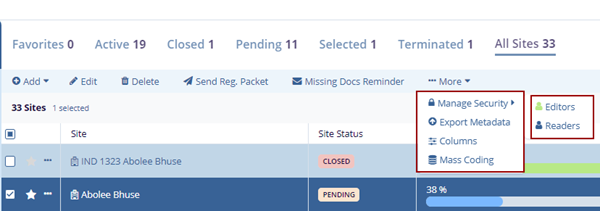
- Select a site by clicking on the checkbox and click the
More dropdown button and select Manage
Security option.
- The Manage Security option displays two options – Editors and Readers.
- Select Readers from the two options displayed.
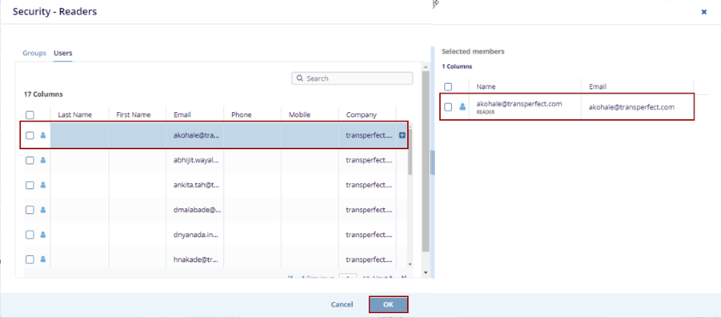
- The Security – Reader’s screen is displayed with the Groups and Users tab, hover the mouse over the names to highlight in blue and view the Plus icon next to each username.
- Click the Plus icon to view the name on the right side – Selected Members pane on the right side. The user can also drag and drop the name if required.
- Click the OK button displayed at the
bottom of the popup window.
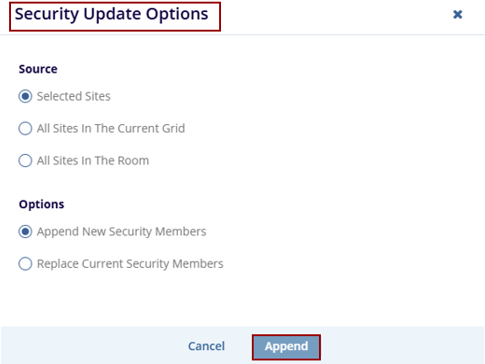
- A Security Update Options popup window is displayed with Cancel and Append buttons.
- Select the appropriate radio buttons for – Source and Options.
- Click the Append button displayed at the bottom of the popup window.

TransPerfect’s Trial Interactive is an industry leader in practical, global eClinical innovation
PRODUCTS
 Linkedin
 X
X
Didn’t find what you need?
Our dedicated Project Management and Client Services team will be available to meet your needs
24 hours a day, 7 days a week.
Toll Free:
(888) 391-5111
help@trialinteractive.com
© 2025 Trial Interactive. All Rights Reserved

