
Password Reset
To reset the account password, follow the steps below.
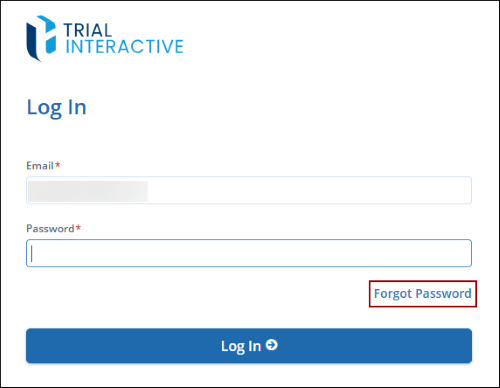
- On the Login page, enter the email ID, and click on Forgot Password.
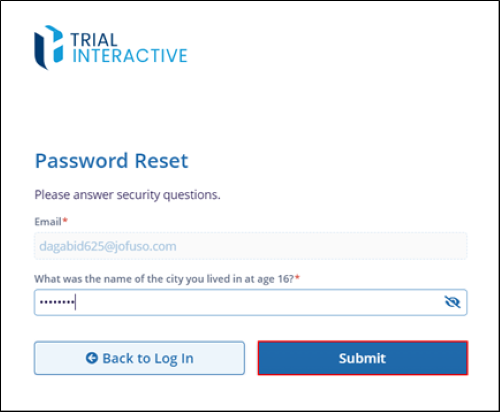
- On the Password Reset screen, enter the answer to the security question and click on
the Submit button.
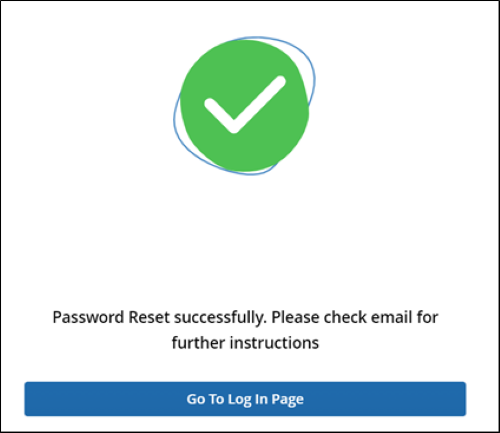
- The Password Reset screen displays the success message and prompts users to check
email for further instructions.
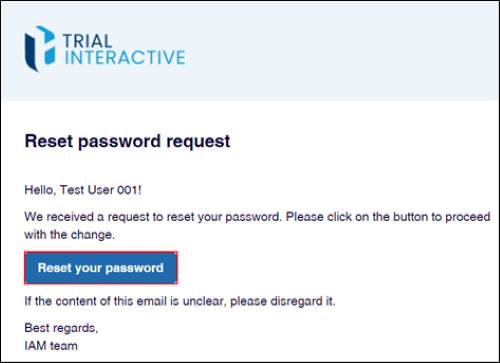
- Click on the Rest your Password button in the Rest Password Request email.
- Enter a new password in the New Password* field, re-enter the password in the Confirm
Password* field adhering to the password requirements, and click on the Save button.

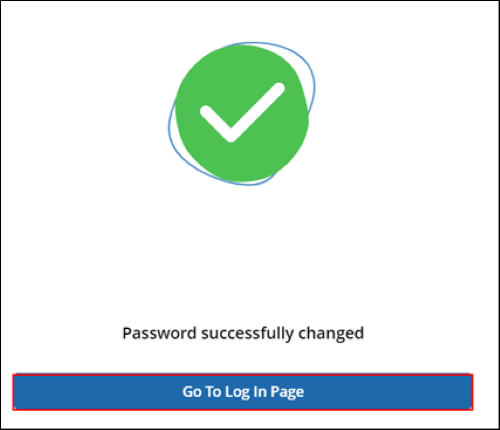
- Upon successful password change, the system displays the success notification. Click
on the Go To Log In Page button and sign in with the users name and new password.

TransPerfect’s Trial Interactive is an industry leader in practical, global eClinical innovation
PRODUCTS
 Linkedin
 X
X
Didn’t find what you need?
Our dedicated Project Management and Client Services team will be available to meet your needs
24 hours a day, 7 days a week.
Toll Free:
(888) 391-5111
help@trialinteractive.com
© 2025 Trial Interactive. All Rights Reserved

