
Sign In and Password Reset
Login
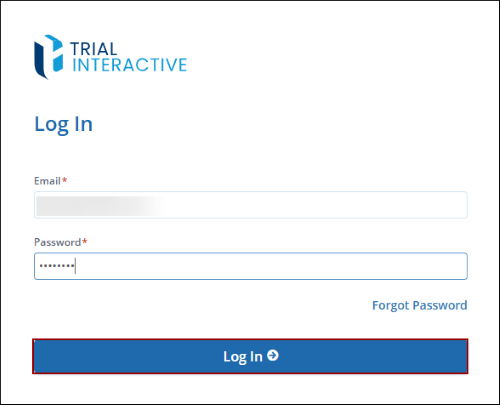
To log in to the GlobalLearn platform, follow the steps below:
- Click on the GlobalLearn platform link using the preferred internet browser.
- On the Login page, mandatory enter the Email* and Password*.
- Click on the Log In button.
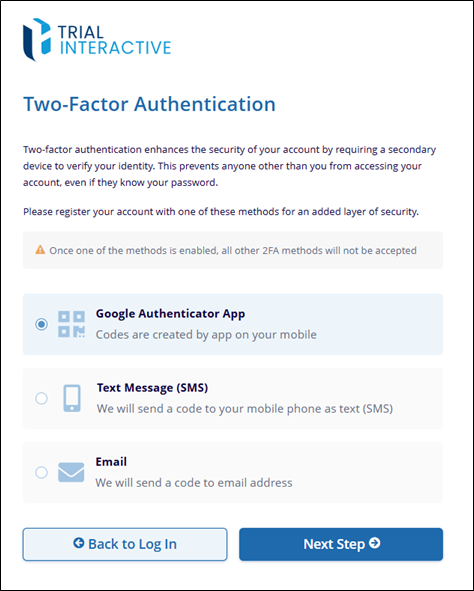
- On the Two-Factor Authentication page, select any one of the authentication methods
and click on the Next Step button.
- Google Authenticator App
- Text Message (SMS)
- Email
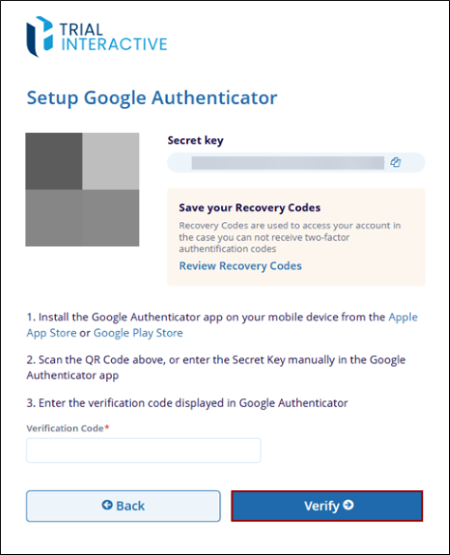
Google Authenticator App
- Select the Google Authenticator App option.
- Install the Google Authenticator app from the Google Play store or Apple Appstore
- Scan the QA code on the Setup Google Authenticator page or enter the Secret Key in the Google Authenticator app.
- Enter the verification code displayed in Google Authenticator and click on the
Verify button.
Text Message
- Select the Text Message option
- Select the country from the available dropdown options.
- Enter the phone number registered with the email address.
Email
- Select the Email option
- Enter the verification code shared on the email address.
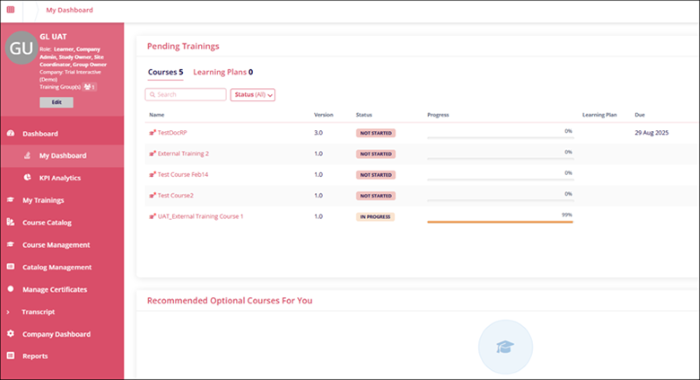
- Once the code is successfully verified, the user successfully signs in to the application.
Note:
- Depending upon the user role, the left-hand navigation pane will be populated accordingly, and certain dashlets will not be visible.
- Two-factor authentication must be enabled in the environment; otherwise, users can log in with only their username and password.
Password Reset
To reset the account password, follow the steps below:
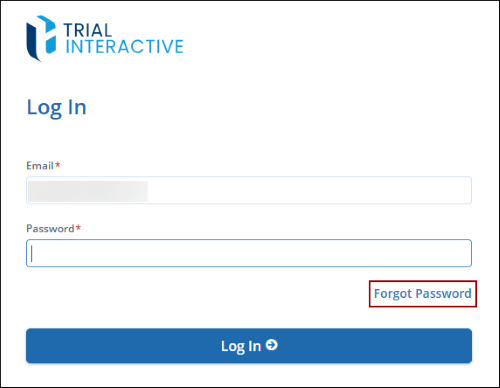
- On the Login page, enter the email ID, and click on Forgot Password.
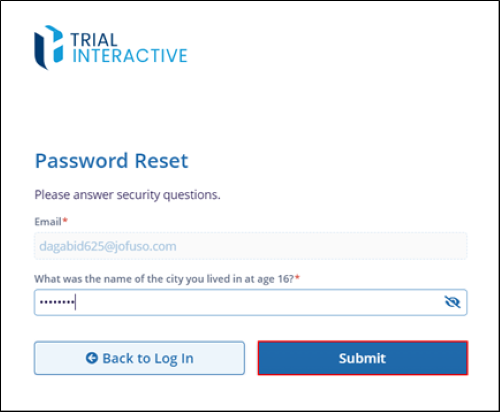
- On the Password Reset screen, enter the answer to the security question and click on the
Submit button.
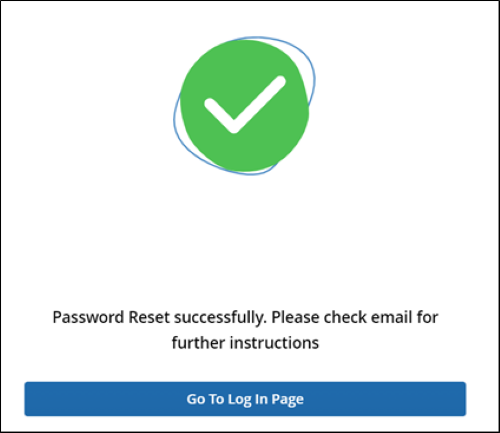
- The Password Reset screen displays the success message and prompts users to check email
for further instructions.
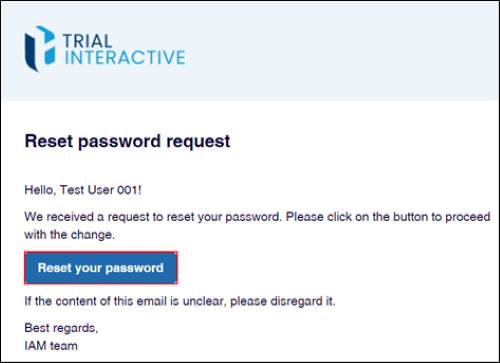
- Click on the Rest your Password button in the Rest Password Request email.
- Enter a new password in the New Password* field, re-enter the password in the Confirm
Password* field adhering to the password requirements, and click on the Save button.

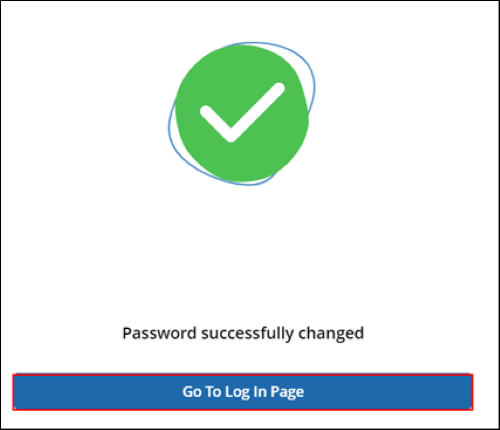
- Upon successful password change, the system displays the success notification. Click on
the Go To Log In Page button and sign in with the users name and new password.
© 2025 Trial Interactive. All Rights Reserved

