
Manage Welcome Message
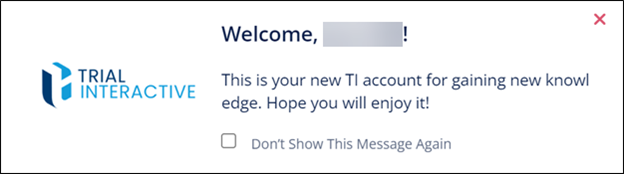
The Manage Welcome Message section enables configuring and customizing a message that will appear to welcome new or existing users, helping to inspire excitement about their learning journey. The Welcome Message is shown to a user after logging in to the system. Depending upon the appearance and frequency of showing.
To create a welcome message, follow the steps below:
- Navigate to the Company Dashboard and select Manage Welcome Message.
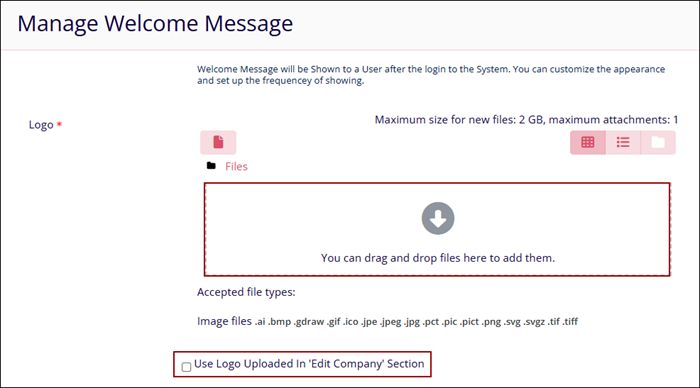
- On the Manage Welcome Message screen, upload an image in the prescribed file format as a logo that will be displayed with the welcome message.
- To utilize the same logo, click on the Use Logo uploaded in the ‘Edit Company’
checkbox.
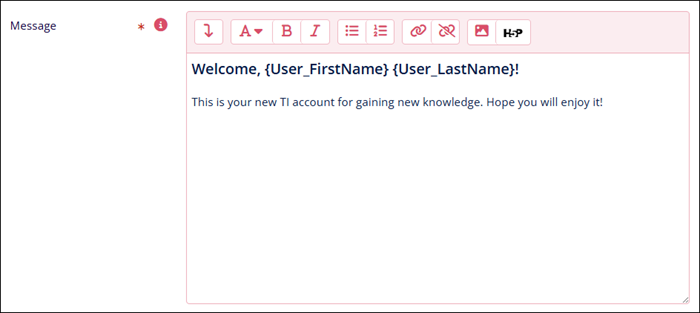
- Draft a welcome message in the textbox.
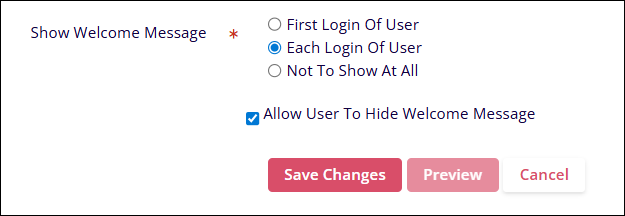
- Within the Show Welcome Message section, select any one of the following options by clicking on the respective radio boxes.
- Enable the Allow User to Hide Welcome Message by checking the checkbox and vice versa.
- Click on the Save Changes button.
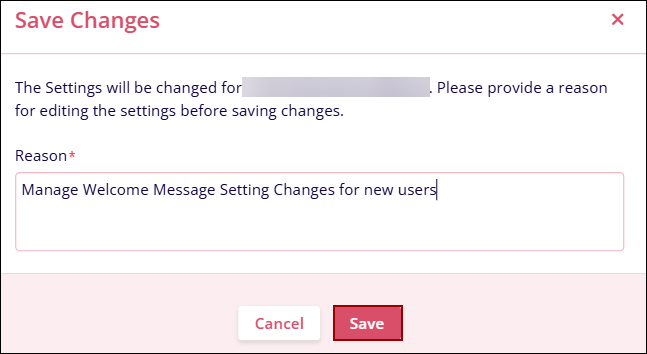
- On the Save Changes pop-up, enter a mandatory reason adhering to the character limit
requirements and click on the Save button.
- Click on the Preview button to view the Welcome Message.
© 2025 Trial Interactive. All Rights Reserved

