
Reject
A new setting is added to support a Rejected folder within the Room for Administrators, and a new Document Rejection function is now available to Admins, Document Managers, and Room Managers. Any documents in Folders are not considered to be Final. A Reason for Rejection dropdown is now available for workflow documents and documents in the rejected folder/status are now excluded.
To reject a document, follow these steps:
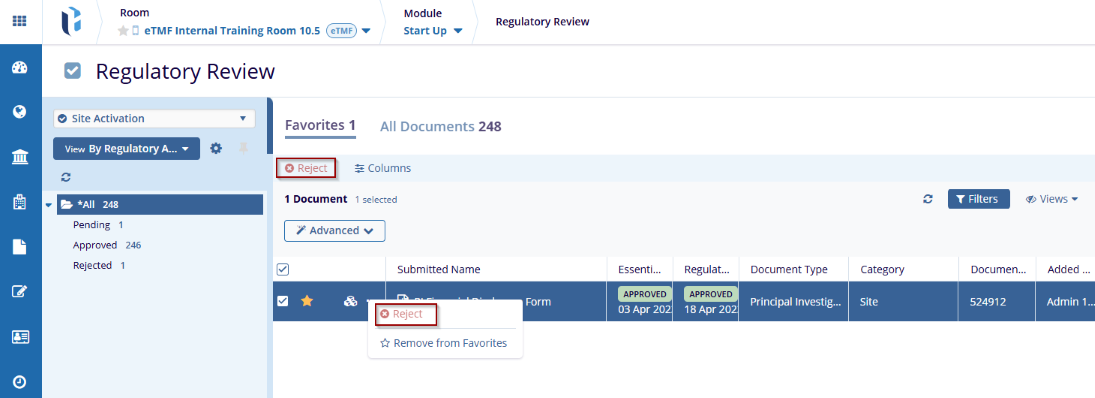
- Select a document by clicking on the checkbox and the Reject Button will be available at the Top menu bar.
- Right-click on the document or the three-dot menu in the grid
and select the Reject option from the document actions menu.
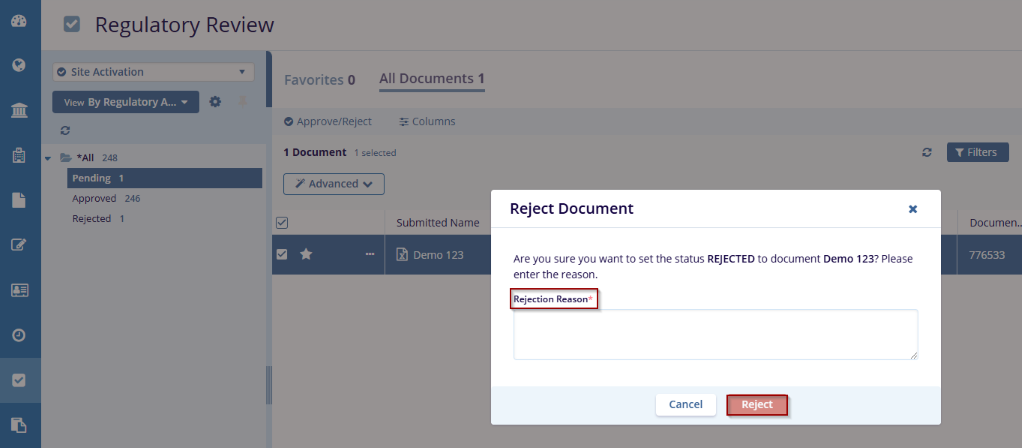
- Provide a rejection reason on the Reject Document popup and click on the
Reject button.
Note:
- Users will not be able to drag and drop documents into this folder to prevent awarding an erroneous status should a non-rejected document be placed in this folder.
-
To reject a document outside of the standard workflow steps, the user must either be an administrator or they must have the Document Manager action enabled on their user account.

TransPerfect’s Trial Interactive is an industry leader in practical, global eClinical innovation
PRODUCTS
 Linkedin
 X
X
Didn’t find what you need?
Our dedicated Project Management and Client Services team will be available to meet your needs
24 hours a day, 7 days a week.
Toll Free:
(888) 391-5111
help@trialinteractive.com
© 2025 Trial Interactive. All Rights Reserved

