
Manage Filters
To manage the filters, follow the steps below.
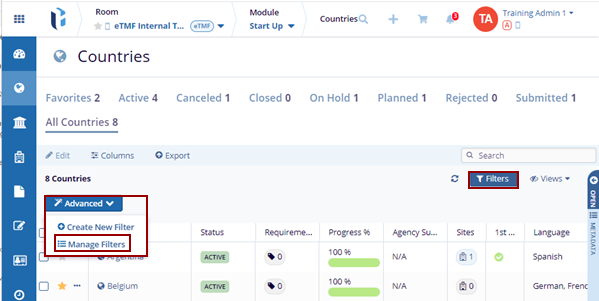
- Click on the Filters button.
- From the Advanced dropdown on the right side, select
Manage Filters.
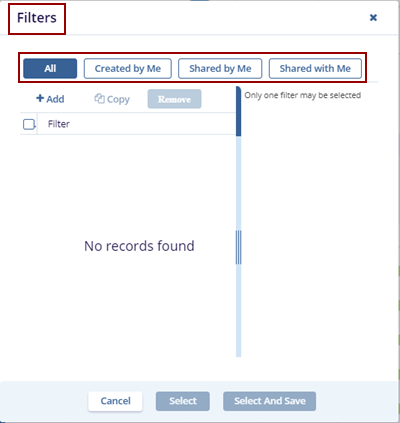
- The Filters pop-up window is displayed. However, the below tabs
are visible:
- All
- Created by Me
- Shared by Me
- Shared with Me
- By default, the All tab is displayed.
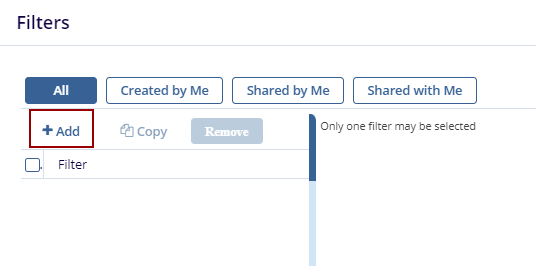
- On the Filters window, click on the +Add
button. The user is directed to the filter page where the user can
Add a Filter or Group.
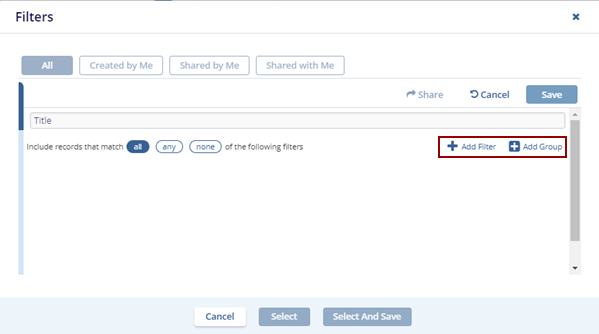
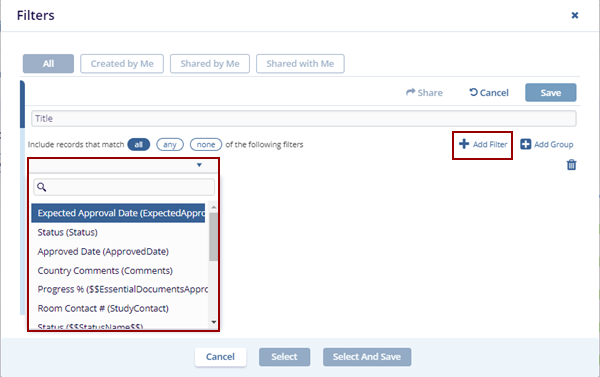
- Click the +Add Filter option. The empty field populates on the page.
- Select a filter option by accessing the dropdown.
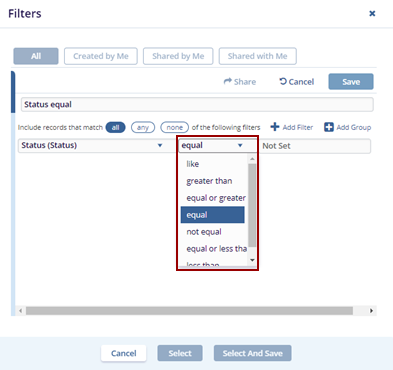
- Select an operator from the available dropdown list. Based on
the selected operator, other fields such as "Equal" and "Not Set"
will be populated accordingly.
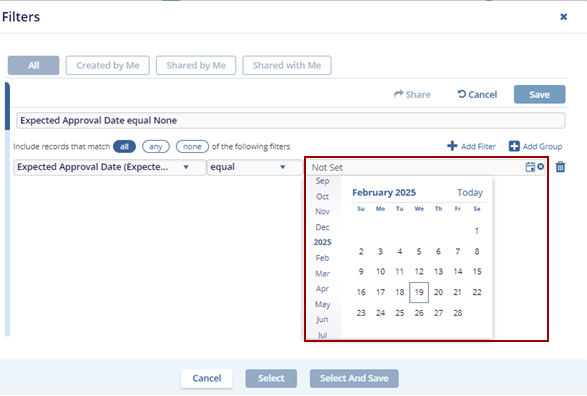
- Configure the filter criteria and click the Save button on the top right side of the Filters pop-up window.
- Click the Select or Select And Save buttons to apply the filters on the Countries.
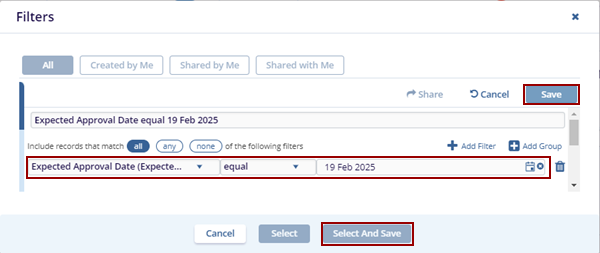
Note: The other two dropdown menu options i.e., logical operator and criteria change as per the option selected in the first dropdown menu.

TransPerfect’s Trial Interactive is an industry leader in practical, global eClinical innovation
PRODUCTS
 Linkedin
 X
X
Didn’t find what you need?
Our dedicated Project Management and Client Services team will be available to meet your needs
24 hours a day, 7 days a week.
Toll Free:
(888) 391-5111
help@trialinteractive.com
© 2025 Trial Interactive. All Rights Reserved

