
My Assignments
Users with Editor access levels, the My Assignments tab displays only those records that are assigned to a particular user.
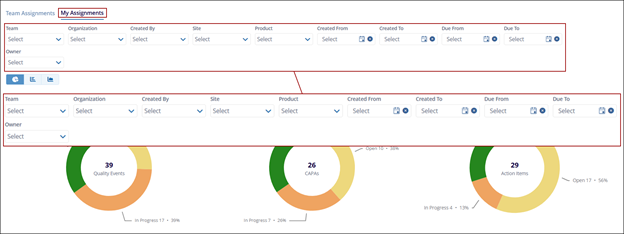
- The following filters can be applied to the Team Assignments tab to configure the data as
per the requirement.
- Team: Expand the Team dropdown and select a team to view only the records assigned to that specific team.
- Organization: Expand the Organization dropdown and select an organization to display records associated with the chosen organization as defined during record creation.
- Created By: Expand the Created By dropdown and select one or more users to filter and display records created by those users.
- Site: Expand the Site dropdown and select a site to view records assigned to that specific site as specified during record creation.
- Product: Expand the Product dropdown and select a product to display records associated with that product as defined during record creation. The dropdown lists all products configured under QMS Settings > Field Values > Product.
- Created From and To: Expand the Created From and Created To dropdowns and select the required date range.
- Due From and To: Expand the Due From and Due To dropdowns and select the desired date range.
- Owner: Expand the Owner dropdown and select one or more record owners to filter
the dashlet based on ownership.
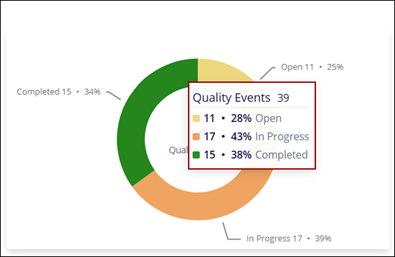
- Hovering the mouse over the chart displays the count and percentage of overdue records of
assignments based on their status and corresponding color:
- Overdue
- Open
- Pending
- In Progress
- Completed
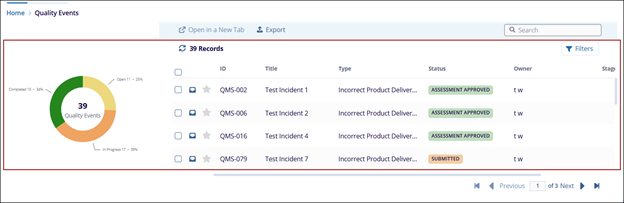
- Clicking on the chart displays the Team Assignment Records next to it, showing information
related to the selected Team.
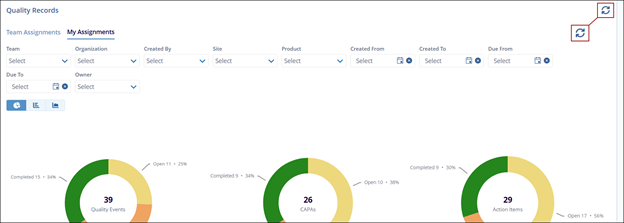
- The Refresh icon updates the displayed data, ensuring the latest information is shown
based on the current selections.
© 2025 Trial Interactive. All Rights Reserved

