
Form Fields Management
Add Form Fields
To add form fields, follow the steps below:
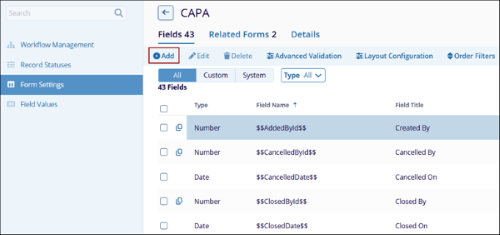
- Navigate to the ‘Fields’ tab of a form, e.g., CAPA, and click on the +Add
button.
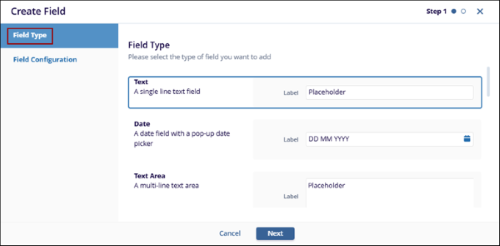
- On the Create Field form, select a Field Type from the available options and
click on the Next button.
- Text: A single-line text field.
- Date: A date field with a pop-up date picker.
- Text Area: A multi-line text area.
- Rich Text: A multi-line text area that can contain formatted text.
- Number: A field that contains only a number.
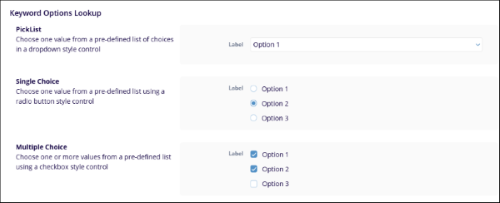
- Keyword Options Lookup
- Picklist
- Single Choice
- Multiple Choice
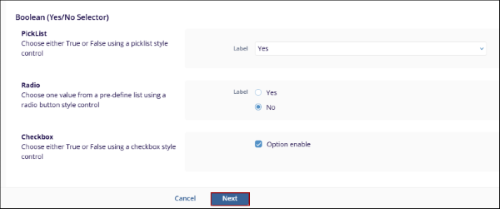
- Boolean (Yes/No Selector)
- Picklist
- Radio
- Checkbox
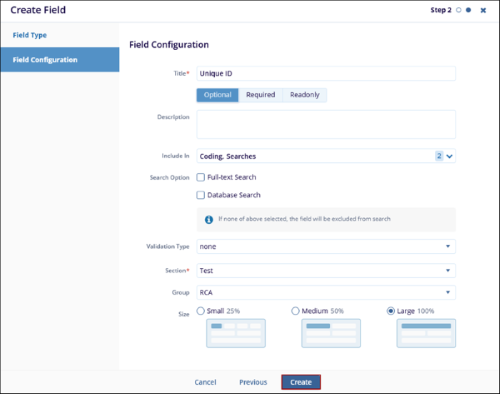
- On the Field Configuration step, configure the following fields.
- Title*: Provide a title to the field.
- Field behavior: Select whether the field should be Optional, Required, or Read-Only.
- Description: Add a relevant description to the field.
- Include In: Select Coding, Grid, and Searches from the dropdown.
- Search Option (if Searches is selected in ‘Include In’ field): Select
either Full-Text Search or Database Search or both by clicking on the
checkboxes. Note: If no option is selected, this field is excluded from the search.
- Validation Type: Select the validation type from the available dropdown options, i.e., Alpha, Alpha-numeric, Alpha Configurable, or Range.
- Section* (if ‘Coding’ is selected in the Include In field): Select an option from the dropdown list.
- Group (if ‘Coding’ is selected in the Include In field):
-
Size: Select either Small, Medium, or Large.
- Once the necessary details are configured, click on the Create button.
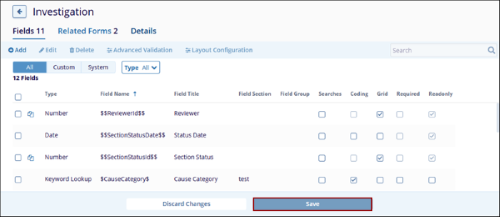
- Click on the Save button on the Fields tab.
Edit Form Fields
To edit form fields, follow the steps below:
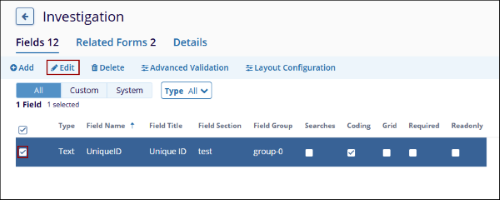
- Select a field to edit from the Fields tab and click on the Edit button.
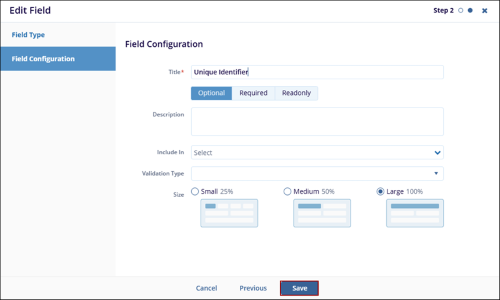
- On the Edit Field form, make the required edits in the Field Type and Field
Configuration steps and click on the Save button.
Delete Form Field
To delete a form field, follow the steps below:
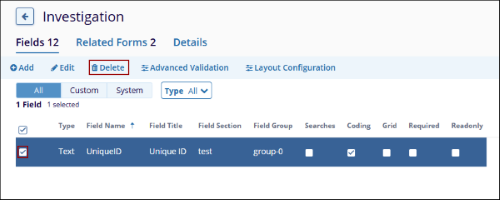
- Select a field to delete from the Fields tab and click on the Delete button.
© 2025 Trial Interactive. All Rights Reserved

