
Visit Attendees
On the Visit Attendees screen, users can add and edit new as well as existing attendees,
Create New Attendee
To create a new attendee, follow the steps below.
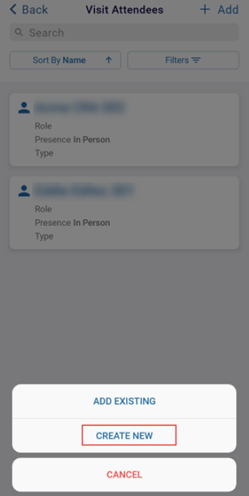
- On the Visit Attendees screen, click on the +Add button and select the CREATE NEW
option.
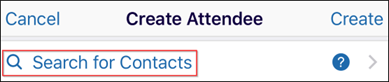
- Click on the Search for Contacts.
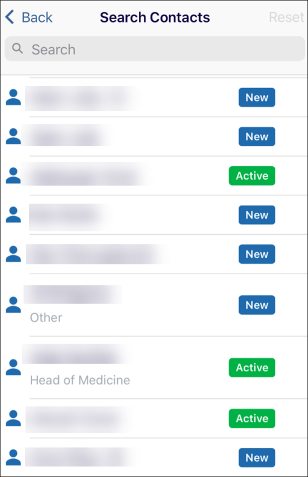
- Select a name from the list. The user is navigated back to the create attendee screen,
where the fields are auto-populated.
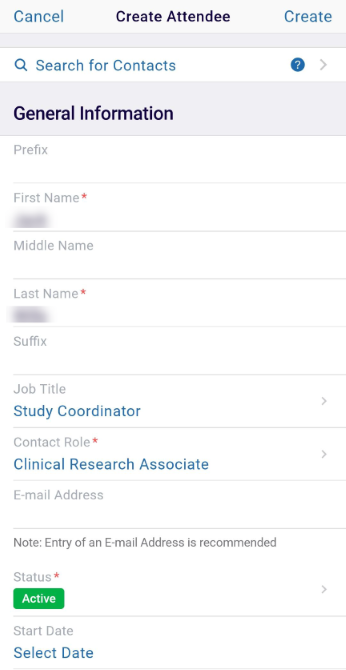
- In the General Information screen, fill in the mandatory details highlighted with the red
asterisk mark.
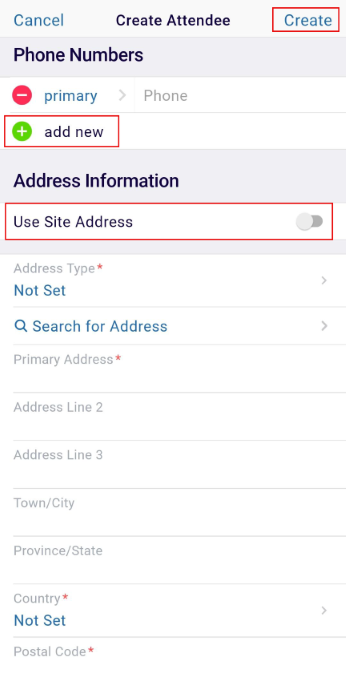
- Optionally enter the Phone Numbers by clicking on the +add new button.
- Enable the Use Site Address toggle switch to use the site address instead of adding new address details.
- If the toggle switch is disabled, enter the mandatory information highlighted with a red asterisk mark in the Address Information section.
- Click on the Create button once the necessary details are entered.
Add Existing Attendee
To add an existing attendee, follow the steps below.
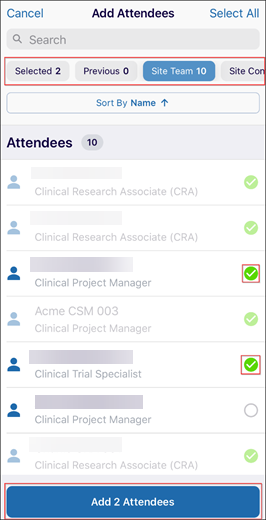
- On the Visit Attendees screen, click on the +Add button and select the ADD EXISTING option.
- On the Add Attendees screen, toggle between the tabs below the search box and select the required attendees. Attendees that are already selected are disabled with a green checkmark.
- Click on the Add (number of attendees) Attendee(s) button.
Sort and Filter
To Sort and Filter the attendees list, follow the steps below.
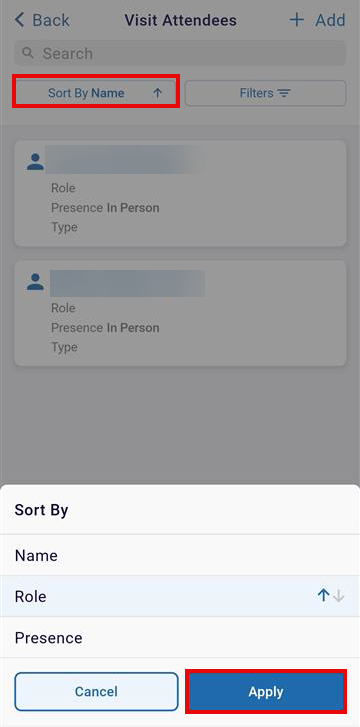
- On the Visit attendees screen, click on the Sort By tab.
- Select either Name, Role, or Presence as the Sort criteria.
- Click on the Apply button.
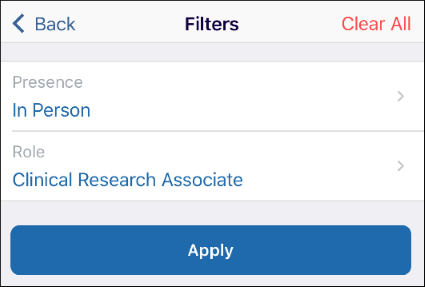
- Click on the Filters tab which displays the following two options.
- Presence
- Role
- Click on the Presence filter and select the required option from the available
list.

- Click on the Role filter and select the roles from the available list.
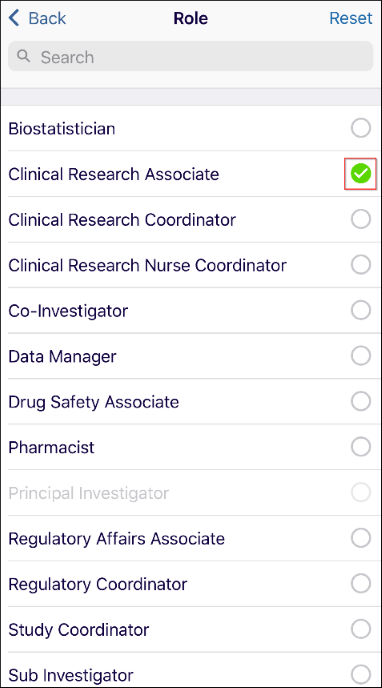
- Click on Apply once the filters are added or select Clear All to remove the filters.
© 2025 Trial Interactive. All Rights Reserved

