
Locations
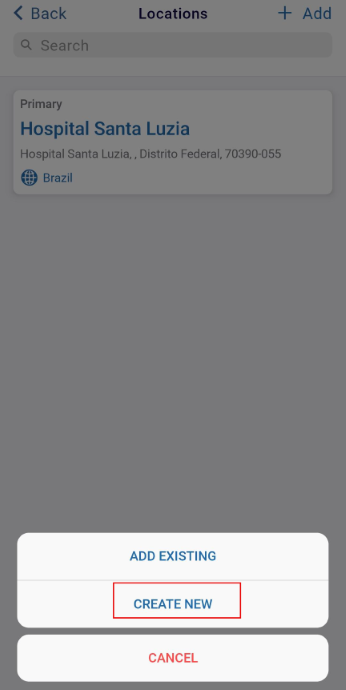
Select the locations tab on the Site Visit screen. On the Locations screen, users can create a new or add an existing location.
Add New Location
To add a new location, follow the steps below.
- On the Locations screen, click on the +Add button and select the CREATE NEW
option.
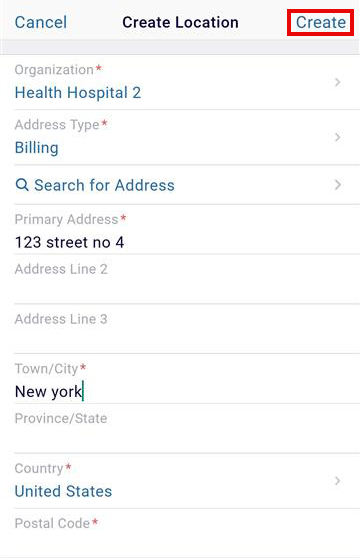
- Fill in the mandatory details on the Create Location screen and click on the Create
button.
Add an Existing Location
To add an existing location, follow the steps below.
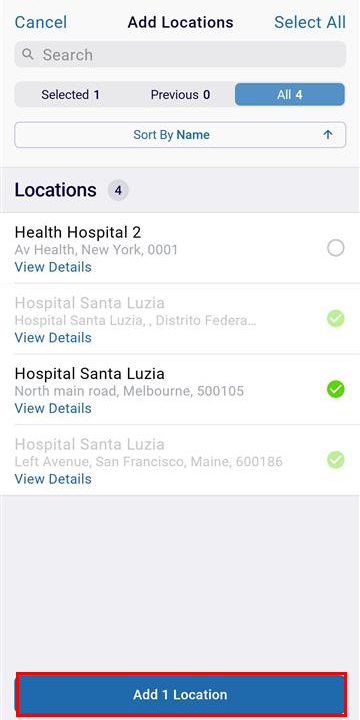
- On the Locations screen, click on the +Add button and select the ADD EXISTING option.
- Toggle between the tabs to select the required locations.
- Click on the Add (number) Location (s) button.
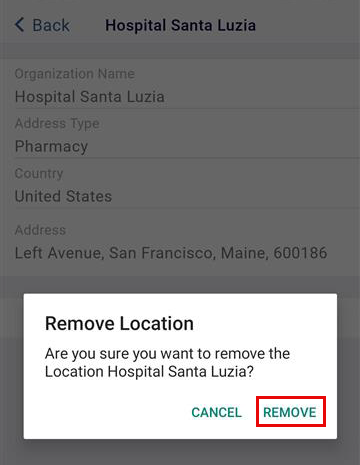
Remove a Location.
To remove a location, follow the steps below.
- Click on a location to remove. This opens the location details page.
- On the Locations’ Details page, click on the Remove button.
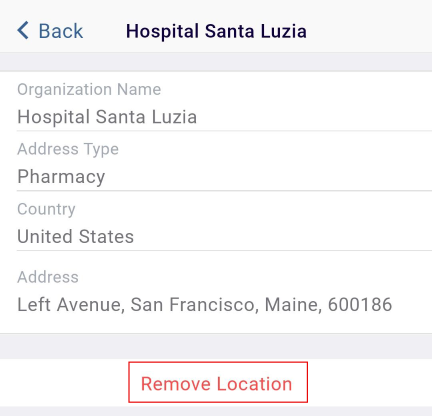
- On the Remove Location confirmation popup, click on the Remove button.
© 2025 Trial Interactive. All Rights Reserved

