
Create a Learning Plan
Explore Job Aids and Videos for more help:
Job Aids
Videos
When creating Learning Plans, it is recommended to have the courses created and include them in the learning plan before creating a training group.
To create a learning plan, follow the steps below.
- Navigate to the Company Dashboard page and select the Manage Learning Plans module.
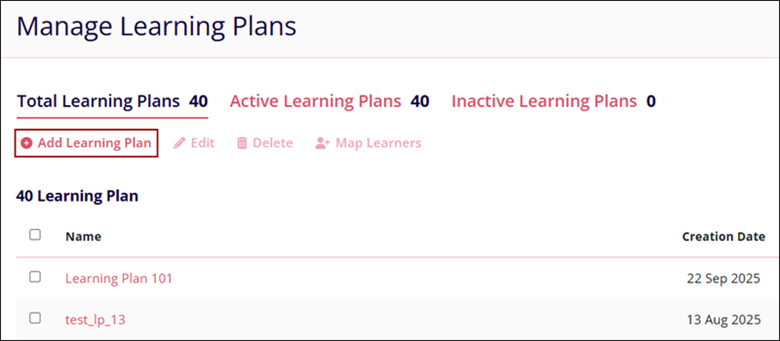
- Click on the +Add Learning Plan button from the top menu bar on the Manage Learning
Plans screen.
- Fill in the following details on the Create a Learning Plan screen and click on the
Save button.
Field Description Learning Plan Full Name* Enter a suitable name for the learning plan Learning Plan Short Name* Enter a short name/abbreviated name for the learning plan. Status* Select either Active or Inactive Include Issue Certificate Enable the toggle switch to include the issue certificate option. Site Training Learning Plan Enable the toggle switch if the learning plan is a site training learning plan. Study Select one or multiple studies from the available dropdown options. Intended Site Role Select one or multiple site roles from the available dropdown options. Description Provide a suitable description of the learning plan, if required. Learning Plan Picture* Drag and drop or manually upload a picture for the learning plan. It is possible to select a picture from the Picture Library. 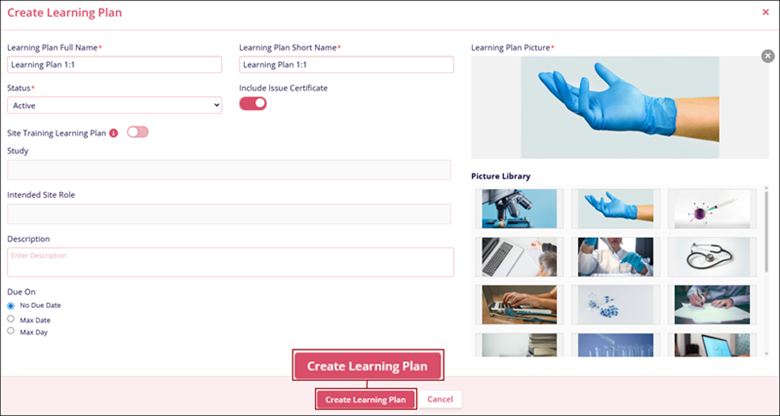
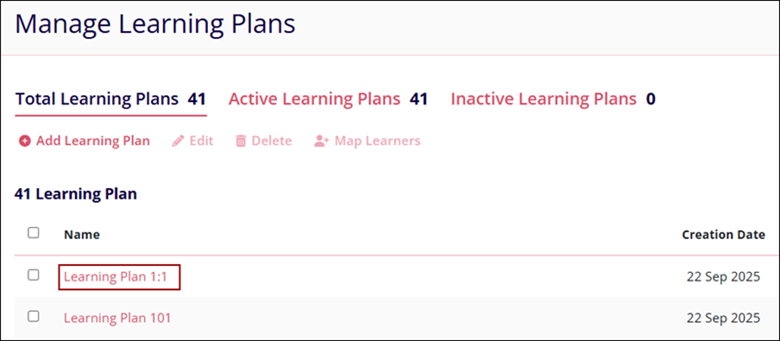
- Click on the hyperlinked learning plan name on the Manage Learning Plans screen.
- Click on the +Add Step button and mandatorily enter the Title* for Step 1.
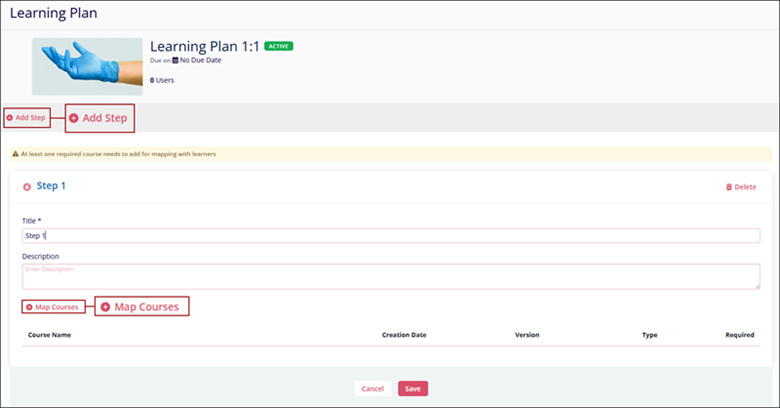
- Click on the +Map Courses to add courses to the learning plan.
- Click on the Submit button once the necessary courses are added.
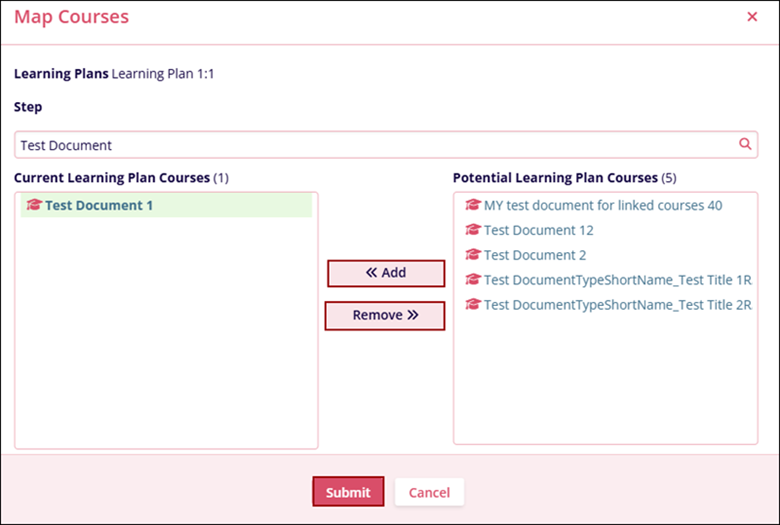
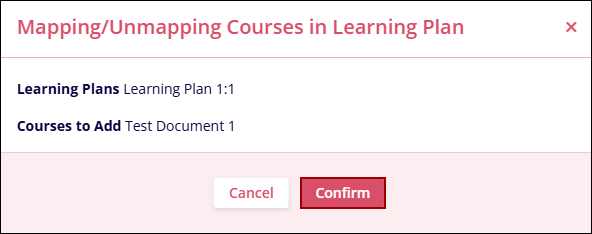
- Click on the Confirm button on the Mapping/Unmapping Courses in the Learning Plan
confirmation popup.
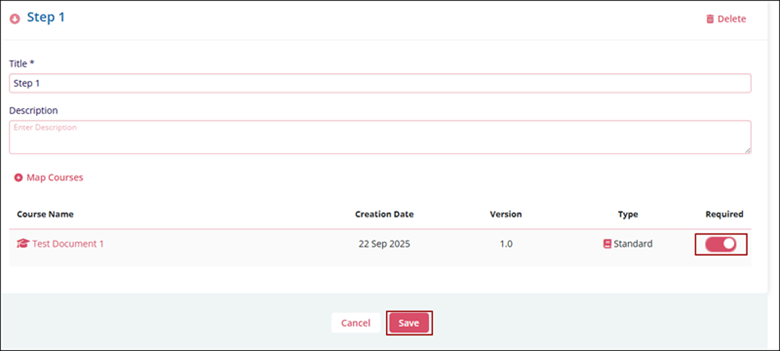
- On the Learning Plan screen, enable the toggle and make a course required to be able to
map the learning plan with learners and click on the Save button.

TransPerfect’s Trial Interactive is an industry leader in practical, global eClinical innovation
PRODUCTS
 Linkedin
 X
X
Didn’t find what you need?
Our dedicated Project Management and Client Services team will be available to meet your needs
24 hours a day, 7 days a week.
Toll Free:
(888) 391-5111
help@trialinteractive.com
© 2025 Trial Interactive. All Rights Reserved

