
Approve or Reject
The supplementary forms that are published can be approved and rejected by the manager. Follow the steps below to approve or reject a supplementary form.
- Select a user/recipient that displays the status Responded, Viewed in the Response Status column.
-
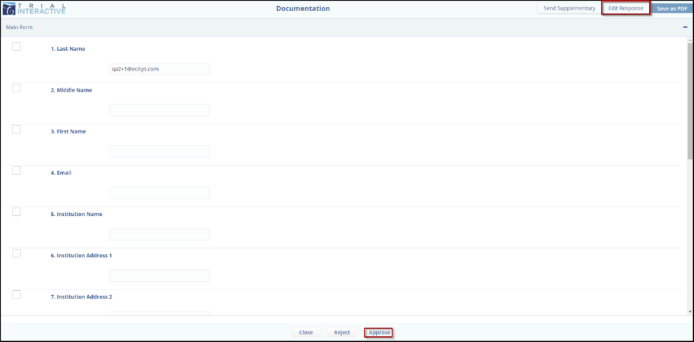
The form opens in a new tab with the options – Close, Reject and Approve buttons at the bottom of the screen.

- Click the Edit Response button displayed at the top right corner to enable the fields for entering your responses.
- Notice that the Edit Response button is changed to the Update Response button.
- Enter the required answers in the fields and click the
Update Response button displayed at the top right
corner.
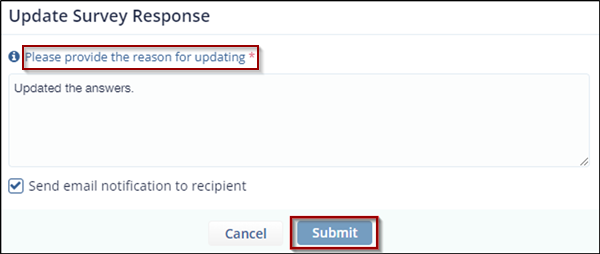
- The Update Survey Response pop-up window is displayed. Enter a reason for
updating the answers.
Note: This field is marked with an asterisk (*).
- (Optional) The user can select the checkbox of – Send
email notification to recipient. Click Submit.
- A pop-up window is displayed – The responses are updated, and the updated responses are reflected in the form. Refer to the screenshot below.
-
Click the Approve or Reject button as required, displayed at the bottom of the screen.
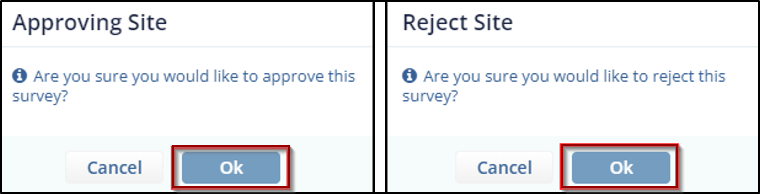
- Click OK in the Approving Site pop-up window.
- A notification is displayed - Survey has been approved.
- Navigate back to the Form Overview page and click the
Refresh icon to view the status as Approved or
Rejected in the Approving Status column.

© 2025 Trial Interactive. All Rights Reserved

