
Creating and sending a Query
- Select the Sites module and click on the name of the Site.
- On the Site Details page, click the Documents.
- Select the Document and go to the Queries tab in the Quick view panel. The Create
Query button should be displayed in the Queries section.
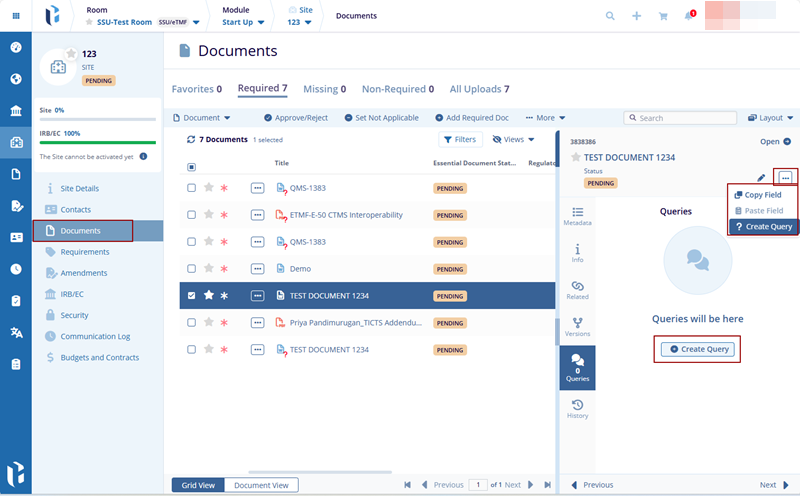
- Click the Create Query button. In the Email
pop-up window, fill in the Required action and click the
Create & Send button.
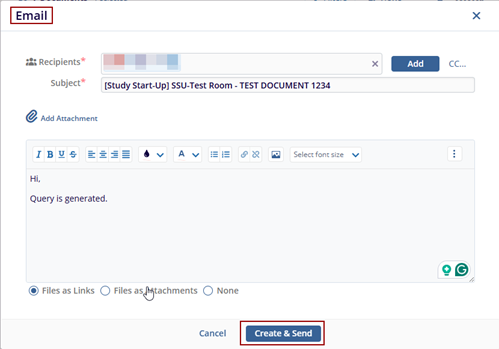
- User should see the pop-up text message, Send Email, Email was sent successfully.
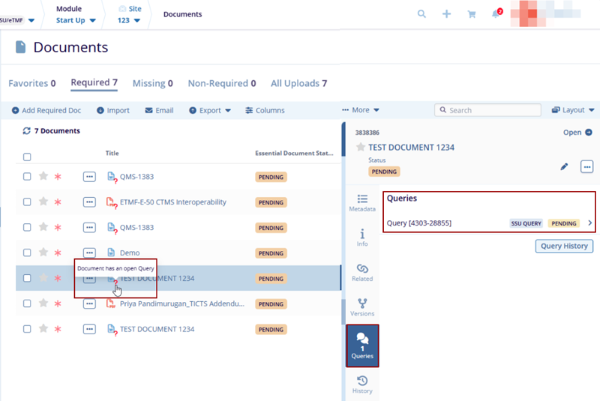
- Refresh the page, and the newly created query should be displayed with Pending
Status in the Queries tab in the quick view panel, and the Query Icon should be displayed
near the Document icon in the grid view.
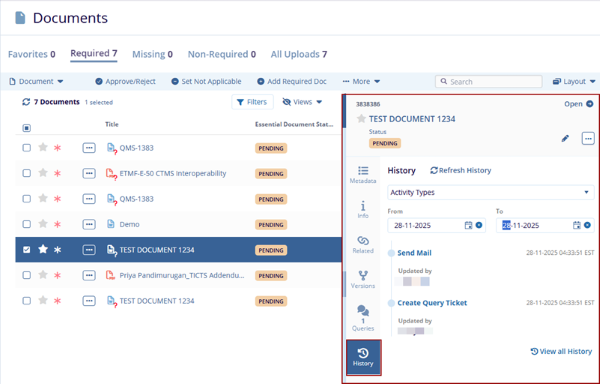
- The History tab in the quick view panel displays the Query Creation and Send Mail
records.
© 2025 Trial Interactive. All Rights Reserved

