
Add Filter
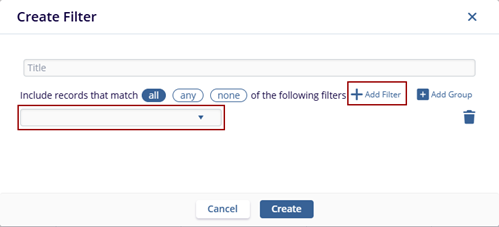
- Click the +Add Filter option. The empty field populates on the page.
- Select a filter option by accessing the dropdown.
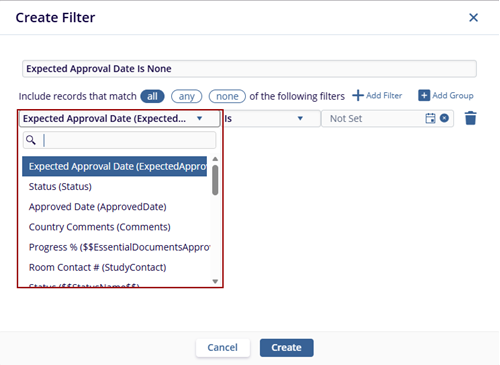
- Select an operator from the available dropdown list.
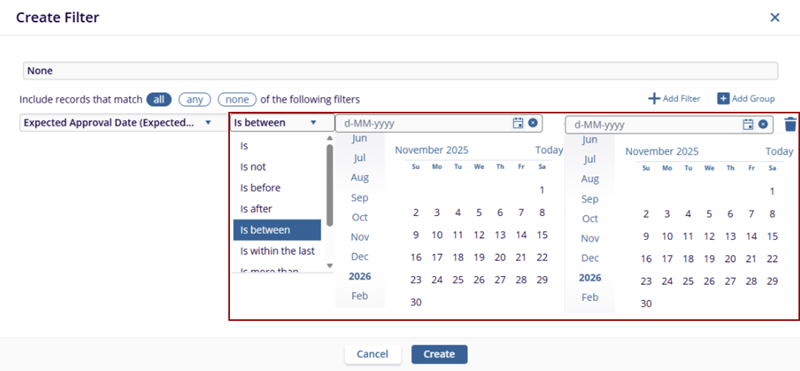
- Based on the selected operator, other fields such as "Equal"
and "Not Set" will be populated accordingly.
-
Click the Create button.
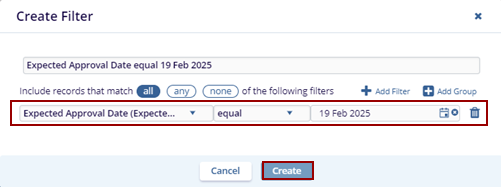
Note: The other two dropdown menu options i.e., logical operator and criteria change as per the option selected in the first dropdown menu.
- The created filter is displayed in the Grid Pane.
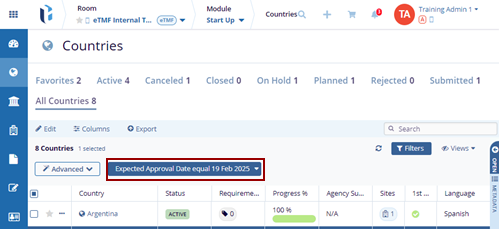
- Click on the filter dropdown to Select, Edit, or Delete the
filter.
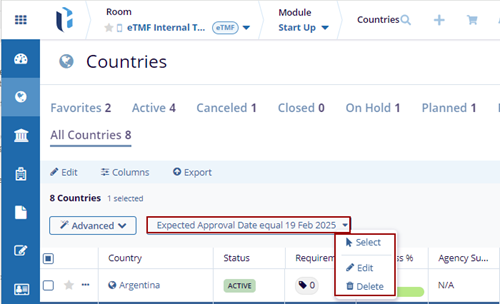
- Select – displays the countries added based on the created filter.
-
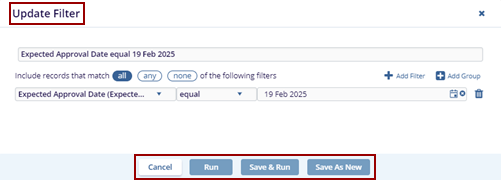
Edit – displays the Update Filter pop-up window to edit the created filter.
Additionally, the Cancel, Run, Save & Run, and Save As New buttons are displayed at the bottom of the Update Filter pop-up window.
- Run – This filter will be replaced in the current view without saving. The user must save the view separately by clicking on save view.
- Save & Run – These filter changes will be saved and then get updated in the current view.
- Save As New – These filter changes will be saved as the new view and the original filter will be replaced by what’s in the current view.
-
Cancel – The created filter disappears from the grid view.
© 2025 Trial Interactive. All Rights Reserved

