
Reports
Users can generate tailored reports using both predefined report options and ad-hoc reporting tools. Company Admins can further configure permissions and create custom groups to provide specific users with controlled access to reports.
Manage Permissions
To manage permissions and generate a report, follow the steps below.
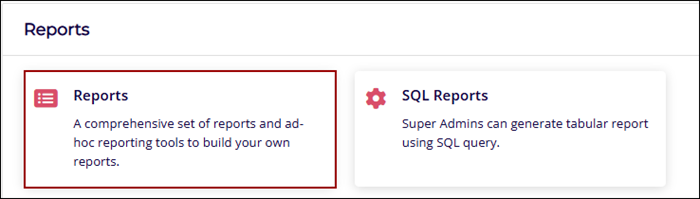
- From the left-hand navigation pane, select Company Dashboard > Reports >
Reports.
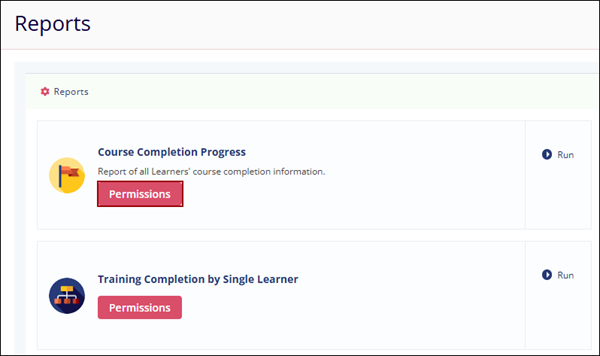
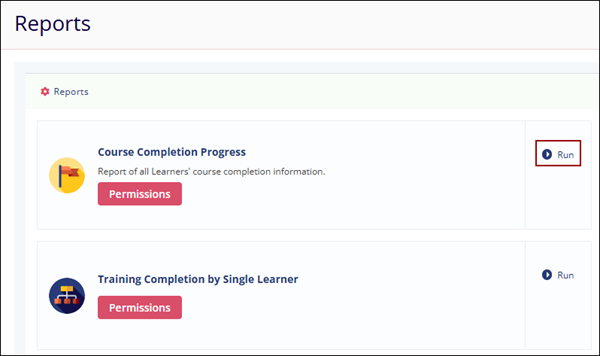
- Click the Permissions button for a report.
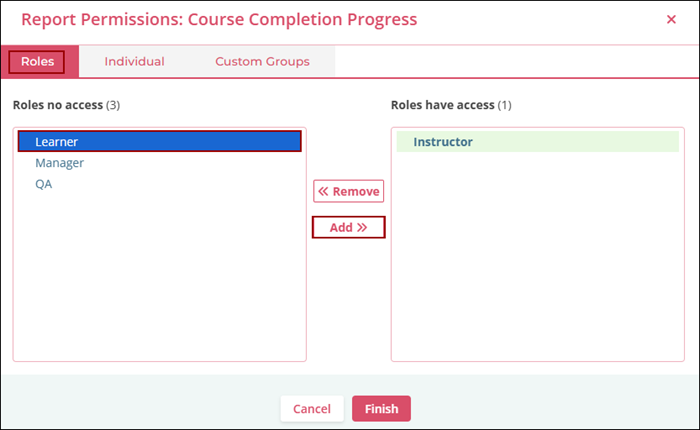
- To configure role-based permissions, click on the ‘Roles’ tab, select the user roles, and
click on the ‘Add >>’ button.
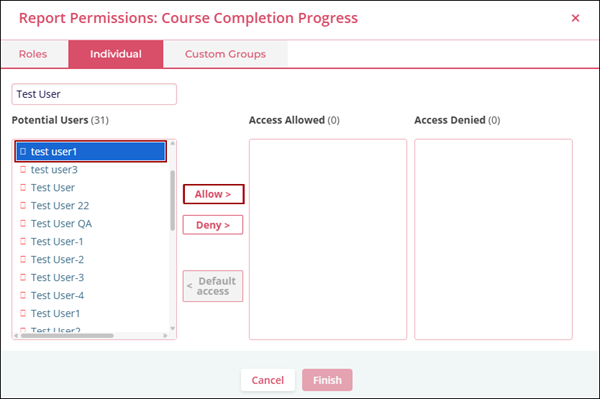
- To configure permissions for individual users, click on the ‘Individual’ tab, select the
user’s and click on the ‘Allow >’ button.
- Once permissions are configured, users can open the Reports module and select Run
to generate the report.
Create Custom Groups
To create custom groups, follow the steps below.
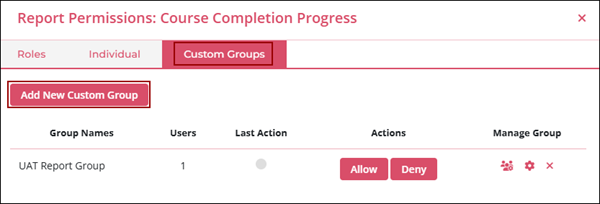
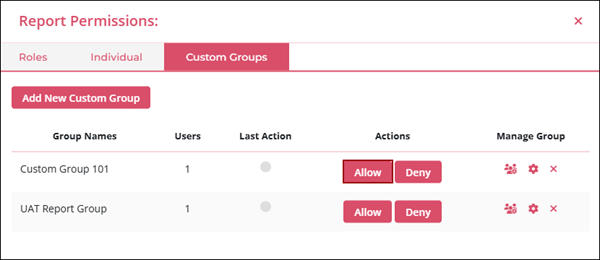
- On the Report Permissions modal, select the Custom Groups tab.
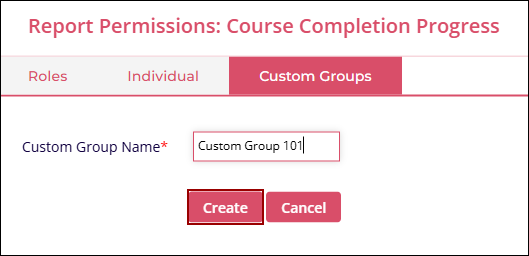
- Enter the Custom Group Name and click on the Create button.
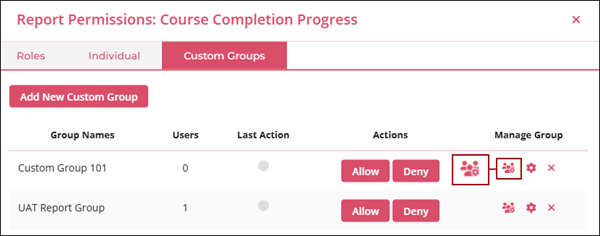
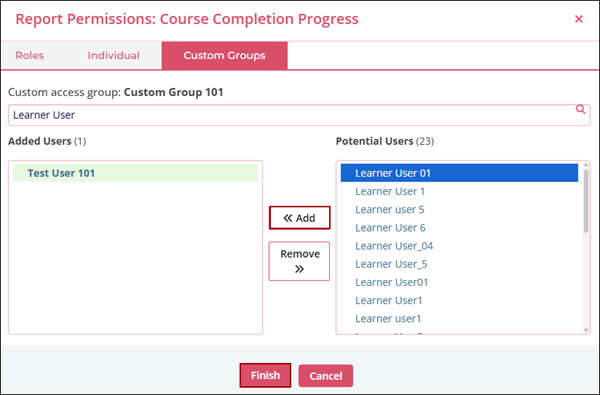
- Click on the Manage Group User icon.
- Select the users from the Potential Users list and click on the <<Add button.
- Click on the Finish button.
- Click on the Allow button to grant the reports module access to the users added to
the group.

TransPerfect’s Trial Interactive is an industry leader in practical, global eClinical innovation
PRODUCTS
 Linkedin
 X
X
Didn’t find what you need?
Our dedicated Project Management and Client Services team will be available to meet your needs
24 hours a day, 7 days a week.
Toll Free:
(888) 391-5111
help@trialinteractive.com
© 2025 Trial Interactive. All Rights Reserved

