
Generate Report Preview
Explore Job Aids and Videos for more help:
Job Aids
Videos
To generate a Site Visit Report Preview, follow the steps below.
- Navigate to the Site Visit General Information screen by following the steps detailed in the Site Visit Navigation section and select the Visit General Information.
- Update the Report Status to In Progress
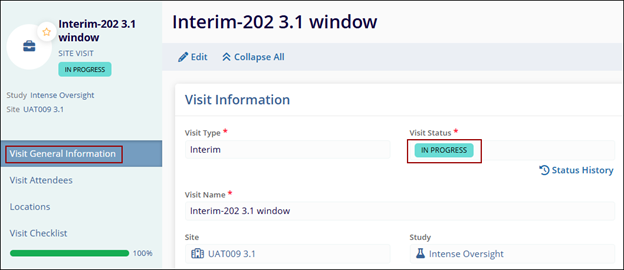
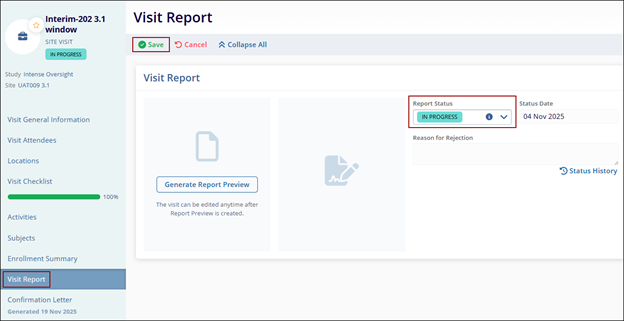
- Click on the Visit Report link and update the Report Status to In Progress.
- Click on the Save button.
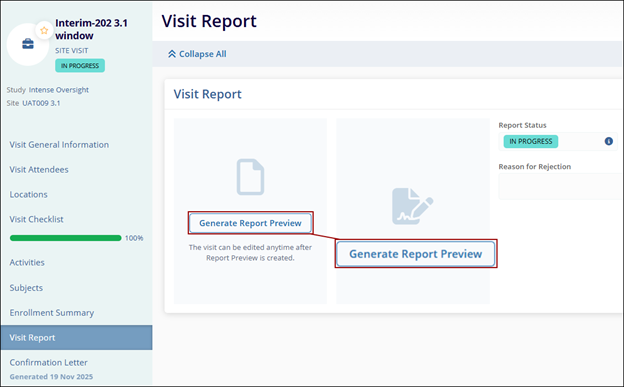
- Click on the Generate Report Preview button.
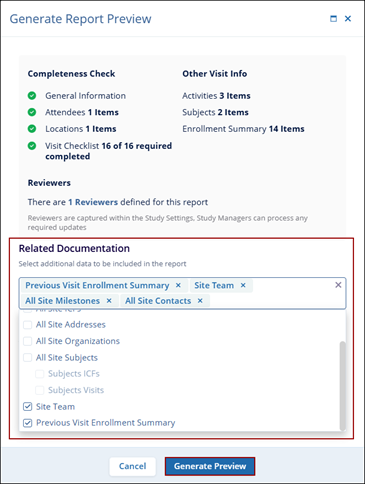
- On the Generate Report Preview window, select the additional data from the dropdown options.
- Click on the Generate Preview button.
-
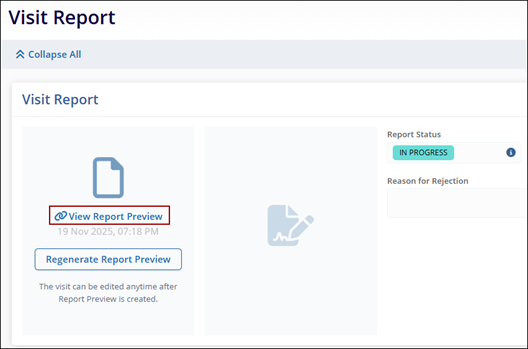
Once the report is generated, click on the View Report Preview button.
Important
- The site visit owner can indicate whether enrollment statistics from the previous visit should be included in the site visit report.
- When the ‘Previous Site Visit’ field is completed in the visit’s general information, the system automatically populates the referenced previous visit in the report.
- Users can change or select a different previous visit than the one specified in the Previous Site Visit field, as the referenced visit may differ from the default selection.
© 2025 Trial Interactive. All Rights Reserved

