
Enrollment Summary
To access the Site Visit Enrollment Summary, follow the steps below.
- Navigate to the Site Visit General Information screen by following the steps detailed in the Site Visit Navigation section and click on the Enrollment Summary link.
- On the Enrollment Summary screen, click on
+Add
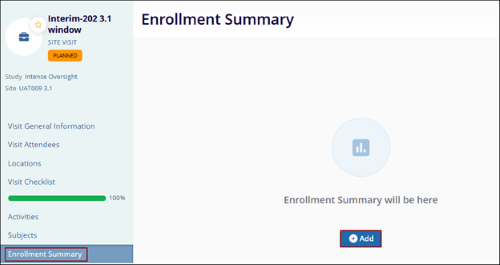
- Select the required Statuses and click the Add <number> Statuses.
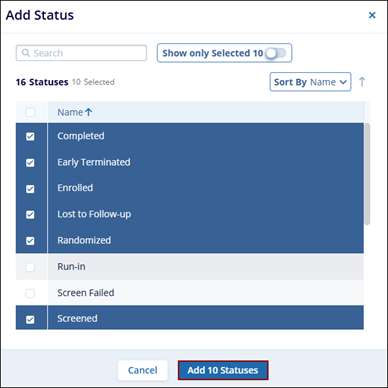
-
To edit the enrollment summary status, select a status and click Edit from the top menu bar.

-
Disable the Calculated by System toggle and manually enter the subject count.
-
Click Save.

-
To delete a status, select a status and click Delete from the top menu bar.
-
Click Remove on the confirmation pop-up.

Important
- The enrollment summary statistics are calculated based on the Site Visit Completion Date, meaning only subject statuses up to that date are considered.
- As a result, any changes made to a subject’s status at the visited site after the visit completion date will not be automatically reflected in the Enrollment Summary section of the Site Visit.
- If different information is required that what is auto-calculated based on the dates, users can disable the ‘Calculated by System’ option and manually enter data.
© 2025 Trial Interactive. All Rights Reserved

