
Question Categories
To create categories, follow these steps:
- Click Categories from the left side menu bar. The Categories dashboard opens, displaying two sections: Question Categories and Form Types.
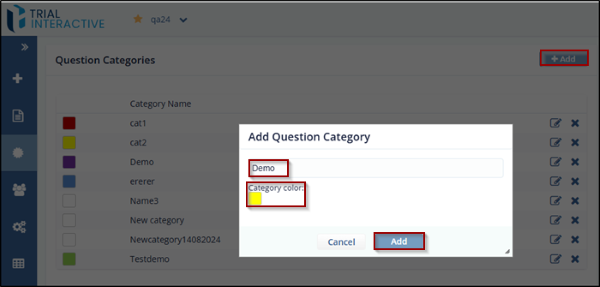
- In the Question Categories section, click the Add button. The Add Question Category dialog box opens.
- Enter the Question Category name. The user can also assign a color to the category.
- To select a color, check the Category Color checkbox. This opens the Color Picker.
- Choose a color from the Color Picker, then click OK.
- You are returned to the Add Question Category dialog box, where the selected color is now shown in the Category Color checkbox.
- Click Add to add the new Question Category to the list.
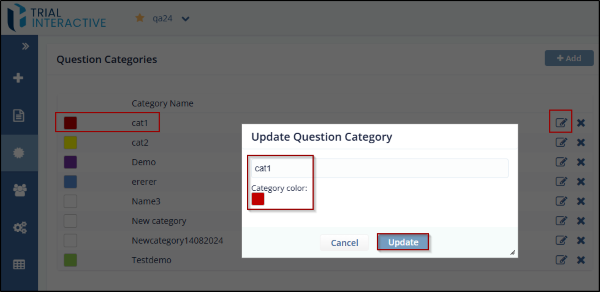
- To update an existing category, click the Edit icon next to the category name. The Update Question Category dialog box opens.
- Modify the Title and/or Color as needed, then click Update to save your
changes.
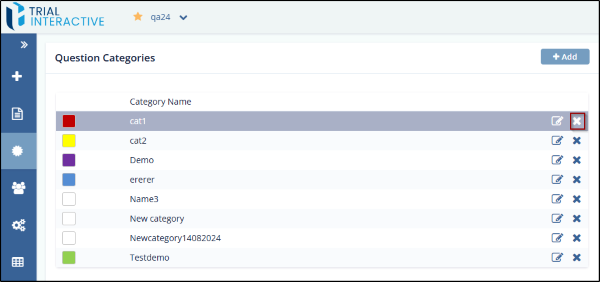
- To remove a category, click the Delete (cross)
icon next to the category name. The category is removed from the
list.
© 2025 Trial Interactive. All Rights Reserved

