
Contact Settings
Contact Settings tab allow you to define custom contact fields that can be used to map form questions to contact information when creating a new form. These fields can also be mapped when importing a new or existing survey from a source file.
To create Custom Contact Fields, follow:
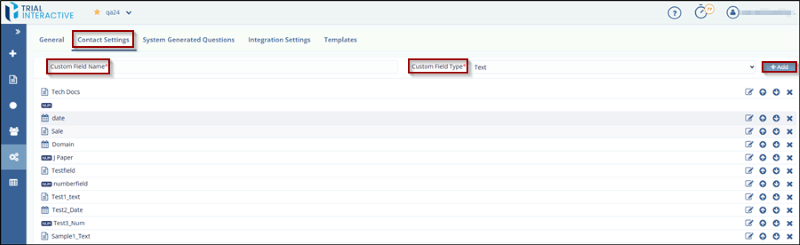
- From the Settings menu, click Contact Settings.
- The Contact Settings tab displays two fields:
- Custom Field Name: A textbox to enter the name of the custom field.
- Custom Field Type: A dropdown to select the field type (Text, Date, or Number).
- Enter the desired field name in the Custom Field Name textbox.
- Select the appropriate field type from the Custom Field Type dropdown list.
- Click the Add button next to the Custom Field Type field to add the custom
field to the list.
Edit Custom Field
To Edit Custom fields, follow these steps:
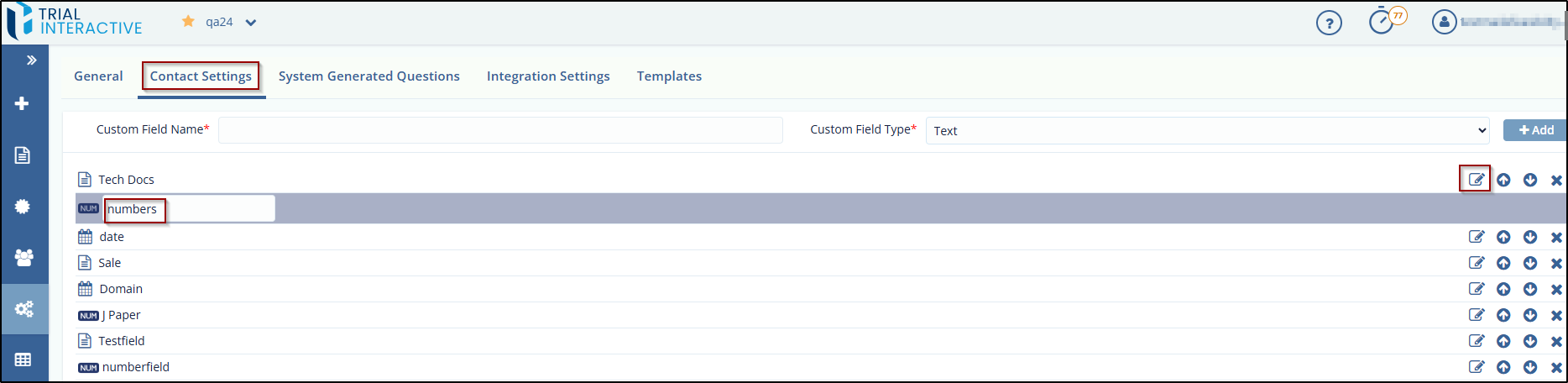
- Click the Edit icon next to the field to edit the Custom Field Name to make it editable.
- Enter the new name and hit Enter on the keyboard. The changes made to the field are saved.
Change Sequence of Custom Field
To change the sequence of Custom Field, follow these steps:
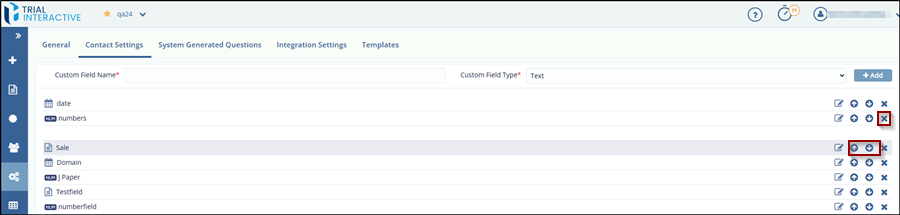
- Click the Up and Down Arrows to change the sequence of the Custom Fields. You can also drag-and-drop the field to the required position.
- Click the Cross icon to remove the Custom Field from the list.
© 2025 Trial Interactive. All Rights Reserved

