
Sign a Document
To sign a document, follow the steps below:
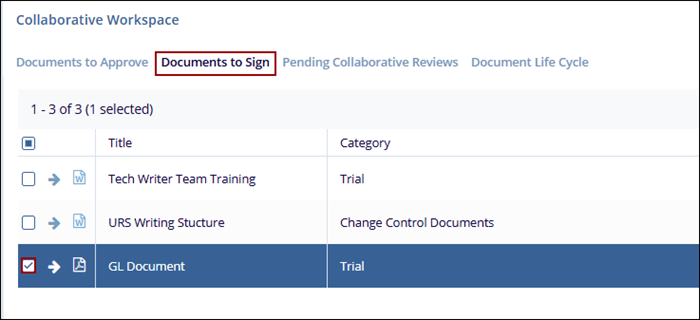
- Navigate to the Documents to Sign tab within the Collaborative Workspace dashlet.
- Select the document to eSign and click on the arrow.
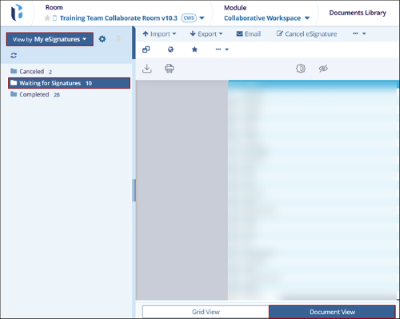
- The Document View opens by default with the My eSignature view applied and the
Waiting for Signatures folder selected.
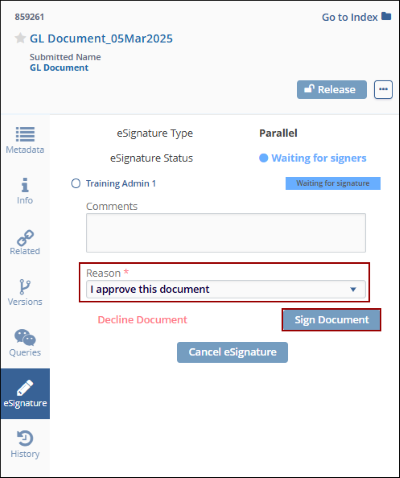
- Select the eSignature tab in the metadata panel and enter a reason from the available dropdown options.
- Click on the Sign Document button.
- A login window will open, enter the Email* and Password*.
.png)
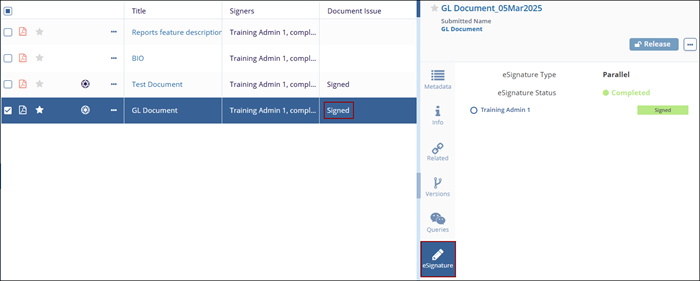
- Once the document is signed successfully, the metadata panel
displays the status as Completed and the Document Grid displays the
status as Signed.
- The signed documents can be located in the Completed folder within the Document Life Cycle view.
© 2025 Trial Interactive. All Rights Reserved

