
Site Visit Checklist Templates
Explore Job Aids and Videos for more help:
Job Aids
- How to Create a Checklist Template
- How to Publish a Checklist Template
- How to Retire a Checklist Template
- How to Export a Checklist
Videos
Company Administrator users can create, edit, and retire site visit checklists rather than needing to channel all requests through the Trial Interactive Service Desk.
Creating a Site Visit Checklist
To create a Site Visit Checklist, follow the steps below
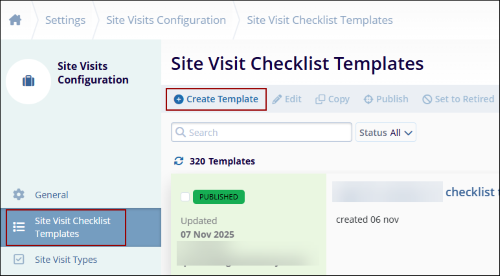
- Navigate to the side menu bar and select Settings > Site Visit Checklist Templates.
- Click on the +Create Template button at the top of the grid area.
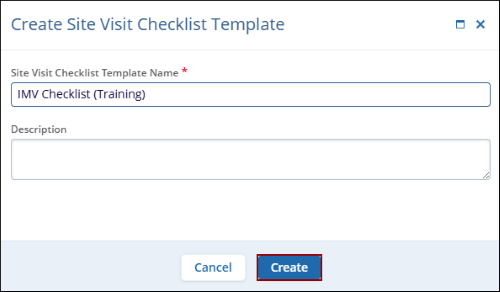
- On the Create Site Visit Checklist Template screen, mandatorily enter the
following details
- Site Visit Checklist Template Name*
-
Description
- Click on the Create button.
Note:
- Providing a description is recommended whenever possible, especially when multiple similar checklist templates may exist. The description helps in ensuring that the correct checklist is applied when needed.
- The checklist will initially remain in Draft status, as questions still need to be added before it can be published for use.
Edit Site Visit Checklist Template
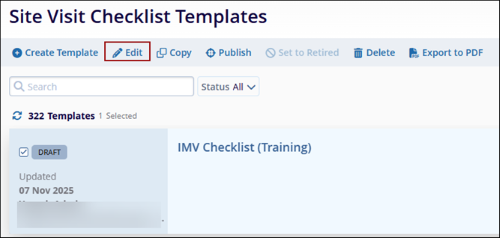
- Select the new checklist template from the list.
- Click Edit from the menu bar at the top of the
grid.
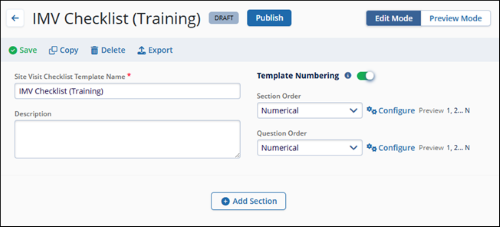
- On the site visit screen, make the required edits to the section title and description.
- Using the toggle switch, indicate if the sections and questions in the checklist should be ordered and, if so, whether the ordering should be alphabetical or numerical.
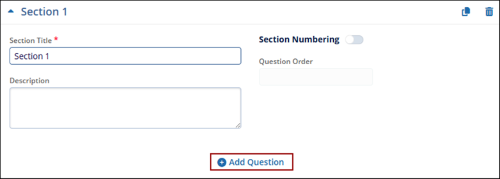
- Press the +Add Section button and a new section box will appear.
- Give the section a title and a description.
- Press the +Add Question button in the new
section.
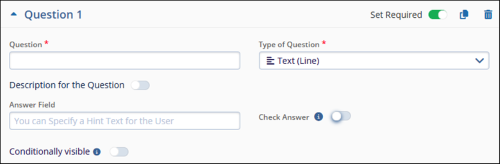
- Type in the question and select the type of question from the dropdown menu.
- Continue adding sections and questions until the checklist is complete.
- Enable the Set Required toggle switch to make the question mandatory.
- Optionally, enable the Conditionally visible toggle to show the question only when a
specific answer is selected.
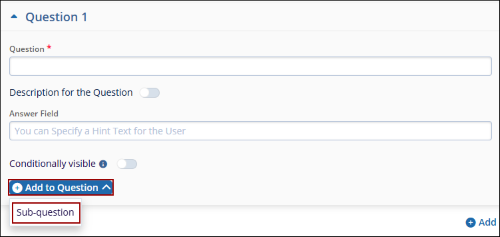
- Click on the Add to Question button to add a sub question.
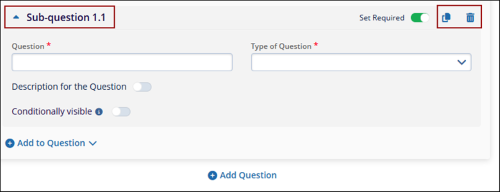
- Fill in the necessary details in the sub-question section
- Click on the Duplicate button to make a copy of the question.
- Click on the Delete button to remove the question.
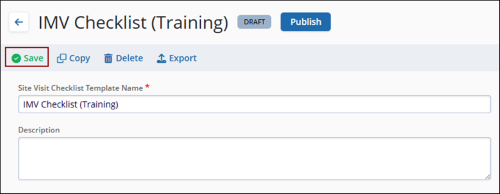
- Click on the Save button from the top menu bar.
Copying a Site Visit Checklist
To copy a site visit checklist, follow the steps below:
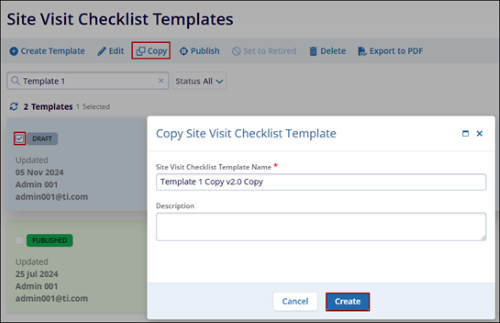
- Select a Visit Checklist Template and click on the Copy button from the top menu bar.
- On the Create Site Visit Checklist Template enter the details and click on the
Create button.
Publishing a Site Visit Checklist
To Publish a Site Visit Checklist Template, follow the steps below
- Navigate to the Settings area and select the Site Visit Checklist Templates option from the navigation links at the left side of the screen.
- Select the checklist from the list displayed.
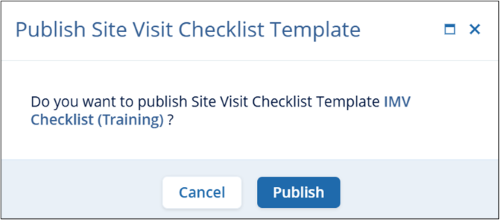
- Press the Publish button in the menu bar at the top of the screen.
- Click Publish on the confirmation popup.
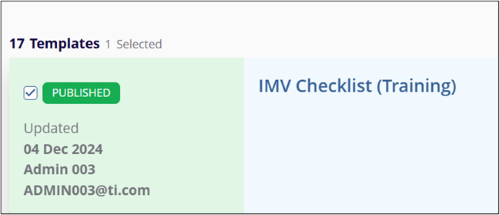
- The checklist will be displayed with the Published status in the list.
Retiring a Site Visit Checklist
To Retire a Site Visit Checklist Template:
- Navigate to the Settings area and select the Site Visit Checklist Templates option from the navigation links at the left side of the screen.
- Click on the checklist name from the list displayed.
- Click the Set to Retired button in the menu bar at the top of the screen.
- On the confirmation popup, click on the Set Retired button.
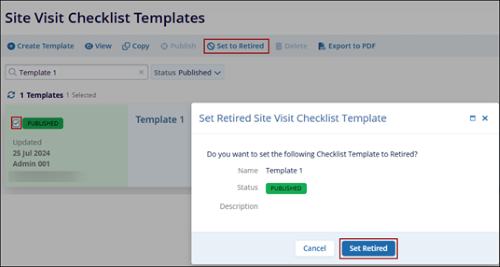
- The checklist will be displayed as Retired.
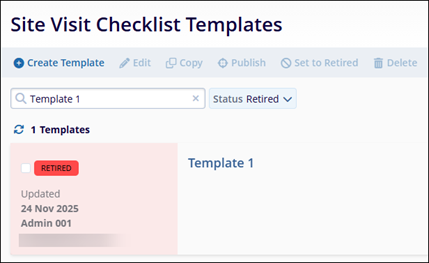
Note: Once a Site Visit Checklist has been retired, it cannot be
re-published. It is recommended to copy the checklist and publish the new copy to use the
checklist again.
Deleting a Site Visit Checklist
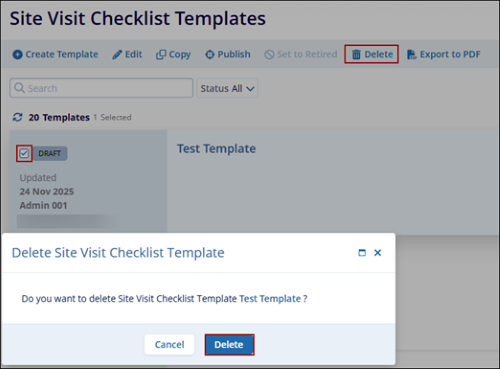
To Delete a Site Visit Checklist Template, follow the steps below
- Navigate to the Settings area and select the Site Visit Checklist Templates option from the navigation links at the left side of the screen.
- Select the checklist from the list displayed.
- Click on the Delete button in the menu bar at the top of the screen.
- On the Delete Site Visit Checklist Template confirmation popup, click on the
Delete button.
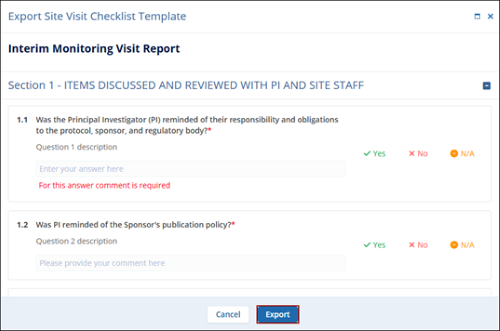
Export to PDF
To export Checklist details as a PDF, follow the steps below.
- Select a Checklist Template and click on the Export to PDF button.
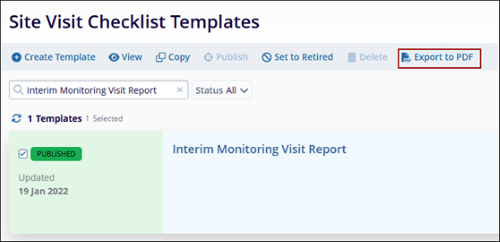
- Click on the Export button on the Export Site Visit Checklist Template.
© 2025 Trial Interactive. All Rights Reserved

