
Configure Records
Edit Record
To edit an external training record, follow the steps below:
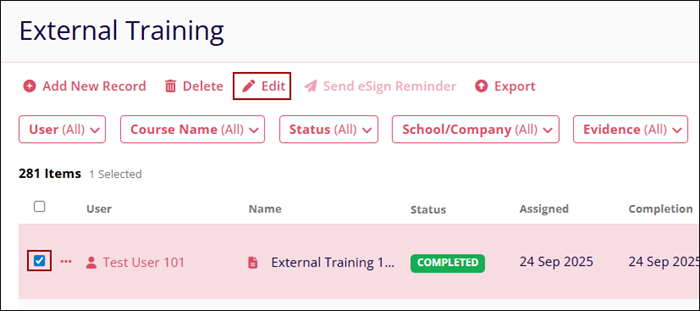
- Click on the user’s name checkbox to select the record.
- Click on the Edit button in the top menu bar.
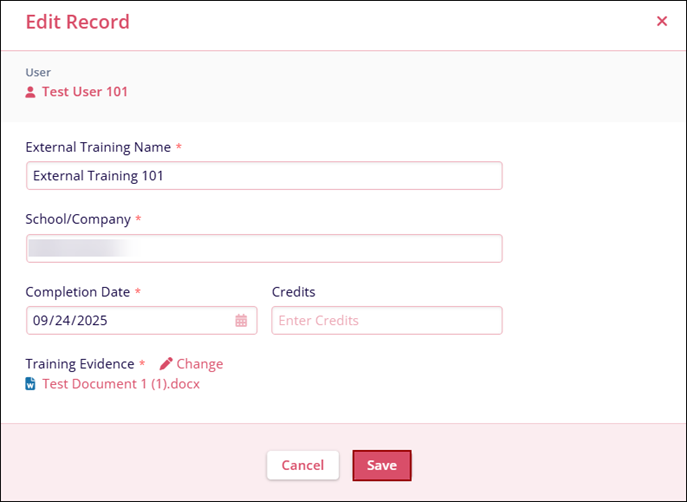
- On the Edit Record screen, make the required amendments and click on the Save
button.
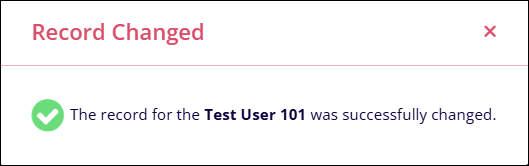
- Upon successful modification, the Record Changed confirmation popup displays
the corresponding message.
Delete Record
To delete a single record, follow the steps below:
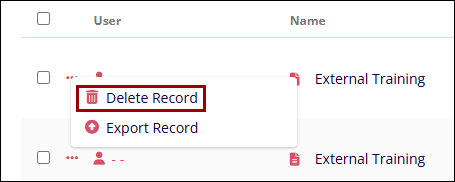
- Click on the horizontal ellipsis icon for the particular user and select the
Delete Record option.
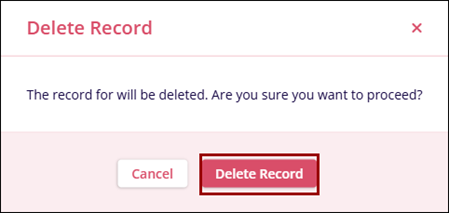
- On the Delete Record confirmation popup, click on the Delete Record button to
confirm the deletion.
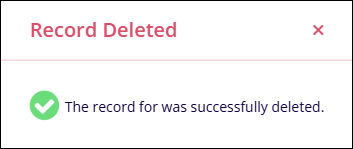
- Upon successful deletion, the system shows the success message in the Record
Deletion popup.
To delete multiple records, follow the steps below:
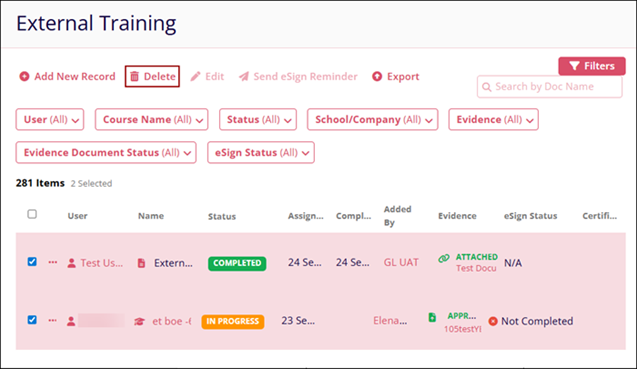
- Select the required number of records by clicking the user’s name checkboxes.
- Click on the Delete icon on the top menu bar.
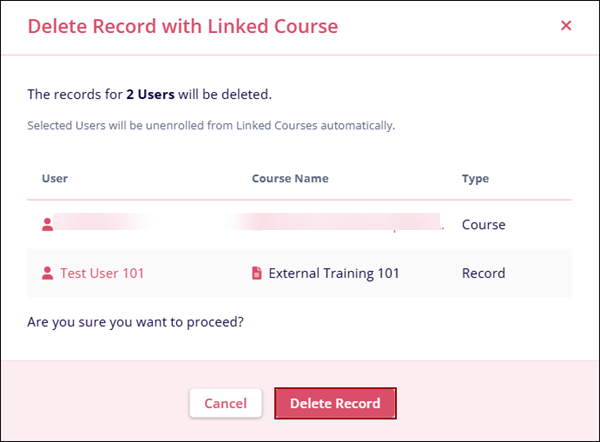
- On the Delete Records screen, click the Delete Record button to confirm the
deletion.
Export Records
To export an individual record, follow the steps below
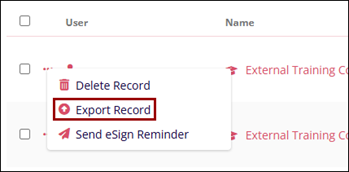
- Click on the horizontal ellipsis icon for the particular user and select the Export
option.
-
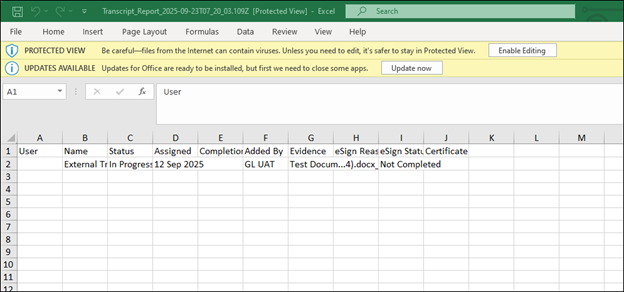
An Excel file gets downloaded on the local machine.
-
On the Transcript Record tab, an individual user's external training details can be viewed.
To export multiple records, follow the steps below:
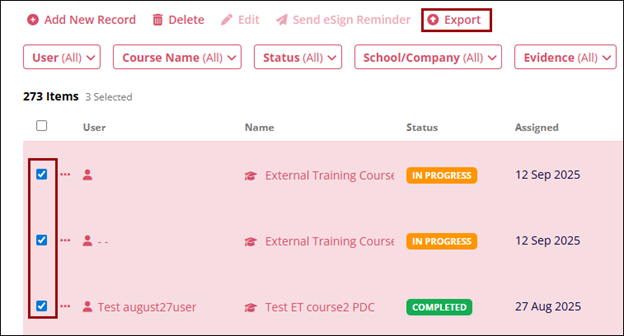
- Select the required number of records by clicking on the user’s name checkboxes.
- Click on the Export button from the top menu bar.
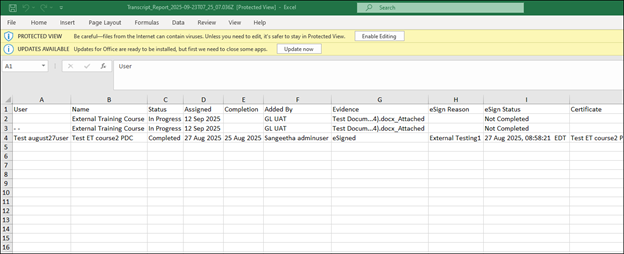
- An Excel file is downloaded on the local system.
- On the Transcript Record tab, an individual user's external training details
can be viewed.
© 2025 Trial Interactive. All Rights Reserved

