
Customize Programs Screen
Users can customize the programs screen by applying filters, searching for a specific program and marking a program as favorite.
Filters
To apply filters to the Program screen, follow the steps below:
- Click on the Status All Filter dropdown to select and apply the required filter
from the available dropdown options, and click Apply.
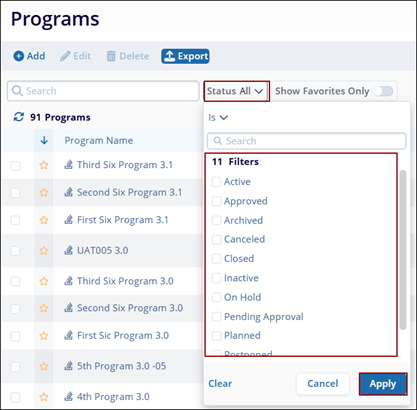 Note: By default, the Status filter is applied to the Program screen, and the dropdown options display all the statuses the user can select.
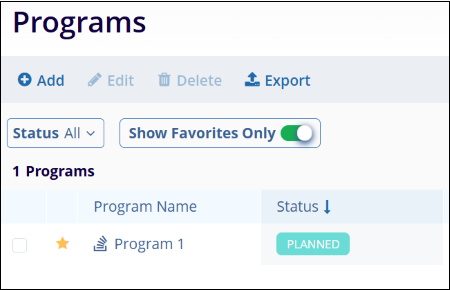
 - Switch the Show Favorites Only toggle button to display records marked as
favorites.
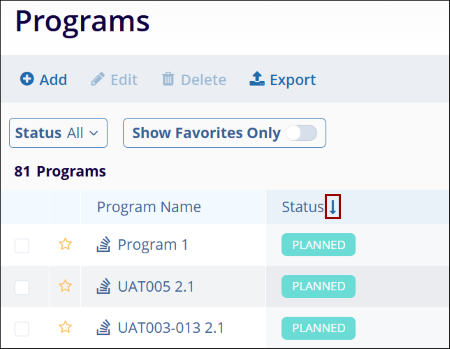
- Click on each header's Up and Down arrows to sort the columns in ascending and descending
order, respectively.
Mark Program as Favorite
To mark a Program as a favorite, follow the steps below:
- On the Programs screen, click on the star icon next to the Program Name.
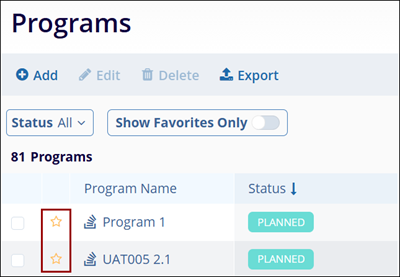
- Click on the same icon again to remove that Program from the favorites list.
© 2025 Trial Interactive. All Rights Reserved

